30 | Adjustment Accessories | 31
Normal indicates the name of a memory setting in
the
hearing aid. You can select from any memories
shown in
the list to change the hearing aid to that
memory setting.
Pairing Your Hearing Aid with an
Android Device
To adjust your hearing aid with your Android
™
device, you must pair the two together so they can
communicate. Please follow the instructions to pair
your device and your hearing aid.
1. Locate, then tap the Settings icon on your device.
2. Select Bluetooth.
3. In this screen, if Bluetooth appears Off, change
the settings to On. Then, turn your hearing aids
off and then back on (this puts your hearing aids
into pairing mode).
4. Under Paired devices you will see your first name
followed by hearing aid (e.g. Michelle H/As) when
the device first discovers the hearing aids. If your
name does not appear in the “Devices” list within
5–7 seconds, tap Accessibility in the upper left
corner, then tap Hearing Devices.
5. Tap the hearing aid name to connect each
hearing aid to the device.
6. Pairing is complete.
Accessories
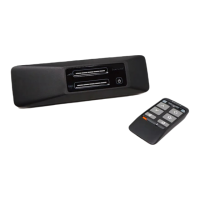
There are several accessories that allow you to control
and maximize the full potential of your hearing aids.
Available functionality includes:
• Ability to adjust your hearing aids using a
remote control
• Ability to transmit television audio directly to
your hearing aids
• Ability to transmit remote microphone audio
directly to your hearing aids
Consult with your hearing professional to determine
which accessories may be best for you.


 To Next Page