How to install GT Mini 3330
c.
Audio and video settings include:
o
Audio inputs and outputs
o
Features
o
Camera presets
Refer to Audio settings for Group Telepresence (p18).
4.
In Audio and video settings > Features, select the correct Video output mode. For one-
screen systems, select single screen. For two-screen systems, select dual screen.
5. In the dialing information section, you will see that the Portal has automatically
allocated a dialing address for this room system using autocomplete. This is an address
in the format <meeting_room_name>@<subdomain>.call.sl
This address format allows dialing from the Internet to this room system and we
recommend you do not alter this unless you have cause to do so.
6.
Click Apply. This causes the Portal to generate the QuickConnect code. You enter this
code on the touchscreen controller.
QuickConnect
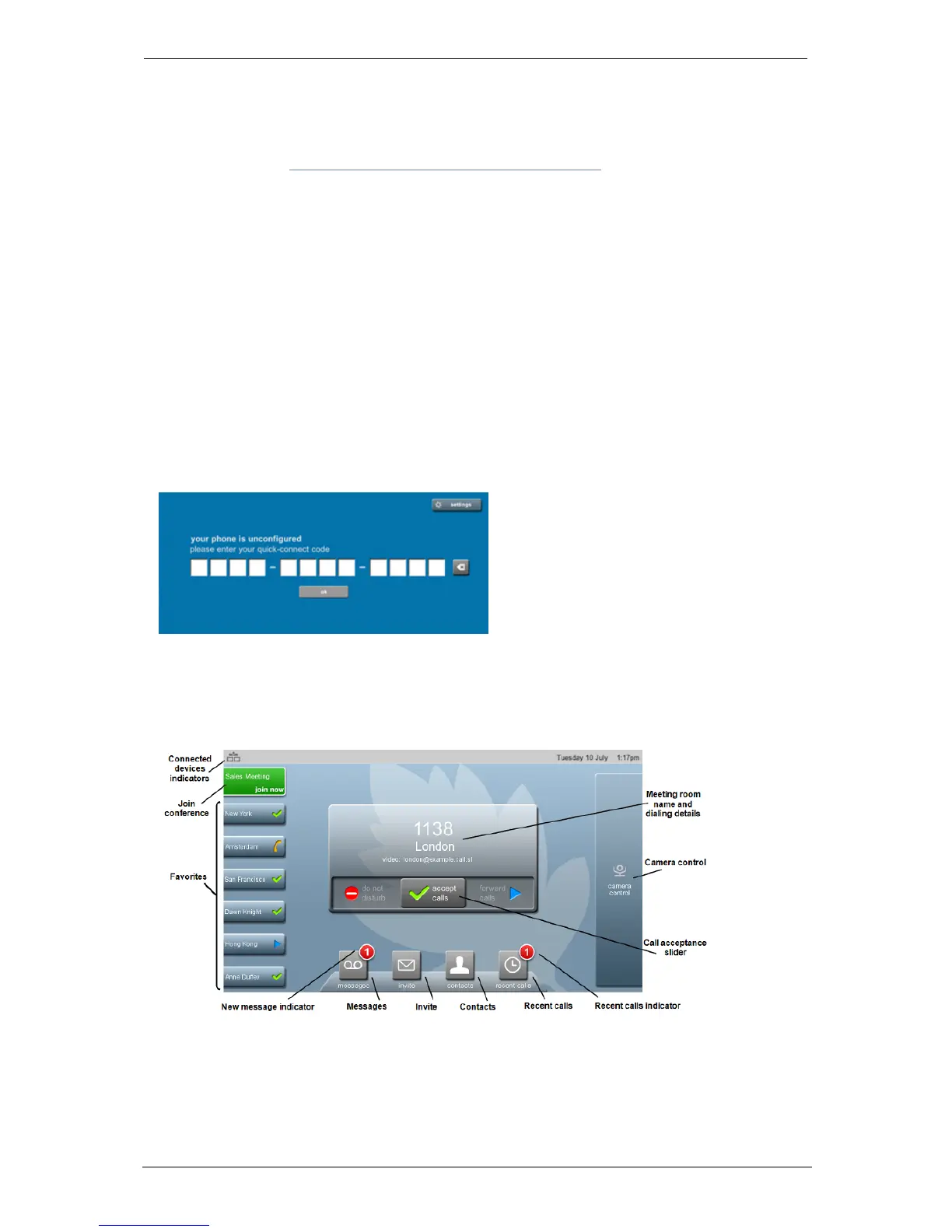
The touchscreen controller receives power from the Group Telepresence System. The first
time it starts up it displays the screen shown below. Enter your StarLeaf QuickConnect
code.
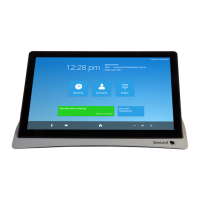
The touchscreen controller displays the meeting room name and extension number as
per your StarLeaf Cloud account. This is the home screen of the touchscreen controller.
The Group Telepresence System is ready to make and receive calls. An example home
screen is shown below.
Using the line-in connector
StarLeaf GT Mini, 01 February 2018 Page 12 of 31



 To Next Page