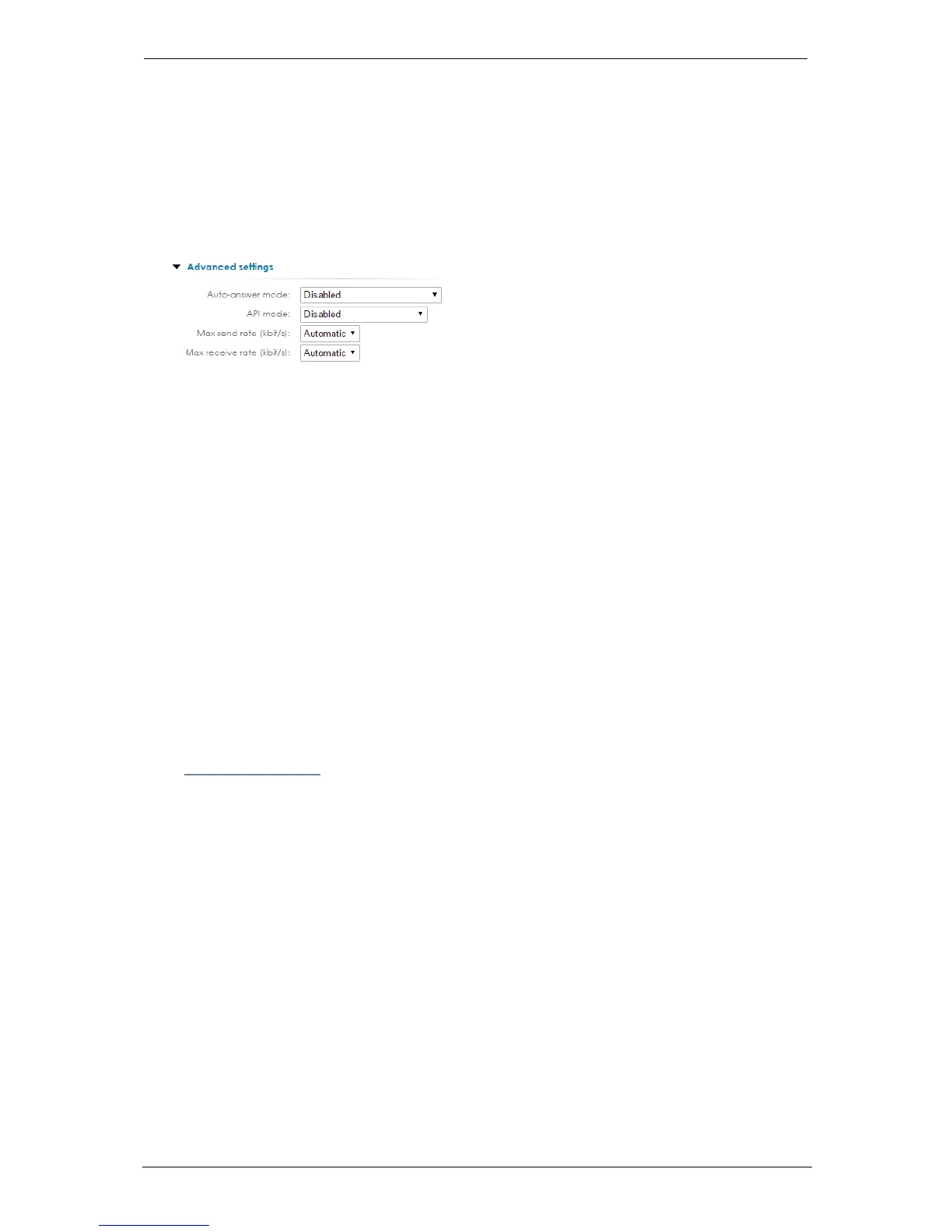
Advanced settings
Advanced settings
Depending on your StarLeaf account settings, you might be able to configure advanced
settings on the room system.
To see these settings, on the Portal go to Room systems and choose the room you want to
configure. Scroll down the Edit room system page to Hardware endpoint > Advanced
settings.
Auto-answer mode
You only see the Auto-answer mode option if your organization has specifically requested
it:
n Disabled: Incoming calls are not automatically answered
n Enabled: Incoming calls are automatically answered with no user intervention. StarLeaf
recommends that you do not use this option unless you have particular cause to do so
n Enabled - microphones muted: Incoming calls are automatically answered with no user
intervention. In this case, the microphones are muted. StarLeaf recommends that you
do not use this option unless you have particular cause to do so
API mode
If you have purchased the Endpoint Control API option from StarLeaf, you can enable the
API on each room system. You need to select whether you use the API over the serial
connection or instead use an IP connection. The APIis separately documented, refer to
the Knowledge Center.
Max send and receive rates
If specifically required, it is possible to set the maximum send and receive bit rates for
each room system. In this way, you can control bandwidth usage.
StarLeaf GT Mini, 01 February 2018 Page 20 of 31



 To Next Page