About the camera
About the camera
Before you install the camera, read the safety information in the documentation that
accompanies the camera.
The GT Mini can be used with either a PTZ (Pan, Tilt, Zoom) video conferencing camera or
with a supported USB camera.
For PTZ cameras, the required camera settings vary from camera to camera. Ensure the
camera is using the correct settings. You must refer to the documentation that
accompanies the camera to find out the settings for that particular camera.
PTZ cameras are supplied without a remote control as you control the camera with the
StarLeaf Group Telepresence system.
Camera control for the PTZ camera
The Camera Control tab on the home screen provides you with controls for the PTZ
camera. (You will not see these controls if you are using a GT Mini with a USB camera.)
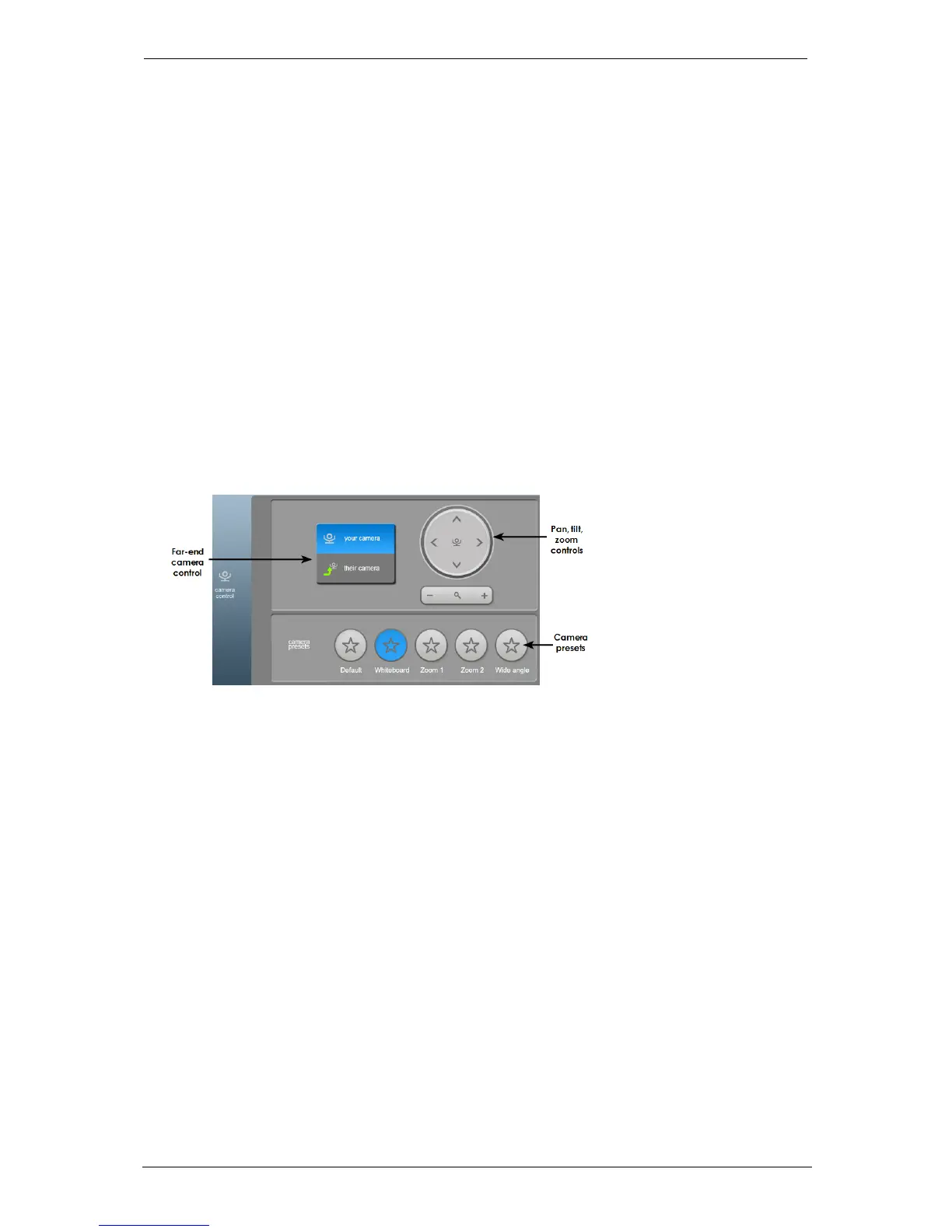
Camera control on the GT Mini 3330:
The near-end camera control allows you to pan, tilt, and zoom your camera. This control is
available both in a call and before you make a call. If the far end is using a PTZ camera,
you might be able to control it yourself using the far-end camera (their camera) control.
Camera presets are pre-defined camera positions. For example, a pre-defined position
that points the camera at the whiteboard, or that changes the camera to a wide-angled
view. Select the position you require from the touchscreen controller.
Camera presets
Camera presets allow you to save up to five pre-defined camera positions. Users can then
select these positions from the touchscreen controller.
To create camera presets:
1. Use the touchscreen controller to move the camera to the required position.
StarLeaf GT Mini, 01 February 2018 Page 15 of 31



 To Next Page