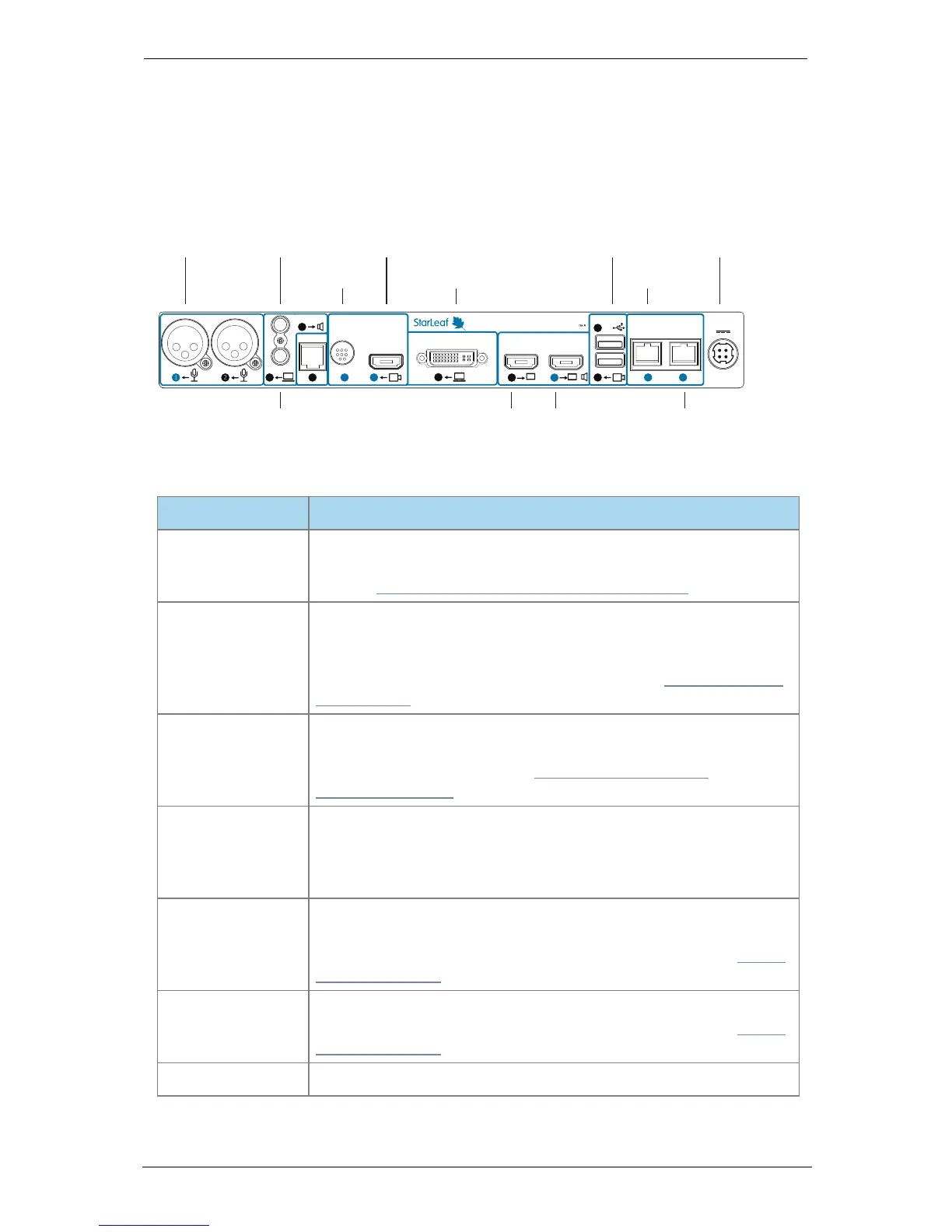
The table below describes the connectors:
Connector Description
Microphone
XLR-F connectors. Connect the microphone. You can alter the
power and gain settings of the microphone via the StarLeaf Portal
(refer to Audio settings for Group Telepresence (p18))
Audio line-in
3.5mm line level stereo audio connector. You can connect a line
level microphone source or input other audio, for example a
computer. In either case, ensure you have the correct settings for
audio in the Portal. For more information, refer to How to install GT
Mini 3330 (p9)
Audio line-out
3.5mm stereo audio connector. If required, you can connect to a
local loudspeaker system. You can alter the line-out audio settings
via the StarLeaf Portal (refer to Audio settings for Group
Telepresence (p18))
COM
This port is for a 4P4C connector providing an RS-232 interface. This is
the same connector used in RJ9, RJ10, and RJ22. There is both a
serial and an IP API option for the GT Mini and a StarLeaf Room
Systems API guide is available
Camera control
Mini-DIN-8 connector for controlling zoom, pan, and tilt using
VISCA™ protocol. You connect to this port if you are using a PTZ
video conferencing camera. For more information, refer to About
the camera (p15)
Camera input
HDMI connector. You connect to this port if you are using a PTZ
video conferencing camera. For more information, refer to About
the camera (p15)
Computer In
DVI-I connector. Connect a PC to share a desktop in a video call
StarLeaf GT Mini, 01 February 2018 Page 4 of 31



 To Next Page