The StarLeaf Room System (Touch 2045 / Huddle) is a touchscreen-controlled video conferencing system designed for meeting rooms. It facilitates joining and managing meetings, making calls, and sharing content, integrating with an organization's directory and supporting external calls and third-party conferencing services.
Function Description:
The core function of the StarLeaf Room System is to provide a seamless and intuitive interface for video conferencing. It allows users to:
- Join scheduled meetings: Users can join meetings directly from the home screen via a "Join now" button that appears ten minutes before a scheduled meeting. The system supports multiple concurrent meetings, allowing users to select which meeting to join.
- Join meetings by ID: For permanent meetings or those not explicitly invited to the room system, users can enter a meeting ID to join.
- Join third-party conferencing services: The system is capable of joining meetings on other standards-based conferencing platforms like Bluejeans, following specific instructions for StarLeaf meetings.
- Make calls: Calls can be initiated through three main methods:
- Contacts: Accessing the organization's directory to call individuals or other room systems.
- Recents: Viewing and calling from a chronological list of recent contacts and call history, with visual cues for made, missed, or rejected calls.
- Dialer: Dialing internal extensions, PSTN numbers, IP addresses, URIs, or third-party meeting addresses using a number pad or keyboard.
- Control in-meeting functions: During a call or meeting, users have access to various controls including muting/unmuting the microphone, adjusting camera view (on/off), adding participants, customizing screen layout, and hanging up.
- Share content: The system allows for instant content sharing from a laptop or PC by connecting it via provided cables (Pronto, HDMI, VGA, DVI-D). Content can be shared with both in-room participants and remote attendees.
- Manage participants: The "Manage" panel provides controls for recording meetings (if the organization has the solution), locking meetings to prevent new participants, muting/unmuting all participants, ending the meeting, and muting/removing individual participants.
- Customize screen layout: Users can adjust how they view participants and shared content on the room screen, including self-view options.
Important Technical Specifications:
While specific hardware specifications are not detailed in this guide, the system relies on a touchscreen controller for all user interactions. The room system integrates with cameras and screens, which have specific standby behaviors for power saving.
- Camera Standby: Cameras enter standby mode after one minute of inactivity.
- Screen Standby: Screens transition to a black standby display after five minutes of inactivity.
- HDMI Output Sleep/CEC: For administrators, there are portal settings to enable HDMI output sleep and/or CEC (Consumer Electronics Control) for power management.
- Touchscreen Controller Power Saving: The touchscreen backlight dims between 7 PM and 7 AM in the endpoint's local timezone, displaying a screen saver with the time. It will not dim for one hour after the last touch. During the day, the display dims after ten minutes of inactivity.
Usage Features:
- Intuitive Home Screen: The main user interface displays the current time, room information (name, internal extension, external video address, direct-dial number), and quick access buttons for Contacts, Recents, and Dialer.
- "Join now" Button: A prominent green button appears ten minutes before scheduled meetings, simplifying the joining process. Its behavior changes to grayed-out with "Next meeting at..." or "No upcoming meetings" when no immediate meeting is due.
- Multiple Meeting Management: When multiple meetings are scheduled, the system intelligently displays options, allowing users to select from a list if more than two are due.
- Directory Integration: Access to the organization's entire directory for easy calling.
- Call History: The "Recents" menu provides a chronological call history, aiding in quick redialing.
- Flexible Dialing: The "Dialer" supports various addressing formats, including internal extensions, PSTN numbers, IP addresses, URIs, and third-party meeting addresses.
- In-Meeting Controls: Comprehensive controls are available during meetings, including microphone mute/unmute, camera on/off, adding participants, and screen layout customization.
- Content Sharing: Easy content sharing from laptops/PCs via physical cable connections (Pronto, HDMI, VGA, DVI-D) with a clear "Start sharing" and "Stop sharing" indicator.
- Participant Management: The "Manage" panel offers advanced controls for meeting hosts, such as recording, locking the meeting, and individual participant management (mute/unmute, remove).
- Screen Layout Customization: Users can personalize their view of participants and shared content, including the option to toggle self-view on or off (affecting only the in-room display).
- Audio Output Control: Volume adjustment for the meeting room's output.
Maintenance Features:
While the guide does not explicitly detail maintenance procedures for end-users, it highlights features that contribute to the system's operational efficiency and longevity:
- Power Saving Modes: Automatic dimming of the touchscreen backlight and screen standby for cameras and displays help conserve energy and potentially extend hardware lifespan.
- Admin-Configurable Settings: The mention of HDMI output sleep and CEC settings accessible via the Portal for administrators suggests that system behavior can be optimized for specific environments, which can be part of a broader maintenance strategy.
- Software Updates (Implied): As with most modern conferencing systems, regular software updates would be expected to provide new features, bug fixes, and security enhancements, although not explicitly detailed in this user guide.
- Third-Party Software Acknowledgments: The inclusion of a section for third-party software acknowledgments and legal information indicates adherence to software licensing and transparency, which is a component of responsible system management.

 Need help?
 General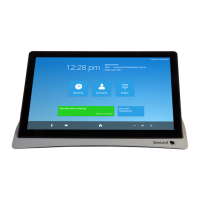

 To Next Page