Meeting controls and features
Open the More menu to access a touch tone keypad , and put the
call on hold
Change the output volume of your meeting by using the - and + icons
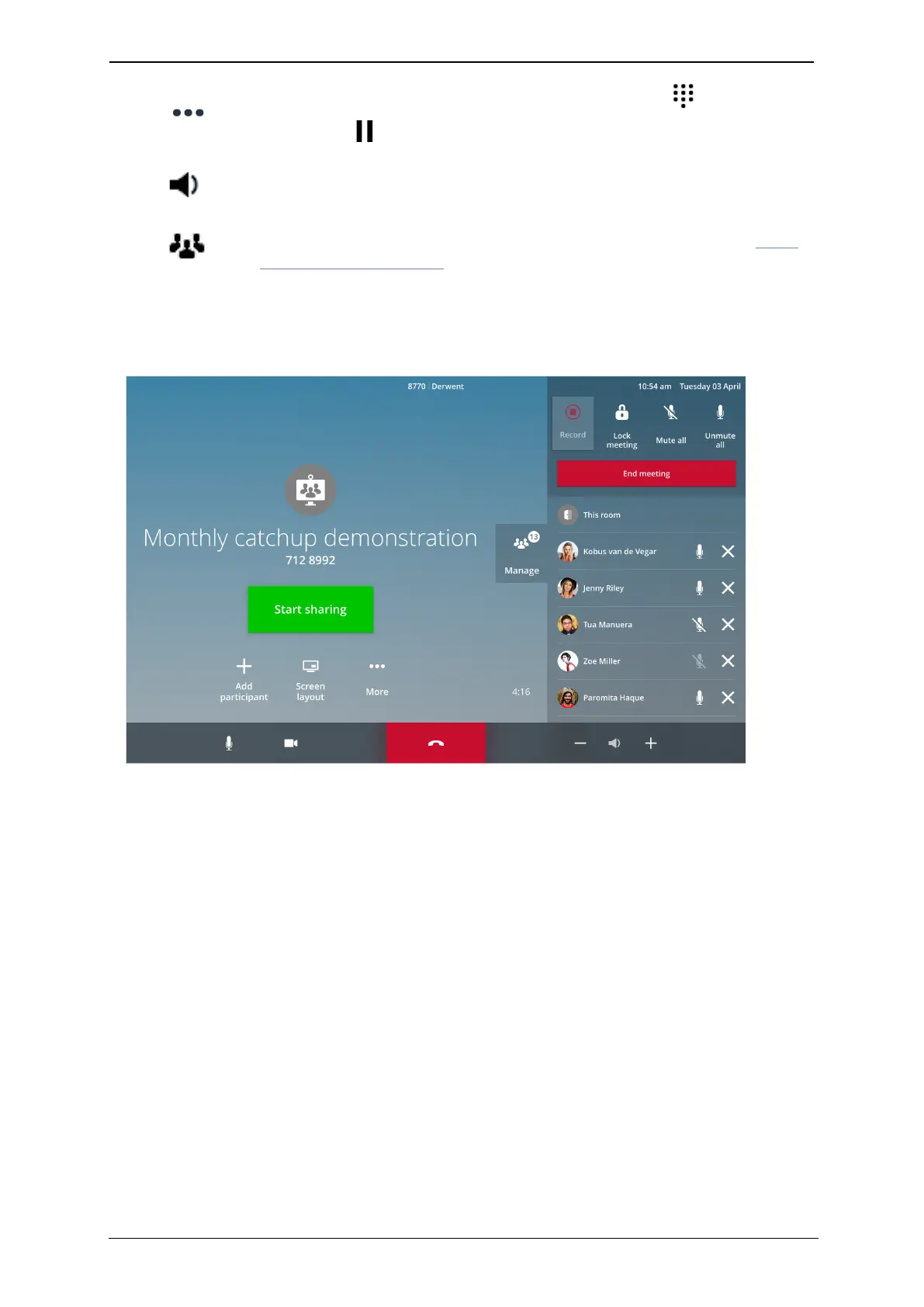
Open the Manage panel to see settings for each participant (see Using
the Manage panel (p15) for more information)
Using the Manage panel
Controls
n Record: If your organization has the Recording solution, press this button to begin
recording the meeting. Press it again to stop recording
n
Lock meeting: Prevent any more participants from joining the meeting. Anyone who
attempts to join this meeting will see a notification informing them that the meeting is
locked
n Mute / Unmute all: Use these controls to instantly mute and unmute all participants
n End meeting: Use the End meeting control to disconnect all participants from the
meeting. A confirmation dialog will appear for you to confirm this action
n Mute individual: To mute/unmute a specific participant, touch the microphone icon
n Remove individual: To remove a specific participant from the meeting, touch the cross
icon
How to share your screen
When you are in a meeting or one-to-one call, instantly share content to the meeting
room from your laptop or PC, by connecting it using the cable provided (such as StarLeaf
StarLeaf room system guide, 04 May 2020 Page 15 of 21


 To Next Page