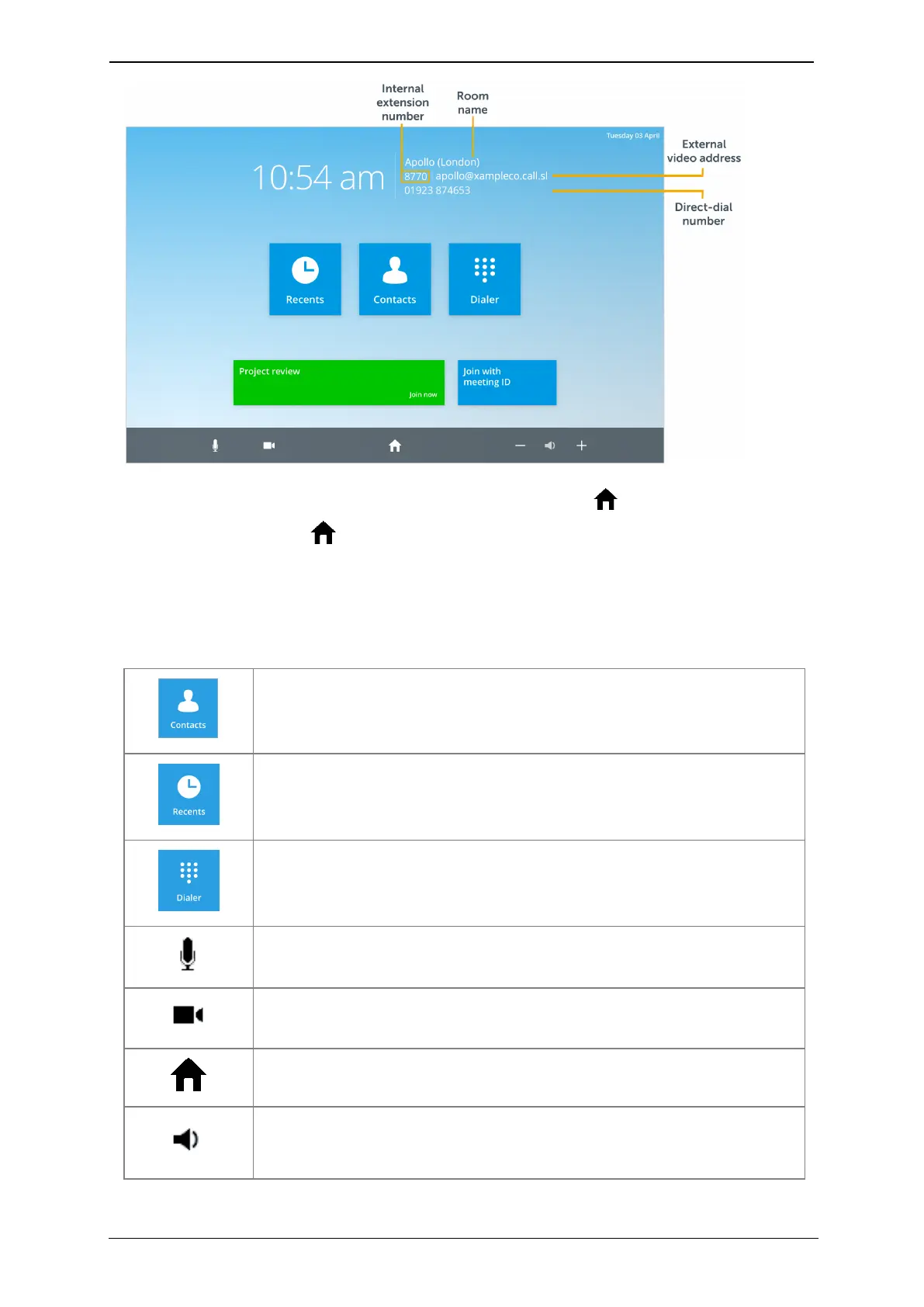
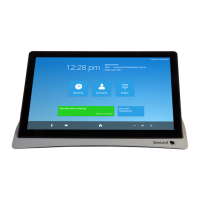
About Touch 2045/Huddle
Return to the home screen of the touchscreen by tapping the icon. To access
Settings, double-tap the icon.
Select a topic below to learn more about the touchscreen and StarLeaf room systems.
Icon glossary
Open the Contacts menu to view your organization's entire directory
Open the Recents menu to access your most recent contacts. You
can also view the room system's call history
Open the Dialer control to call internal extensions, PSTNnumbers, an IP
address, URI, or a third-party meeting address on the dialer screen
Choose whether to have your microphone on mute or unmute before
or during a call
Customize your camera's point of view, and choose whether to have
your camera on or off before or during a call
Return to the home screen. Double tap to access Settings for the
touchscreen
Adjust the output volume of your meeting room using the - and +
icons
StarLeaf room system guide, 04 May 2020 Page 4 of 21


 To Next Page