About Touch 2045/Huddle
Joining a meeting
For full details on how to join a meeting, go to How to join a meeting with the room system
(p6).
To learn about the types of meeting that you can join from your room system, go to About
meetings .
Room information
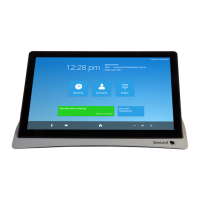
Information about the meeting room is displayed at the top of the screen, next to the
time. Here you can see:
n
Room name
n
Internal extension number:the number people in your organization can use to directly
call the room
n
External video address (if it is present):contacts outside of your organization who have
their own video conferencing equipment can use this to call the room
n
Direct-dial number: this number is connected to the global telephone network,
allowing anyone to directly call the room using a phone
Camera and screen standby behavior
In a StarLeaf room system, cameras go into standby mode after one minute. Screens go
to a black standby display after five minutes.
For admins: It is possible to enable HDMI output sleep and/or CEC via the Portal in the
Audio and video settings of a room system. There are two settings that you can choose to
tick: Enable HDMI output sleep and/or Enable CEC.
Power saving for touchscreen controllers
The backlight on a touchscreen controller dims between the hours of 7pm and 7am in the
endpoint's local timezone. When a touchscreen controller is dimmed, it shows a screen
saver displaying the time. Touch the dimmed screen to switch the backlight on again. The
touchscreen will not dim for one hour after the last time it was touched.
Power saving is automatically enabled for all touchscreen controllers, a display dims after
ten minutes of inactivity during the day.
StarLeaf room system guide, 04 May 2020 Page 5 of 21


 To Next Page