Making a call
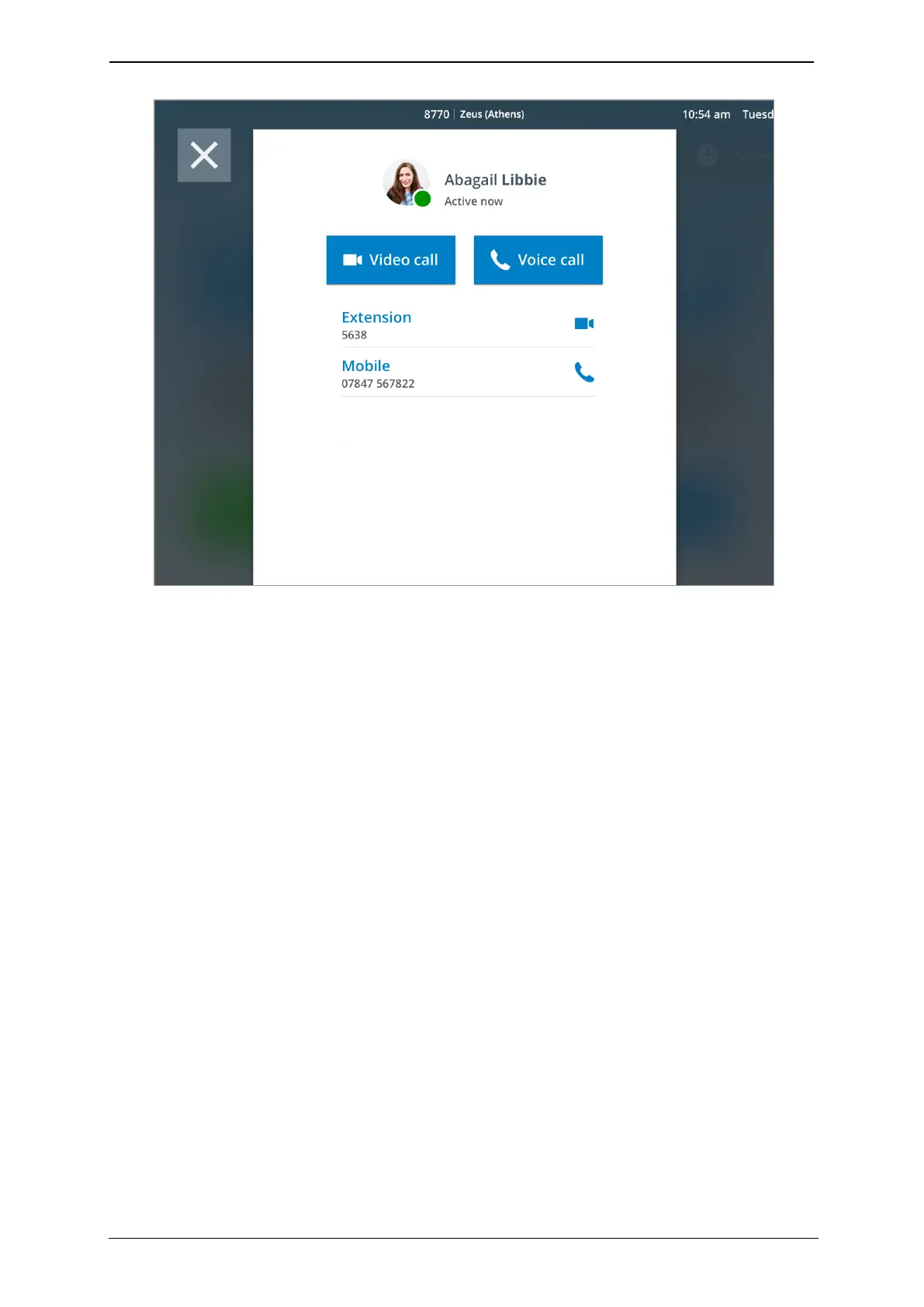
2. Touch their name to open their contact details.
3.
Choose either the Video or Voice call options to start a call. If you decide not to make
a call, then touch the exit icon to go back to the previous screen.
To go back to the home screen, tap the Home icon in the bottom tool bar.
Recents
To view and call the room system's recent contacts, touch the Recents button. The list is in
chronological order, with the date of the call displayed to the right of each contact.
Names that are blue indicate when a call has been made, while a name in red indicates
a missed or rejected call.
1. Search the list for the recent contact you want to call. Manually scroll to search for
older calls.
StarLeaf room system guide, 04 May 2020 Page 11 of 21


 To Next Page