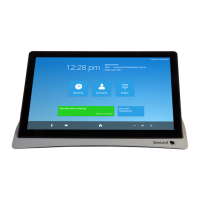
About StarLeaf touchscreen controllers
Touchscreen controller features
Table 1: Front panel features and controls (Phone 2120, Touch 2035)
Button Description
Audio volume
up
Press during a call to increase audio volume or, if you are not in a call,
press to increase the loudness of the ringer
Audio volume
down
Press during a call to decrease audio volume or, if you are not in a call,
press to decrease the loudness of the ringer
Headset Phone 2120 only
. Optionally, press to use a headset that you have
connected to the headset connector on the rear of the phone. The
button lights when the headset is in use
Audio mute
Toggle the microphone of the touchscreen controller (or that of the
headset) on and off. The button lights when the microphone is off. When
you are in a call and your audio mute is on, nobody can hear what you
are saying
Video mute
Toggle the camera on and off. The button is an LED that lights when the
camera is off. When you are in a video call and the video mute is on,
nobody in the call can see you
Speaker
Phone 2120 only. Press to use the controller's internal speakerphone as
follows:
n
Audio-only call:
Press to use the touchscreen controller as a speakerphone (listening
through the built-in speakers of the controller and using the
microphone positioned in the lower right side of the controller)
n
Video call using StarLeaf Personal Telepresence 3050:
If you have a StarLeaf Personal Telepresence 3050 system, press to
listen through the loudspeakers of the monitor and also to use the
microphone inside the StarLeaf Monitor.
n
Video call using Group Telepresence
When using the Group Telepresence System, press this button to
send audio to the external speakers and to use the external
microphone
The button lights to indicate that the audio is emanating from either
the touchscreen controller’s speaker, the monitor’s speakers, or the
external speakers on the Group Telepresence system, rather than
from the handset or headset of the touchscreen controller
Home
Press to display the home screen of the touchscreen controller from any
screen in the interface. Double-press to access the touchscreen
controller’s settings
StarLeaf GT Mini, 01 February 2018 Page 27 of 31



 To Next Page