- 13 -
STC8H Series Manual
strongly recommended that users download the software from the official website http://www.STCMCUDATA.com).
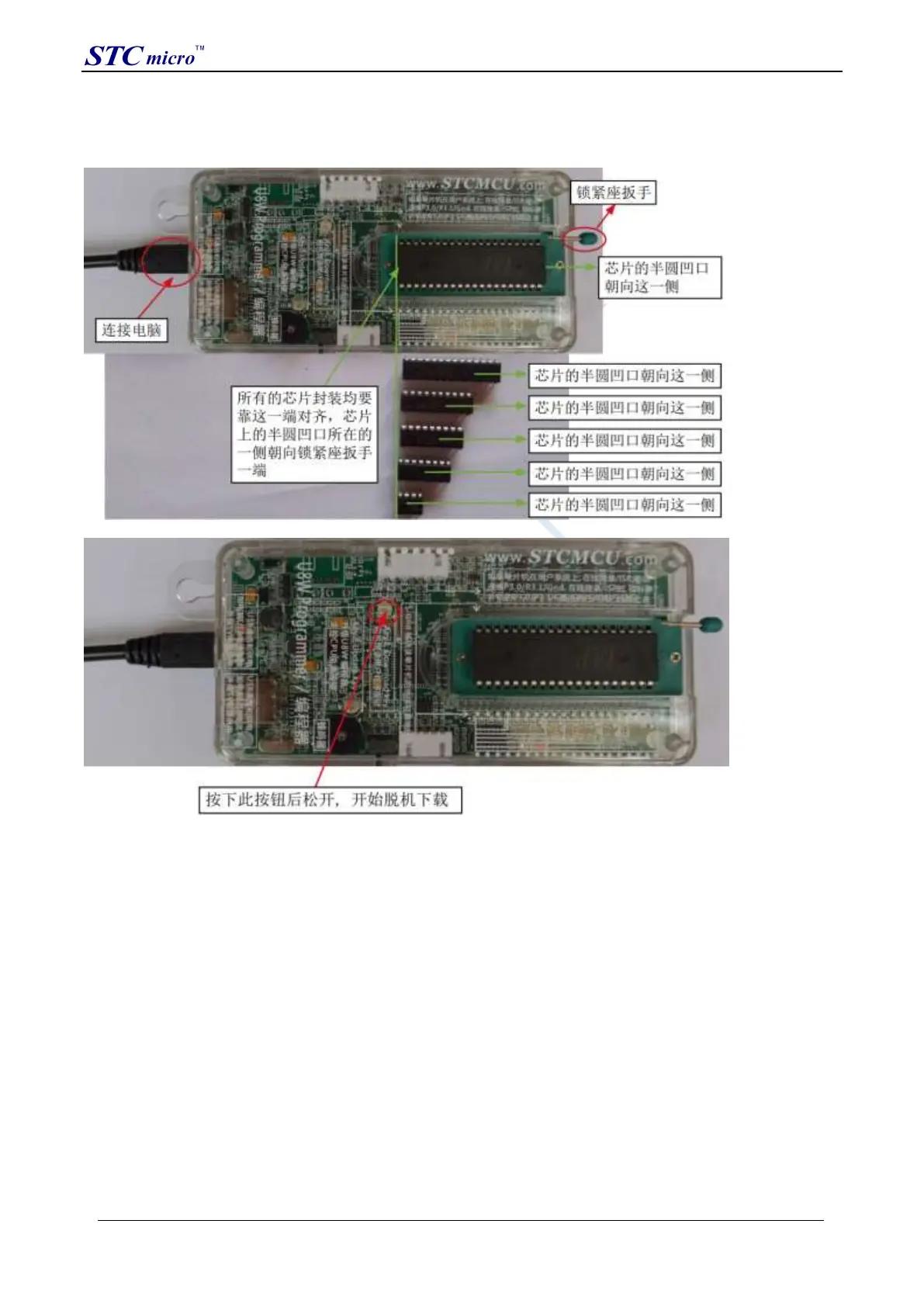
(3) Place the target MCU in the U8W download tool in the direction shown in the figure below, as shown in the figure
below:
(4) Then press and release the button as shown in the figure below to start offline download:
During the downloading process, the 4 LEDs on the U8W download tool will be displayed in marquee mode. After
the download is complete, if the download is successful, the 4 LEDs will be on and off at the same time; if the
download fails, all the 4 LEDs will be off.
Offline download plug and play burning function introduction:
1. After completing the above steps (1) and (2), U8W is in the plug-and-play programming state by default when it is
connected to the computer and powered on;
2. Put the chip into the programming socket according to the instructions in step (3). While tightening the socket
wrench, U8W will automatically start programming;
3. Display the burning process and burning result through the indicator light;
4. After programming is completed, loosen the wrench and take out the chip;
5. Repeat steps 2, 3 and 4 for continuous programming, eliminating the need to press the button to trigger the
programming action.
The target chip is connected to U8W by the user system lead and connected to the computer via USB to supply
power to U8W for offline download.
The steps for offline download using USB to supply power to U8W are as follows:
(1) Use the USB cable provided by STC to connect the U8W download board to the computer, as shown below:
STC Tool Instruction Manual



 To Next Page