13
USB & SD CARD OPERATION
1) Turn the OFF/VOLUME control knob (27) in a clockwise direction until a
click is heard, and set the volume to a medium level.
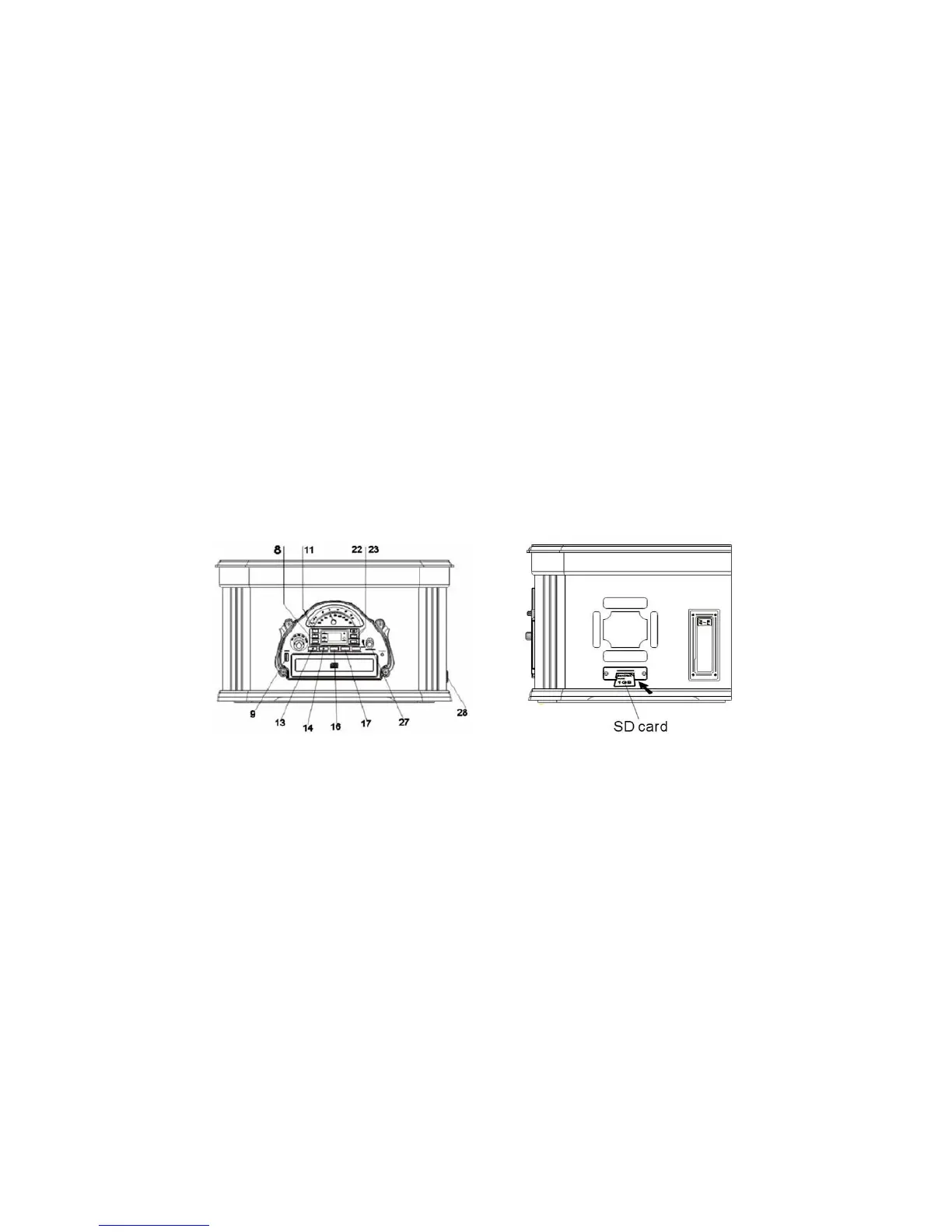
2) Insert a USB device (MP3 Player /Flash Drive) or an SD Card (none
supplied) into the appropriate socket (9 or 28) - see diagrams.
2) Set the Function Selector (AM/FM/PH/CD/TAPE) (8) to the CD position.
3) Press and hold the PLAY/PAUSE button (13/R4) briefly to select USB or SD
Card mode.
4) Insert USB or SD card - the unit will automatically start playing when the
system has read the song information from the drive/card and will continue
playing until the end of the USB/SD Card. When playing a track on the USB
device, “USb”, “F01” and then “001” (if 1st track) will show alternately on the
display.
Notes:
• The system supports USB 2.0, Flash Drive/SD memory size up to 2GB.
• When in CD Mode no CD/MP3 disc has been detected in the CD Tray,
songs on the USB device or SD card connected, will automatically start
playing.
5) Press the PLAY/PAUSE button (13/R4) to pause playback and press it
again to resume play.
6) Press the SKIP FWD (17/R6) or SKIP REV (16/R5) buttons to select a track.
7) To skip forward or backward 10 tracks at a time, press the FOLDER+/+10
Button (22/R9) or FOLDER-/-10 Button (23/R8).
FOLDER PLAYBACK IN MP3-USB or SD MODE
1) While in STOP mode, select a desired folder by pressing FOLDER+/+10 (22/
R9) or FOLDER-/-10 (23/R8).
2) Press PLAY/PAUSE (13/R4) to start playback of the selected song and
folder - folder and track number will show alternately 2 seconds apart.
3) You may stop playback at any time by pressing the STOP button (14/R7).
4) To select a particular part of the currently playing track, press and hold SKIP
FWD (17/R6) or SKIP REV (16/R5) buttons and then release the buttons.
Playback will resume from that point.


 To Next Page