22 CI2 Operation Manual
Try it out
English
Editing
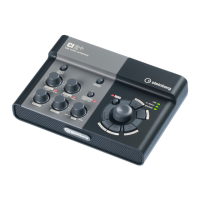
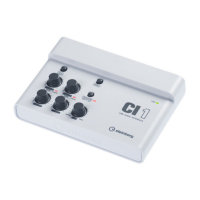
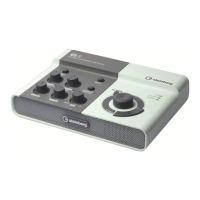
The AI KNOB and [LOCK] button can be used
to control Cubase. You can edit as follows.
AI KNOB
This multi-function knob can control a desired
parameter within the principal window and plug-
in software on Cubase, specified via the mouse
pointer. In the following examples, we’ll control
the volume and panning parameter of the audio
track on the mixer window.
1. Click [Mixer] from the [Devices] menu.
Mixer window will appear.
2. Locate the mouse pointer to the volume
or panning parameter of the audio track
on the mixer window.
3. Turn the AI KNOB
The AI KNOB will control the parameter on
which the mouse pointer is located.
The assignable parameters to the AI KNOB are pa-
rameters that can be automated within the princi-
pal window and plug-in software on Cubase. Plug-
in software compatible with the AI KNOB are the
VST 3 plug-ins included with Cubase (as of July
2009). For the latest information about compatible
plug-in software, refer to the following URL:
http://service.steinberg.de/goto.nsf/show/
supportupdates_ci2_gb
[LOCK] button
The [LOCK] button can “lock” the parameter to
be edited via the AI KNOB. You can lock the
parameter as follows.
1. Locate the mouse pointer to the de-
sired parameter then turn the [LOCK]
button on.
[LOCK] indicator will light.
2. Move the mouse pointer to the other lo-
cation.
3. Turn the AI KNOB
The AI KNOB will control the “locked” parame-
ter regardless of the mouse pointer’s position.
By turning the [LOCK] button off, you can un-
lock the parameter to be edited and the AI
KNOB can then be used to edit another param-
eter to which the mouse pointer is located.
Editing operation is now complete.


 To Next Page