Software Installation
Getting Started
17
ENGLISH
13 When installation is complete, a message indi-
cating so appears. If restarting of the computer
is necessary following successful completion of
the installation, make sure that the radio button
to the left of “Yes, I want to restart my computer
now” is selected, then click [Finish] to restart the
computer. If restarting the computer is unneces-
sary, click [Finish] to exit the installation pro-
cess.
Initial settings of driver
After you’ve installed TOOLS for MR, perform the initial
settings of the driver.
NOTE
· If the “User Account Control” window appears, click [Continue].
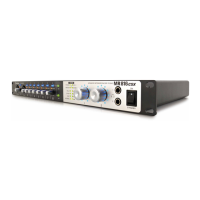
14 Connect the MR816 CSX/MR816 X to the com-
puter, then turn on the power to the MR816 CSX/
MR816 X.
The Clock Source lamps and the Sample Rate
lamps of the MR816 CSX/MR816 X flash sequen-
tially then the flashing stops indicating that the initial
settings have been completed.
NOTE
· If the Word Clock Source lamps and Sample Rate lamps of the
MR816 CSX/MR816 X do not flash in order after waiting a while,
restart the computer.
· If the “User Account Control” window appears when you install
a new IEEE1394 interface to the computer, click [Continue].
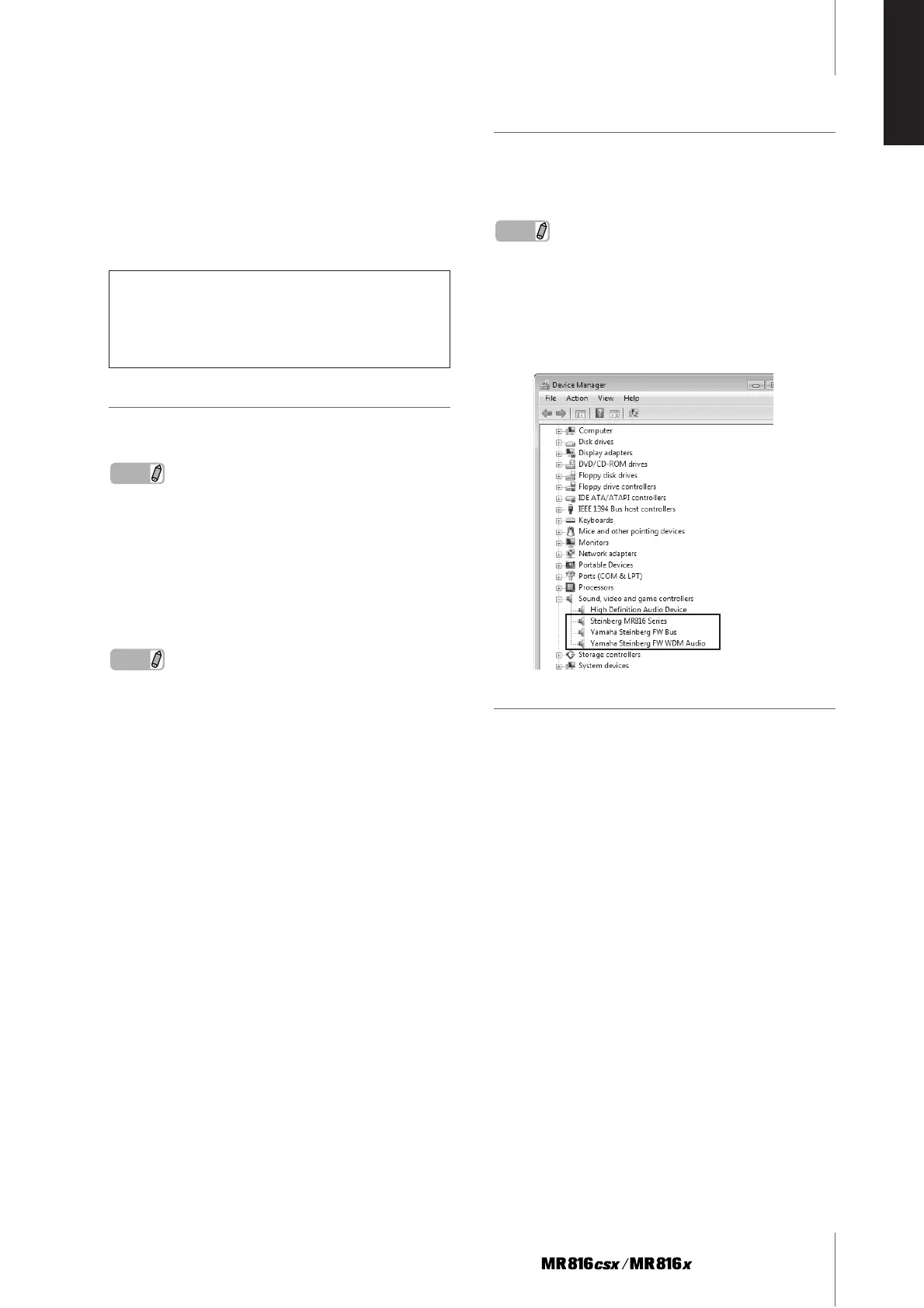
Confirming the installation
1 Select [Control Panel] from the Start menu.
2 Double-click the Device Manager icon.
NOTE
· If the “User Account Control” window appears, click [Continue].
A dialog box appears.
3 Click on the [+] mark next to “Sound, Video and
game controllers” and confirm that “Steinberg
MR816 Series,” “Yamaha Steinberg FW Bus” and
“Yamaha Steinberg FW WDM Audio” are listed.
Uninstalling the Software
To uninstall TOOLS for MR, you must remove the following
three software components:
· Yamaha Steinberg FW Driver
· Steinberg MR Editor
· Steinberg MR Extension
1 Make sure that the power to the MR816 CSX/
MR816 X is turned off. Exit any open applica-
tions and close all open windows.
2 From the Start menu, select [Control Panel] ➝
[Programs and Features] to display the Uninstall
or change a program panel.
3 Select “Yamaha Steinberg FW Driver,” “Steinberg
MR Editor” and “Steinberg MR Extension” from
the list.
4 To uninstall the software, click [Uninstall]/[Unin-
stall/Change].
If the “User Account Control” window appears, click
[Continue]. A dialog box appears. Follow the
instructions to remove the software.
When canceling the installation
If you’ve cancelled an installation before it is complete,
the software may not have been installed properly. To
install the software properly, resume the procedure
from Step 10.


 To Next Page