Troubleshooting
24 Getting Started
Troubleshooting
■ No sound is heard, or the sound is too faint.
Settings on the MR816 CSX/MR816 X and connections
· The connection cable from the external device may be
broken.
· Make sure that a signal from an external device or the
DAW is being sent to the MR816 CSX/MR816 X’s input.
· Make sure to set the volume of the connected device to
appropriate levels.
· Make sure to set the gain to an appropriate level.
· Make sure to set the [+48V] button (phantom power) to
on when using a condenser microphones.
· If you are connecting an electric guitar, make sure that it
is connected to an input jack that supports HI-Z, and
that the [HI-Z] switch is turned on.
· Make sure that the INSERT I/O jacks are connected
properly.
· Make sure to turn off the mute for each channel.
· Make sure to raise each input channel fader to an
appropriate level.
· Make sure to set the volume for the headphones and
master volume applied to the output jacks.
· Make sure that the speakers or headphones are con-
nected correctly.
· Make sure that the power to your amplifier and other
external devices is turned on.
· Make sure that the volume between monitor speakers is
well-balanced.
· Make sure the word clock setting is correct for both the
MR816 CSX/MR816 X and the external device(s).
Connection with a computer
· Confirm whether or not the lamps of the Word Clock
Source and Sample Rate flash in order. Refer to “Word
Clock Source lamps and Sample Rate lamps flash in
order.”
Settings on a computer
· Make sure to set the volume settings within your appli-
cation to appropriate levels.
· Confirm whether or not the settings in Yamaha Stein-
berg FW Driver are appropriate. For details, refer to
“Audio and MIDI signals fail to transfer between com-
puter and the MR816 CSX/MR816 X.”
· (For Windows Vista) If no sound is produced from the
MR816 CSX/MR816 X by way of the WDM Audio driver
after you have changed the sample rate of the
MR816 CSX/MR816 X, follow the steps below.
Select [Start] ➝ [Control Panel] ➝ [Sound] ➝ Playback
tab ➝ Select “Line Out Yamaha Steinberg FW WDM
Audio” ➝ [Properties] ➝ Advanced tab in the Line Out
Properties window ➝ “Restore Defaults”
■ Word Clock Source lamps and Sample Rate
lamps flash in order.
Settings on the MR816 CSX/MR816 X and connections
· When the lamps flash, the MR816 CSX/MR816 X may
not be recognized by the connected computer. Turn off
then on of the power of the corresponding MR816 CSX/
MR816 X, or disconnect an IEEE1394 cable from the
MR816 CSX/MR816 X then connect again.
· When multiple MR816 CSX/MR816 Xs (or devices com-
patible with the Yamaha Steinberg FW Driver) are daisy-
chain connected, remember that up to three devices
can be connected if the Sample Rate is set to 44.1kHz/
48kHz and up to two devices can be connected if the
Sample Rate is set to 88.2kHz/96kHz. If more devices
than this limit are connected, remove unnecessary
device(s) from the daisychain connection.
· Confirm whether or not an audio device which is not
compatible with the Yamaha Steinberg FW Driver has
been connected. If so, remove the corresponding
device from the daisy-chain connection.
· (For Windows) Confirm whether or not the Yamaha n
Driver, Yamaha AI Driver or mLAN Driver/mLAN Tools is
installed to the computer. If so, disable these drivers,
turn the power to the corresponding device off then on
again or disconnect the corresponding device from the
computer then connect again.
■ The device name cannot be recognized from
the DAW software.
■ Audio and MIDI signals fail to transfer
between computer and the MR816 CSX/
MR816 X.
Connection with a computer
· Confirm the status of the Word Clock Source lamps and
Sample Rate lamps. If they flash in order, refer to “Word
Clock Source lamps and Sample Rate lamps flash in
order.”
· Make sure that the IEEE1394 cable is connected prop-
erly, and that the power to the MR816 CSX/MR816 X
has been turned on. Disconnect the IEEE1394 cable
once, then insert it again.
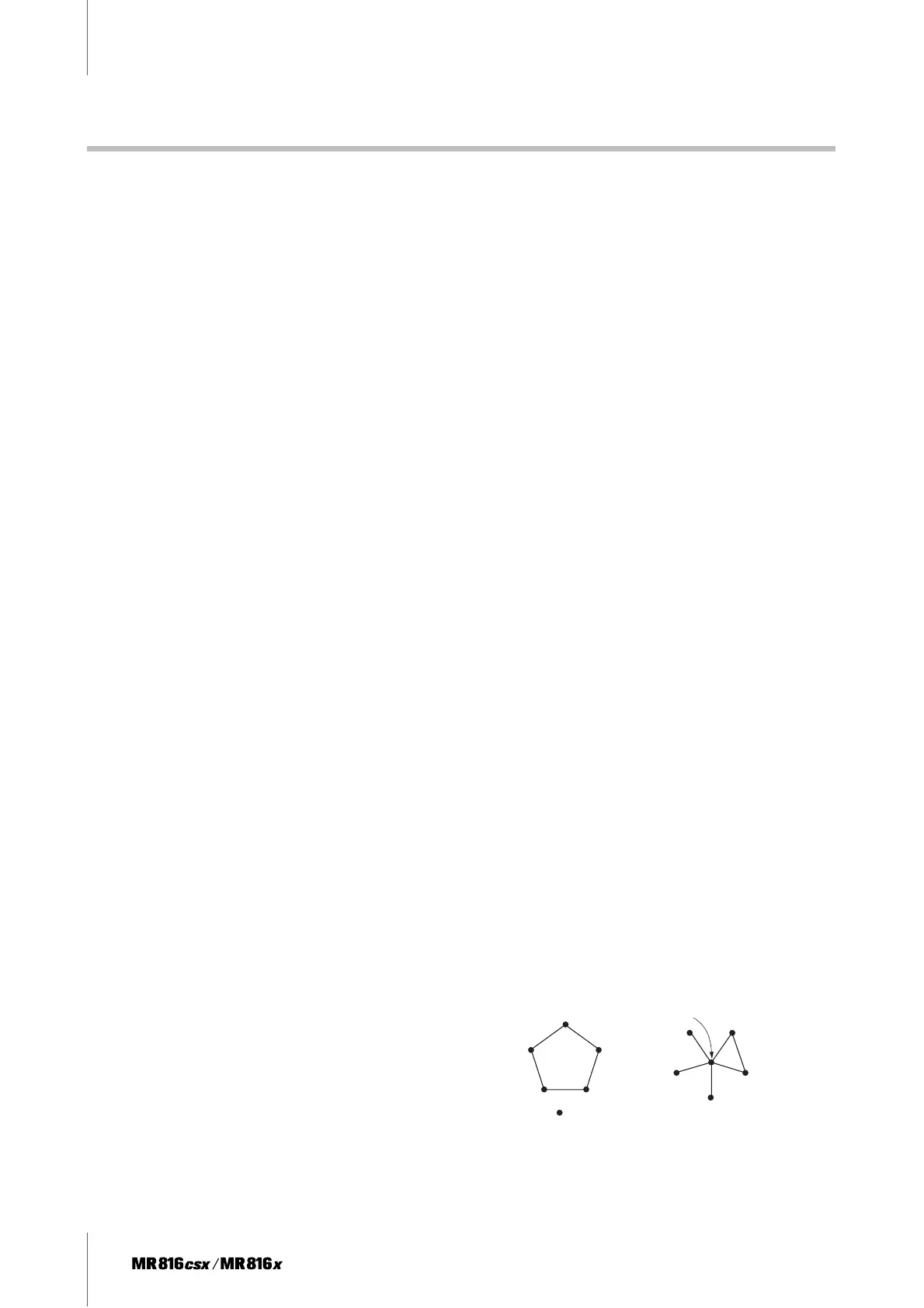
· There may be a loop connection. Check the IEEE1394
cable to make sure that none of the devices are con-
nected in a loop.
· If any IEEE1394 devices which are not compatible with
Yamaha Steinberg FW Driver are connected directly to
a computer, disconnect them from the computer and
make sure to connect only a device which is compatible
with Yamaha Steinberg FW Driver.
Example of loop connection
ComputerComputer
MR816 CSX/
MR816 X
MR816 CSX/
MR816 X
IEEE1394-equipped device


 To Next Page