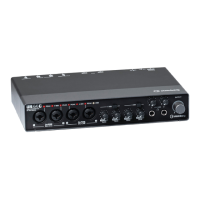
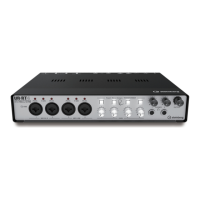
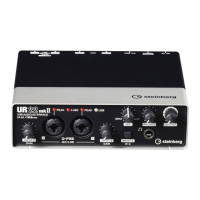
Installing TOOLS for UR44
UR44 Getting Started 5
English
4. Insert the TOOLS for UR44
CD-ROM into the CD-ROM
drive.
5. Open the CD-ROM then
double-click [setup.exe].
6. Follow the on-screen
instructions to install the
software.
Install the following software.
• Yamaha Steinberg USB Driver
• Steinberg UR44 Applications
• Basic FX Suite (VST Plug-ins)
NOTE
You can select the desired software to
be installed.
7. When installation has been
completed, click [Finish].
If a window requiring you to restart
your computer appears, follow the
on-screen instructions and restart
the computer.
8. Connect the device directly
to the computer by using the
included USB cable.
Make sure not to connect it to a
USB hub.
9. Turns the [P] (Standby/On)
switch on (O) the device.
10.
Open the [Device Manager]
window as follows.
[Control Panel] ([Hardware and
Sound]) [Device Manager]
11. Click on the [+] mark or [>]
mark next to “Sound, video
and game controllers.”
12. Confirm that the device name
is listed.
Installation of the TOOLS for UR44 is
now complete.
After this, go to “Downloading the
Licenses.”
For uninstalling the software, refer to
the operation manual.
Mac
1. Make sure that the [P]
(Standby/On) switch is in the
standby position (N).
2. Disconnect all USB devices
other than the mouse and
keyboard from the computer.
3. Start the computer and log in
to the Administrator account.
Exit any open applications and
close all open windows.
4. Insert the TOOLS for UR44
CD-ROM into the CD-ROM
drive.
5. Open the CD-ROM then
double-click the folder
[TOOLS for UR44 V***.pkg].
*** represents the version number.


 To Next Page