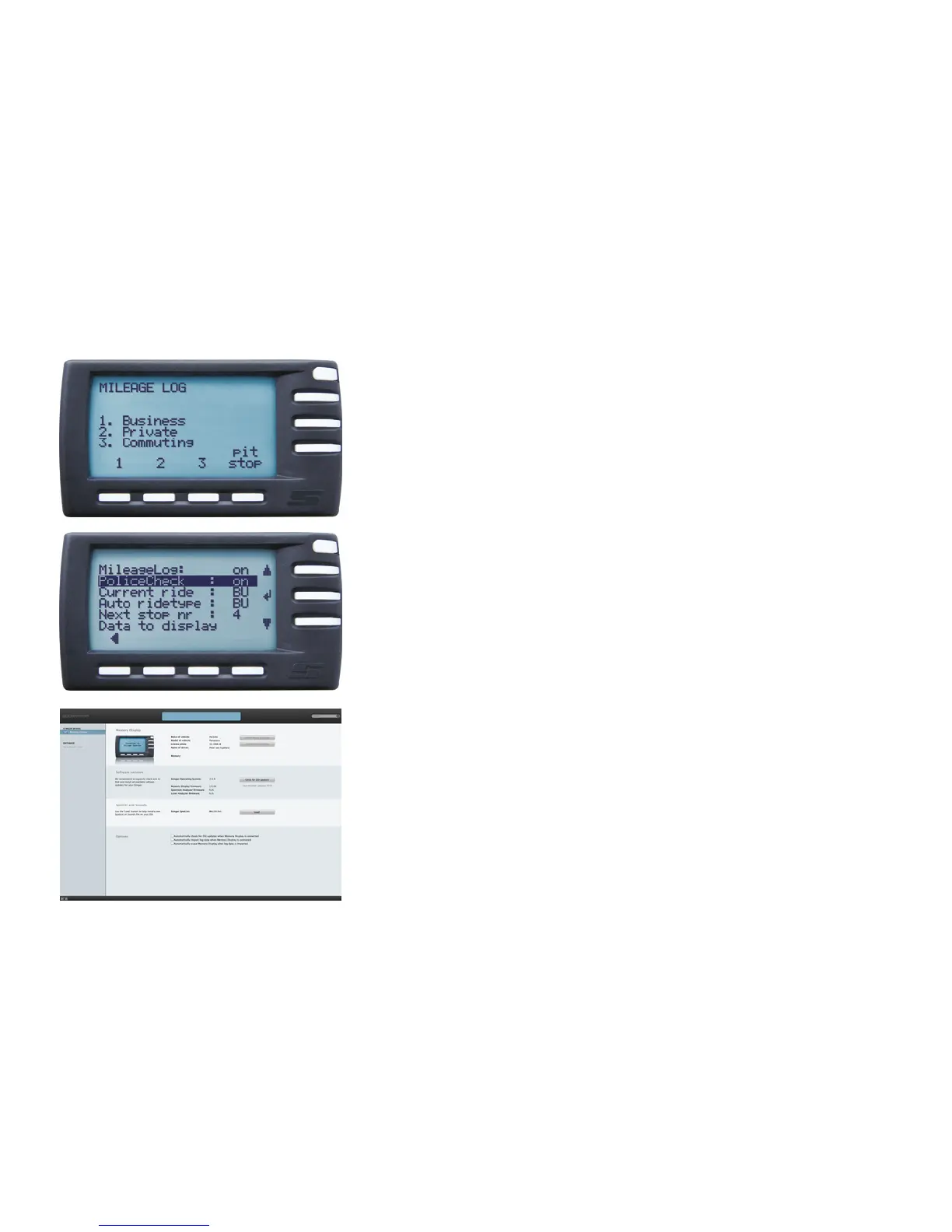
MileageLog
Stinger’s MileageLogging keeps your business and private trips separate. At the start
of each trip, select the type of trip and to record fuel stops and other interruptions,
press ‘pitstop’ after resuming the trip. If you wish, you can also enter the current
mileage at the time of the pitstop.
PoliceCheck
This unique function helps you fight unjust traffic fines.
If you have PoliceCheck switched on (Main Menu > Settings > MileageLogging), your
DSI will automatically keep track of where and when you encountered speed traps
(radar, laser, loops, SPECS, etc), your speed at that time as well as the frequencies used
permitting you to check wether they fall within the legally permitted bandwith.
To save and edit MileageLogging and PoliceCheck data, follow these two steps.
First, put the data on your Memory Display by going to Main Menu > Settings >
MileageLogging > Data to display.
Then export the data from your Memory Display to your Mac or PC by connecting
your Memory Display to the PC Interface. To copy and edit the data, please refer to
the next chapter: Stinger Desktop.
17
MileageLog and PoliceCheck


 To Next Page