5. TROUBLESHOOTING
To troubleshoot any networking issues you will need:
1. The router’s administrator login name and password.
2. Router documentation.
3. The wireless network’s security type and key.
4. Your current PC/laptop IP address settings.
5.1 I have opened Camera Manager but can’t view the camera image
With the network cable connected check the camera’s IP address is on the same range as your network. You can do
this by checking Setup, Camera Installation Tool, Advanced Mode as show in section 3.11.
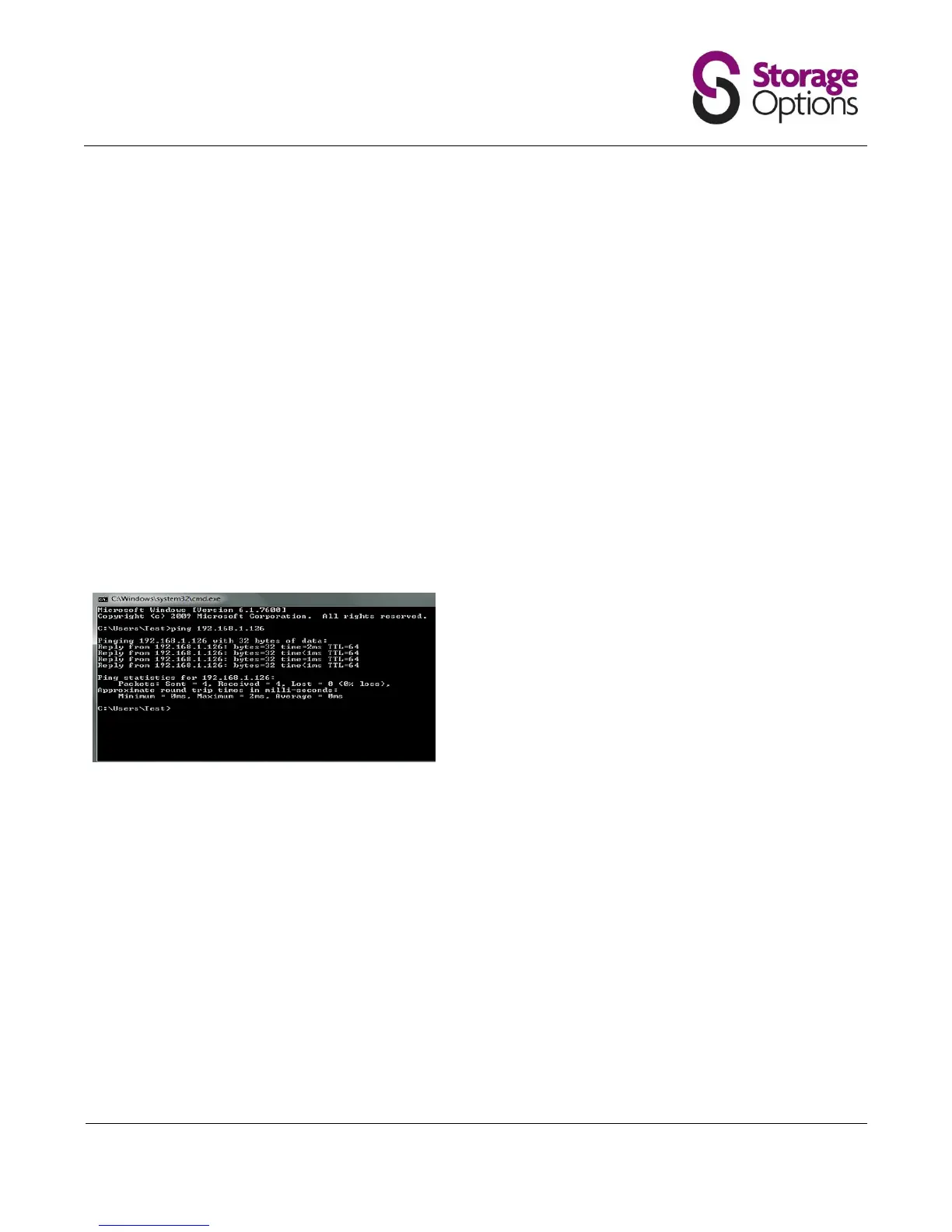
Also, check you can “ping” the camera’s IP address in Windows by running “cmd” in the Start, “Run panel” and then
ping xxx.xxx.xxx.xxx (whatever is your camera’s IP address) at the command prompt and check for a reply, as below:
5.2 I cannot connect to my wireless network
After you have established the camera connects on cable, go to the camera wireless settings options and double-
check you have entered the correct wireless settings. Check these agree with those used for another wireless device
on your network or go into your router and check the wireless settings from there.
If you still cannot connect try temporarily turning OFF wireless encryption security in your router. Then try to
connect to the camera with encryption set to “None”. If the camera connects this proves it is a problem with the
wireless password or security type chosen.
Turn wireless encryption back on and test again with settings corrected as necessary.
If you are using MAC Access List control you will need to check the wireless MAC address of the camera from the
router’s “connected devices” list and then add this to the allowed MAC Access List.


 To Next Page