12
5. SETTINGS
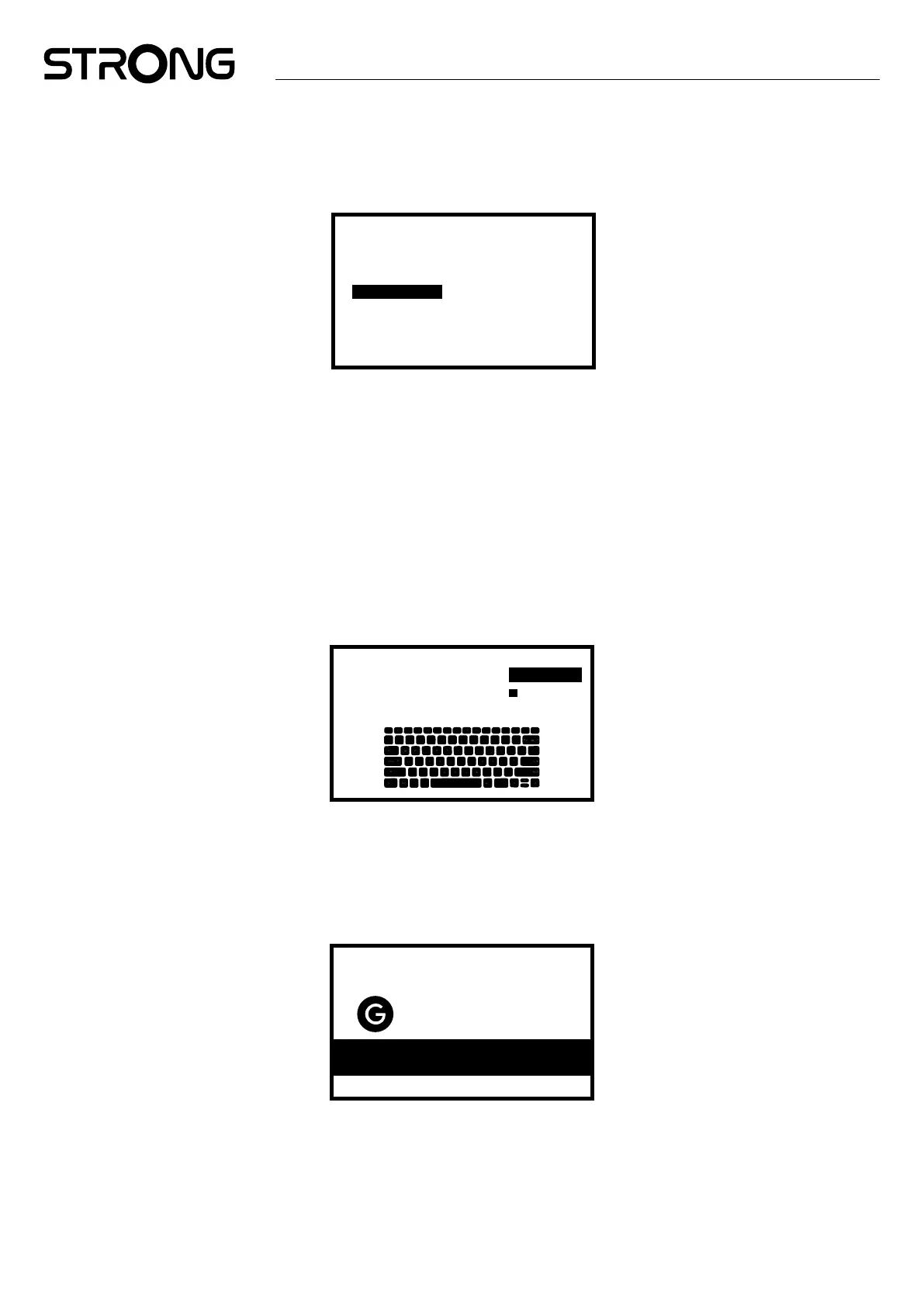
Press the settings button to open the Google TV menu. This menu allows you to directly access important items such as Wi-Fi,
Bluetooth, accessibility, and notications. Select "All settings" and press OK to view device information, add or remove accounts,
and modify system settings.
Settings
Set your device name
Display & Sound
Network & Internet
Account & Sign-in
Privacy
Advanced settings
Advanced settings
Display and sound
Select Video settings for selection of Display mode to select resolution, HDR output Mode and Dolby Vision selection.
Select CEC-Inputs for setup connections and adjustments through CEC (Consumer Electronics Control).
Select Text scaling for text display size on screen.
Select Match content frame rate to adjust this with playback trough some applications.
Select Advance display settings for Game mode with belonging formats
Select AISR for smooth scrolling trough pop-up highlight pictures in menu.
Select Audio to set up HDMI or S/PDIF audio output and Dolby Audio special settings
Network and Internet
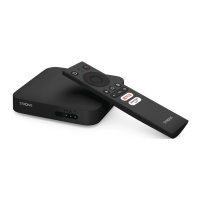
Under Network Settings, select and enable Wi-Fi to connect to Wi-Fi network.
Once the device scans and lists nearby Wi-Fi networks, select the appropriate network name, if required put in the password and
select Connect.
Hide password
Select to continue
Enter password
for 1600_2.4GHz
l
If you prefer to use wired RJ45 connection, disabled Wi-Fi.
Under IP settings you can nd your wired settings to check or set up DHCP or Static IP address.
Adding Accounts
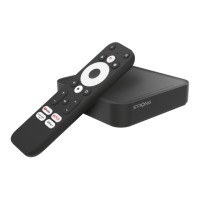
For new Google users: sign up for a new Google account using the TV for easier login and payment security. Add an account or
switch accounts under Accounts in the Settings Menu.
Here, parents can create a child prole to personalize a safe space for their kids to access content they love, all under your control.
Account
Add Account
Google
your_email@gmail.com
+
Privacy
Select which connected devices or apps like Google assistant may use access or permission. Set up Payment and purchases,
Manage App updates and check Memory space.
Apps
Select to nd the installed Apps, see permissions access, versions of applications and to remove apps from your TV box.


 To Next Page