u Select System Settings
u Touch Control Permissions
u Assign your preferred foot pedal(s)
for each motor
Control Permissions
Footswitch 1
PI DRIVE
MOTOR
PI DRIVE
+ MOTOR
The Mill
Footswitch 1
Not Available
In addition to customization options on the previous page, there are
several other ways to control the functionality and performance of
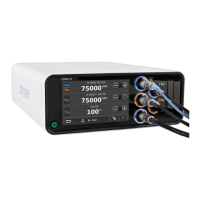
your system — backed by safety features such as illumination rings
that enable you to work freely and with full condence.
Full control,
from feet
to fingertips
Managing motor settings
u Select System Settings
u Touch Motor 1, 2 or 3
u (Screen will vary, automatically displaying
options available for each particular motor)
u Adjust General settings to your liking,
including RPMs, direction and xed or
variable mode
u Optional irrigation
• Touch the Irrigation menu tab
• Adjust ow rate to your liking (0-100%)
REMB Micor Drill
PI DRIVE
MOTOR
PI DRIVE
+ MOTOR
REMB Micro Drill
Settings - Select Motor
General Irrigation Motor Options Control Options Quick Access
75000
RPM
Direction
Attachment
Mode
No Attachment
PI DRIVE MOTOR Settings
Adjusting control
permissions
and options
u For enhanced usability, two foot pedals
can be assigned to a single motor
u Port illumination rings provide constant,
color-lit visibility of matched drills and
foot pedals
u Select System Settings
u Touch Motor 1, 2 or 3
u Touch Control Options
u Adjust settings to your liking; screen views
and options will automatically vary based
on the device connected
u Touch Home to save settings
General Irrigation Motor Options Control Options Quick Access
PI DRIVE MOTOR Settings
NSE Footswitch
TPS Two-Pedal
TPS Footswitch
TPS Uni-Directional
CORE Footswitch




 To Next Page