pointed towards the microphone.
– The sound of the air conditioning
fan is loud.
– Thereisanegativeeffecton
sound quality due to the phone
and/or network being used.
. When another phone is connected,
the following registered data cannot be
read:
– Contact data
– Call history data
– All phone settings
. When selling or disposing of the
vehicle, initialize the data. Refer to
“Unit settings” F5-18.
. Once initialized, the data and set-
tings will be erased. Take extra caution
when initializing the data.
. The voice command system sup-
ports phone commands, so dialing a
phone number using your voice is
possible. Refer to “Voice command
system” F5-80.
. The images shown in this Owner’s
Manual are sample images. The actual
images may vary depending on the
market and specifications of your ve-
hicle.
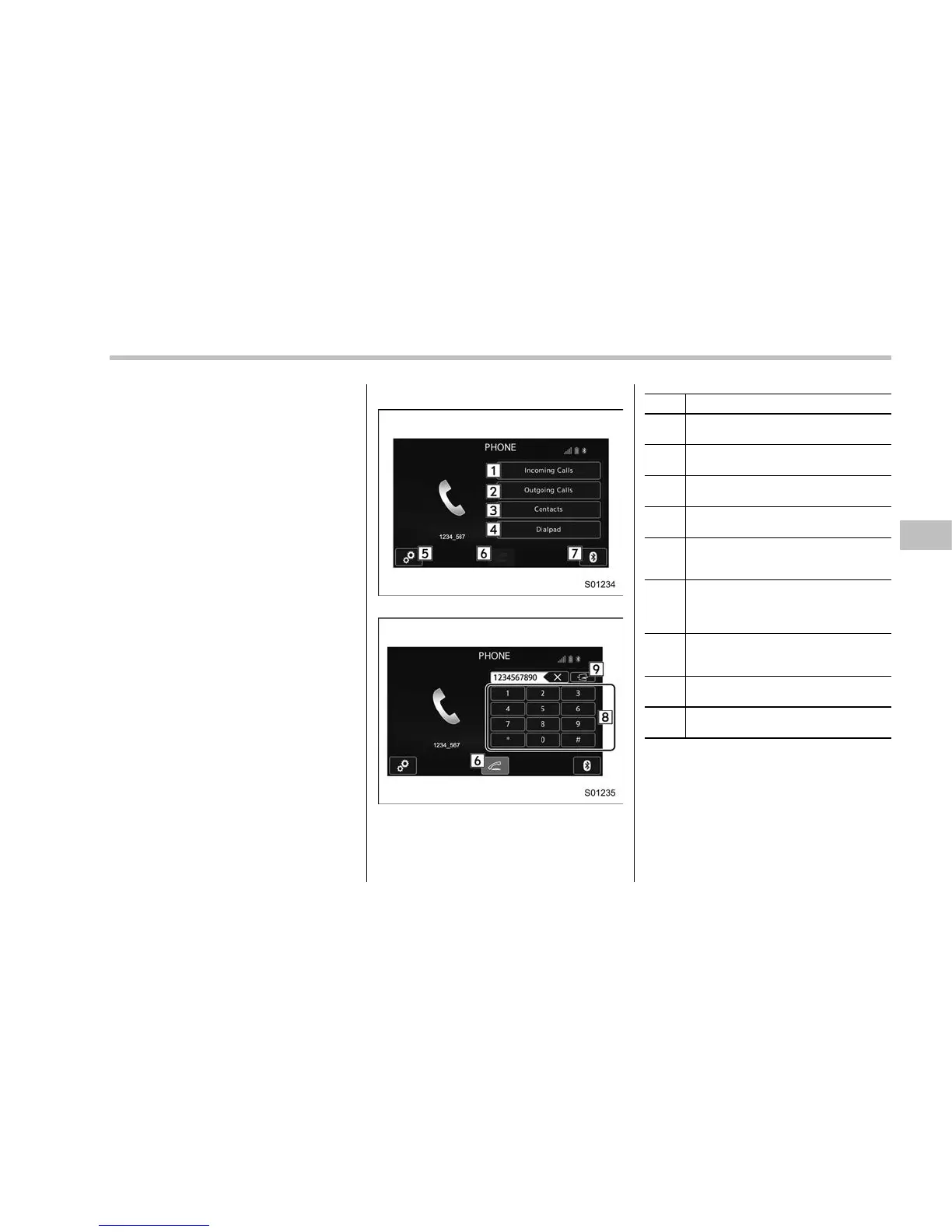
& Control screen
PHONE (Menu) screen
PHONE (Dialpad) screen
No. Function
&
1
Open the “Incoming Calls” screen.
Refer to “By incoming calls” F5-73.
&
2
Open the “Outgoing Calls” screen.
Refer to “By outgoing calls” F5-74.
&
3
Open the “Contacts” screen. Refer to
“By contacts list” F5-74.
&
4
Open the dialpad screen. Refer to “By
Dialpad” F5-75.
&
5
Open the phone volume settings
screen. Refer to “Phone volume set-
tings” F5-78.
&
6
Use to make a phone call. You cannot
press this key until you open the
dialpad screen and enter a phone
number.
&
7
Open the “BT Devices Connection”
screen. Refer to “Setting Bluetooth
details” F5-68.
&
8
Enter the phone number that you
want to call.
&
9
Switch the screen to the phone
(menu) screen.
NOTE
When the cell phone is not registered
and the Bluetooth setting is off, a
message is displayed instead of menu
items.
Audio/Hands–free phone system
– CONTINUED –
5-71















 To Next Page