Set Up File Manager 9
Deliver Absolute Dose Calibration Measurement
1 Insert MapCHECK 3 into MapPHAN and align to isocenter. See Measurement with MapPHAN
Accessory on page 10.
2 S
et field size to 10 cm x 10 cm (or machine-specific reference field size used for determining
the known dose).
3 In SN
C Patient toolbar, click Load Array Calibration , select the VMAT array calibration
that corresponds to the absolute dose calibration energy, and then click Open. The
default
path to the array calibration files is C:\SNC\SNC Patient\factors\<serial number>.
4 In SN
C Patient menu, select Setup > Calibrate Dose. The Dose Calibration dialog box opens.
See Figure 2-1 on page 8.
5 Follow on-s
creen instructions to collect and save the absolute dose calibration measurement.
If desired, scale the known dose by the linac output at the time of dose calibration.
6 To s
elect this absolute dose calibration as the default, click Set as Default.
7 Click
Close to exit.
Set Up File Manager
The File Manager feature in SNC Patient software is used to store patient data files in a single
location and group them by file type, such as Device Measured, TPS Calculated, DICOM RT Plan,
Images, etc. Each group of patient data files is referred to as a Patient Plan.
When a Patient Plan is selected in the SNC Patient toolbar, commands to load or open a file will
display a list of files in the Patient Plan that match the selected file type.
To access the File Manager feature, select File > File Manager in SNC Patient software or click
FM in the toolbar.
Creating a New Patient Plan
1 Click FM in the toolbar and select New Patient Plan for File Manager. The ‘File Manager:
New Plan’ dialog box is displayed.
2 En
ter Patient ID and Plan ID and then click OK. The ‘File Manager’ dialog box opens.
Adding Files to Patient Plan
1 In the File Manager dialog box, click the heading of the file type to import.
2 In the I
mport dialog box, select the file and then click Open. To select multiple files, press
SHIFT or CTRL while selecting.
The files are copied to the Patient Plan.
3 Click
CLOSE FILE MANAGER.
Position MapCHECK 3 for Measurement
For details about accessories. see See Products, Options and Accessories on page 1.
Measurement Without MapPHAN Accessory
A MapPHAN accessory is not required to collect measurements with the beam normal to the front
surface of the device (e.g., machine QA measurements or collapsed-angle IMRT QA).
As an alternative to the beam straight down setup, the MapCHECK 3 can be attached to the
accessory Gantry Mounting Fixture (GMF) or Isocentric Mounting Fixture (IMF).
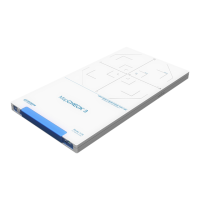
1 Pla
ce MapCHECK 3 on treatment couch with +Y toward gantry.
2 A
lign lasers to the MapCHECK 3 X and Y markings. If the area of interest is not centered on
the beam central axis (CAX), such as an asymmetrical field, the MapCHECK 3 can be
positioned off-center. Record the X and Y shift from beam CAX; these values are required to
align to the TPS dose map.


 To Next Page