You can always download the web plugin separately from Sunba website
if it takes too long to download the plugin from popped window.
Enter the IP address of your camera in the location/host field.
If you have changed the default http port (80) of the camera, you need to enter
IP: http port.
Note: Our cameras currently do not support Windows 10 Edge Explorer.You
can follow the tips below to enable Internet Explorer mode in edge browser.
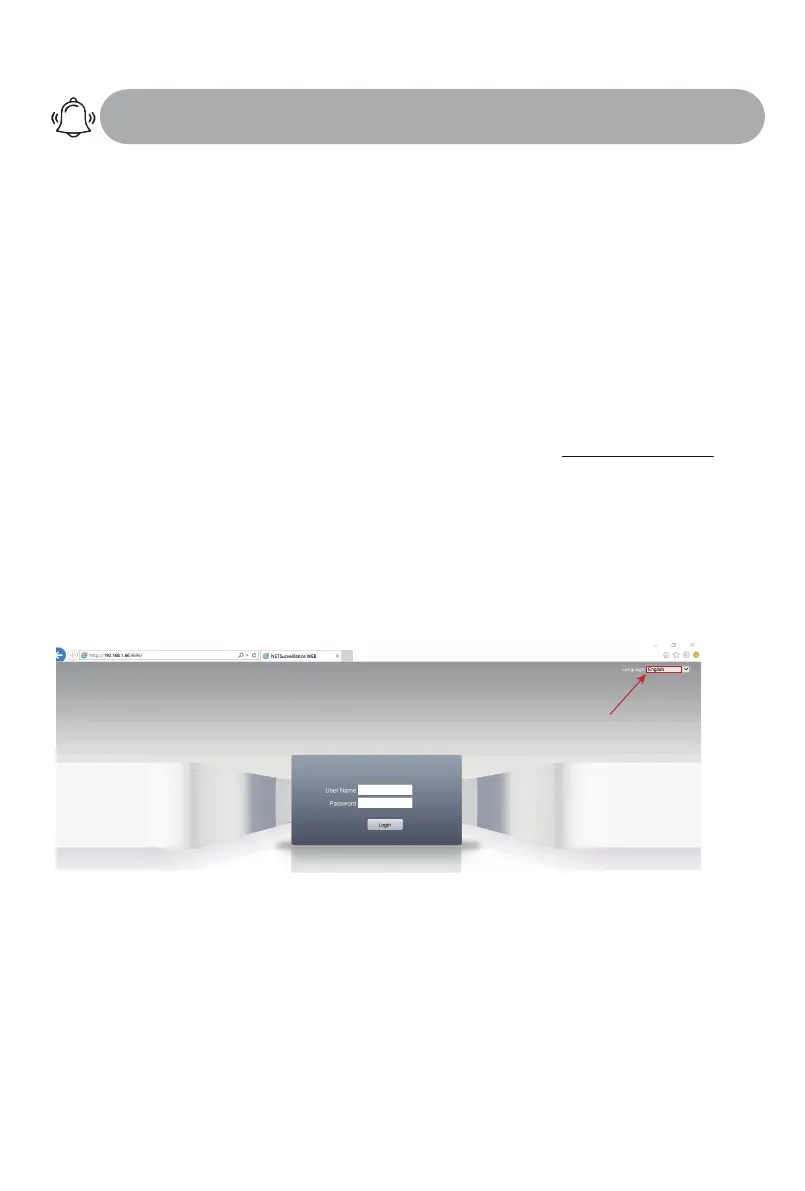
Enter username and password. The username is admin with no password
by default. Please change the admin password after log in to protect your
privacy by referring to Chapter 14.
Select the language
before login.
Step 2: Start a web browser (Internet Explorer)
Step 3: Install the web plugin
Download and install the web plugin by clicking the “download” tab or by
installing the WebPlugin from the CD-ROM. Please make sure the browser is
CLOSED during the installation. If you are unable to download the plugin or if
your software disc is damaged during transit, please visit plugin.sunba.net to
download the plugin. Restart the browser/computer if the installation does not
take effect in 5 mins.
Step 4: Select Language
You can change the language from the upper right corner. Changes only
take effect after you successfully install the plugin, otherwise the text will
show “??????” or disappear.
Step 5. Enter Username and Password
Step 6. Select Stream
Go to <stream menu> and connect with either main stream (clear, better
quality, higher network requirements) or extra stream (fluent, lower network
requirements).
- 14 -


 To Next Page