104
step 5 Return to the Firmware Download screen, tap in the upper right corner of the screen to
view the downloaded firmware upgrade package.
step 6 Login the App via local access mode. Refer to "7.4 Login".
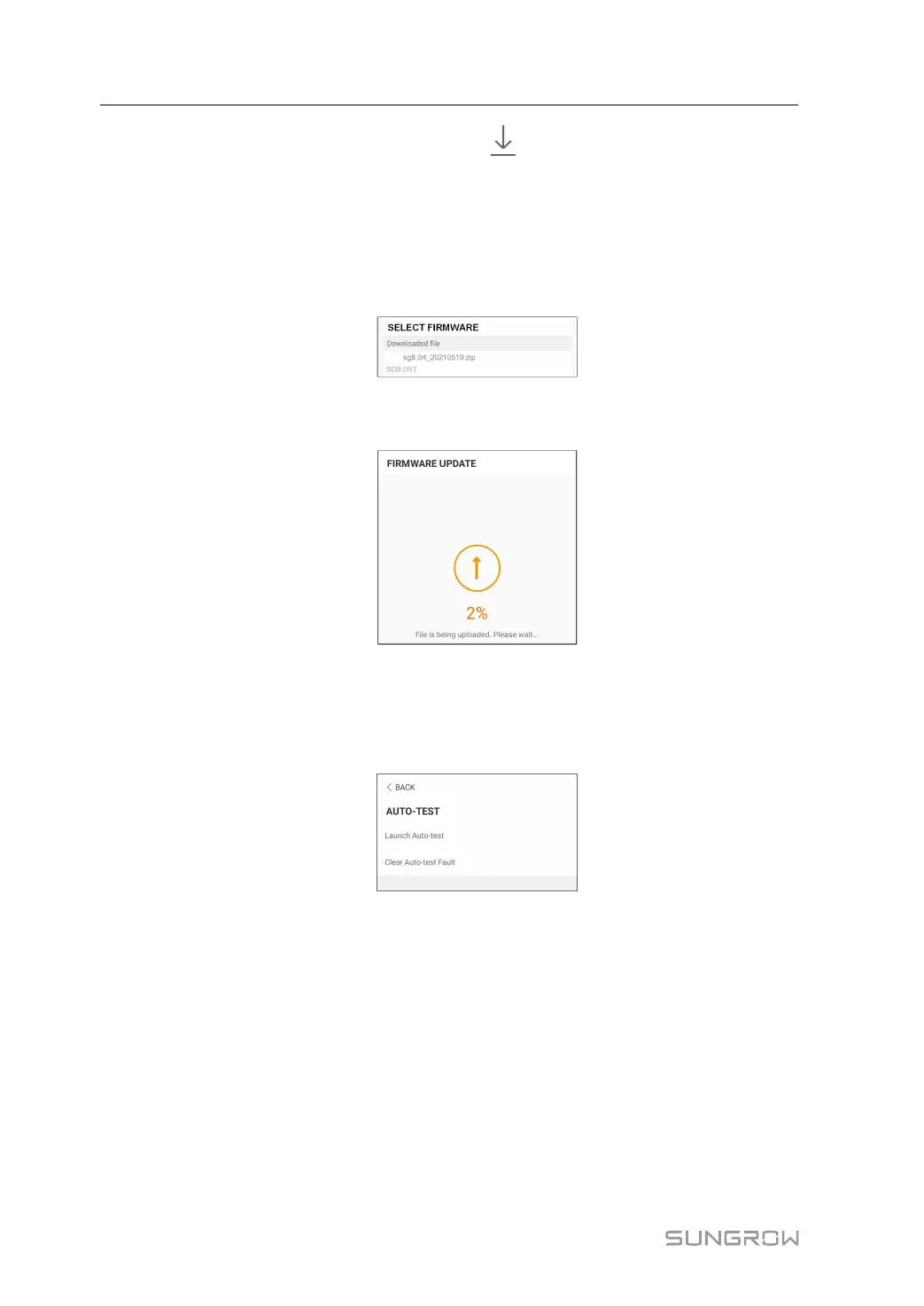
step 7 Tap More on the App home screen and then tap Firmware Update.
step 8 Tap the upgrade package file, a prompt box will pop up asking you to upgrade the firmware
with the file, tap CONFIRM to perform the firmware upgrade.
step 9 Wait for the file to be uploaded. When the upgrade is finished, the interface will inform you of
the upgrade completion. Tap Complete to end the upgrade.
- - End
7.10.6 Auto-test
Tap Auto-test to enter the corresponding screen, as shown in the following figure.
figure 7-23 Auto-test
Launch Auto-test
Tap Launch Auto-test carry out an auto-test. Auto-testing will take about 5 minutes. When
the auto-test is completed, the auto-test report is displayed, as shown in the figure below.
Tap DOWNLOAD to download the report.
7 iSolarCloud App User Manual





 To Next Page