42Chapter 5
Showing Activity
Showings Activity on iPhone
If you have eKEY Professional service, showing data is delivered to your eKEY software on your
iPhone.
To view showing activity on your iPhone:
1. Select the eKEY icon to open the eKEY application.
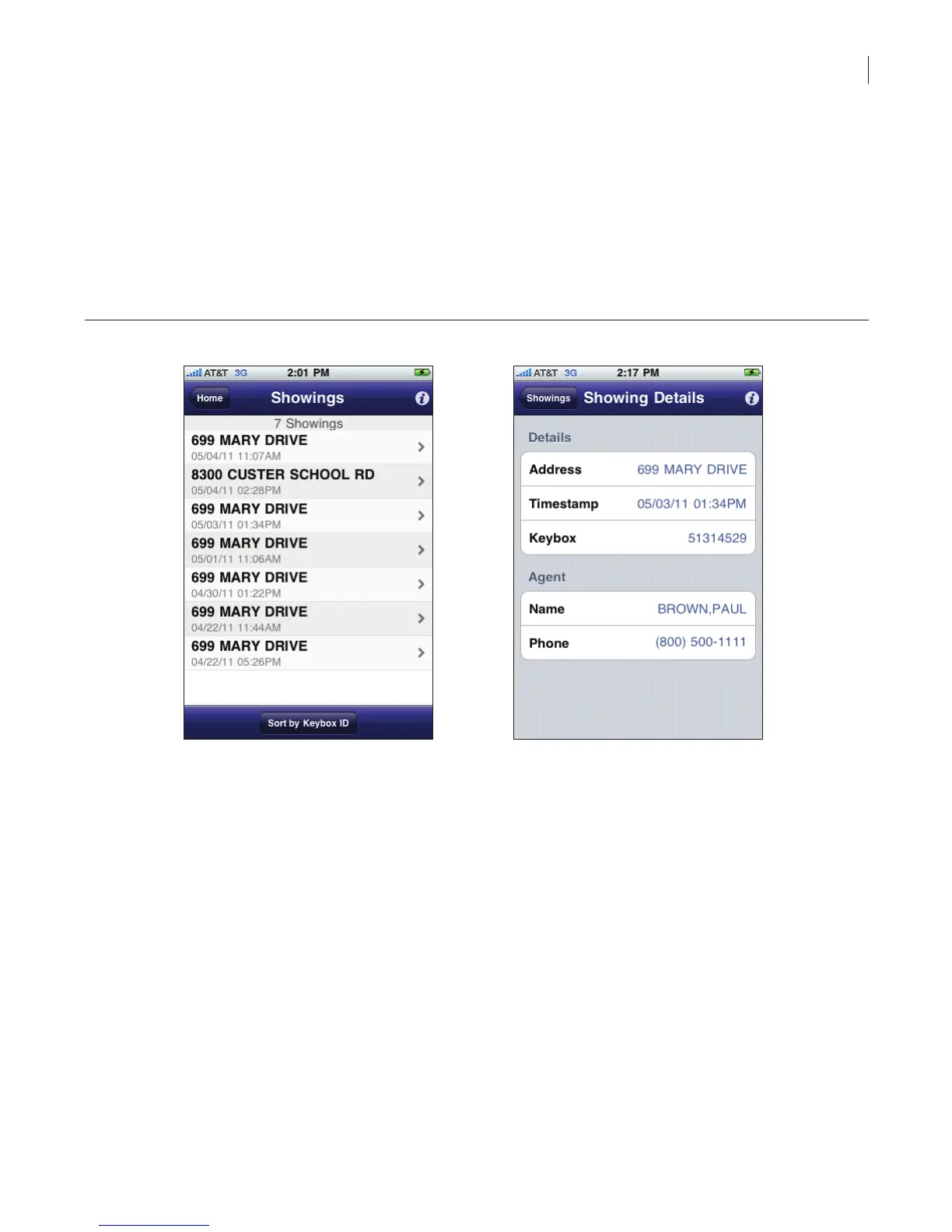
2. Select the Showings icon. Showing activity for the previous seven days is displayed.
3. Select a showing to view detailed information about the showing.
Figure 36. Showing information
From the Showing Details screen you can:
• Select the agent name to display the agent’s information from the roster
• Select the agent’s phone number to call the listing agent, or
• Select the keybox to view it in your keybox inventory
To change the number of days activity shown in your eKEY software:
1. On your computer navigate to www.supraekey.com.
2. Select Agents-Log on to SupraWEB.
3. Enter your user ID and password and select Submit. If you haven’t registered for a single sign
on (SSO) user ID and password yet, click the How to get access link to register for a login.
4. Select Settings.
5. Select eKEY Showings.
6. Select the number of days of showing activity to be displayed in your eKEY software.



 To Next Page