Hint
Hint
∗1
• Language options are not available
with some discs.
• If OTHER is selected on the AUDIO,
SUBTITLE or DISC MENU screen,
press four-digit number to enter the
code for the desired language. (Refer
to the language code list on page 24.)
• Only the languages supported by the
disc can be selected.
∗2
•
Language Setting for Audio and Subtitle
are not available with some discs. Then
use
[AUDIO] and [SUBTITLE/T-SET].
Details are on page 19.
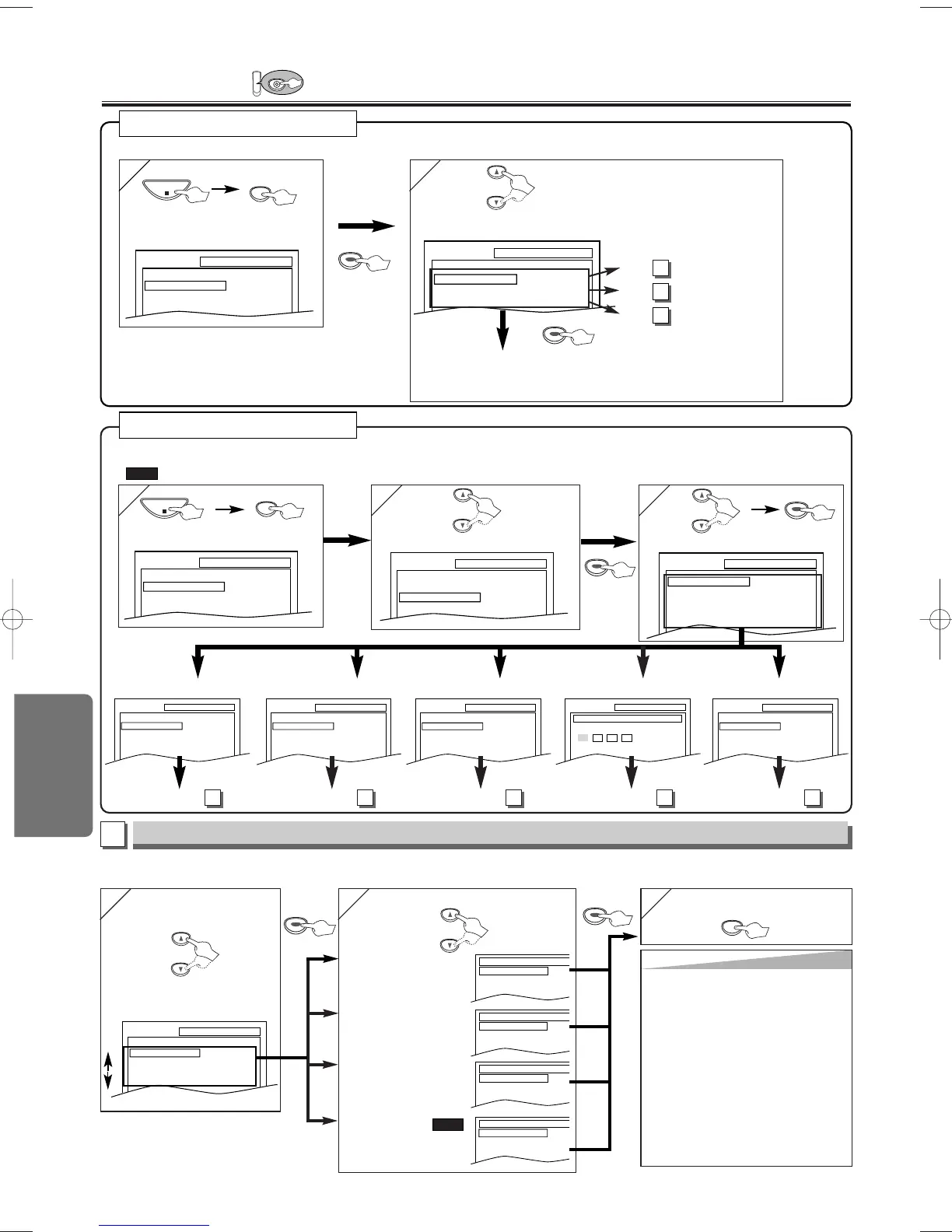
LANGUAGE Setting
Follow steps 1) to 3) in the “CUSTOM Menu” section on above.
4
4
Select the desired item.
6
6 To exit the menu
5
5
AUDIO
∗∗
1
∗∗
2
(Default: ORIGINAL)
Sets the audio language.
SUBTITLE:
∗∗
1
∗∗
2
(Default: OFF)
Sets the subtitle language.
DISC MENU:
∗∗
1
(Default: ENGLISH)
Sets the language for
DVD menu.
PLAYER MENU:
(Default: ENGLISH)
Sets the language for
the On-screen display.
QUICK
Q
Q
UICK SETUP Men
UICK SETUP Men
u
u
•
Refer to “PLAYER MENU”, “TV
ASPECT” or “DOLBY DIGITAL” on
page 20 or 21.
<SETUP MENU>
Confirm that “QUICK” is selected.
You can select the “PLAYER MENU”, “TV ASPECT” or “DOLBY DIGITAL” from the QUICK SETUP menu quickly.
You can change the settings of the unit.
•
on pages 20-22 indicates DVD Setup menus also accessible from the QUICK SETUP menu.
QUICK
<SETUP MENU>
LANGUAGE menu AUDIO menuDISPLAY menu OTHERS menu
page 20
A
page 21
B
page 21
C
page 22
E


 To Next Page