–
21
–
EN
DVD Functions
–
21
–
EN
DISPLAY Setting
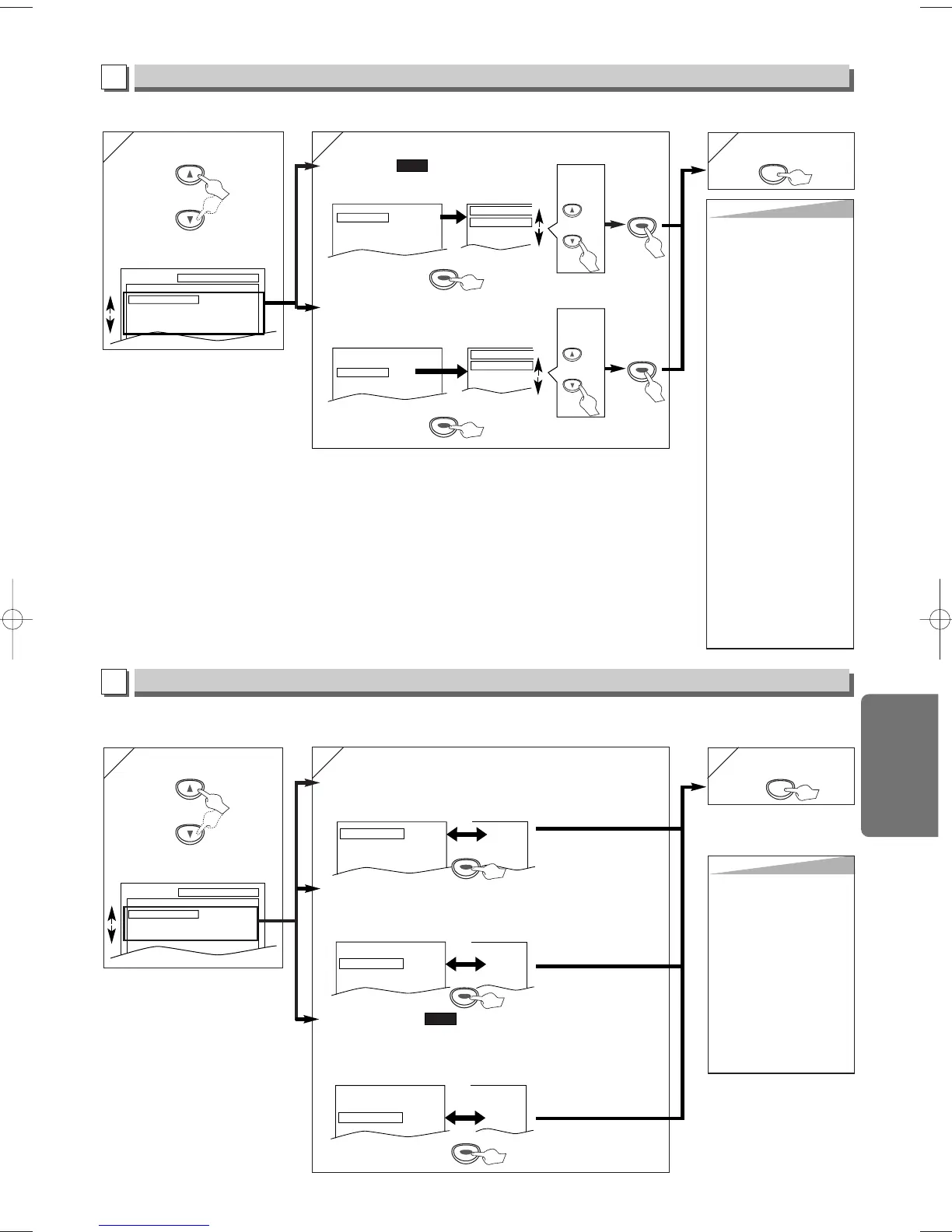
You can change the display functions. Follow steps 1) to 3) in the “CUSTOM Menu” section on page 20.
B
AUDIO Setting
Choose the appropriate audio settings for your equipment. It only affects during the playback of DVD discs. Follow steps
1) to 3) in the “CUSTOM Menu” section on page 20.
C
4
4
5
5
Hint
Hint
TV ASPECT:
• Select “4:3 LETTER
BOX”, so that black bars
may appear on the top
and bottom of the screen.
• Select “4:3 PAN & SCAN”
for a full height picture
with both sides adjusted.
• Select “16:9 WIDE” if a
wide-screen TV is con-
nected to this unit.
STILL MODE:
• Select “AUTO” usually.
•
If you select AUTO, auto-
matically select the best
resolution setting (FRAME
or FIELD) based on the
datacharacteristics of the
pictures (default).
• If you select “FIELD”, the
picture in the still mode
will be stabilized.
•
If you select “FRAME”, the
picture in the still mode
will be highly defined.
• An individual picture on
TV screen is called as
“frame”, which consists of
two separate images
called as “field”.
Some pictures may be
blurred at the AUTO set-
ting in the still mode due to
their data characteristics.
4
4
Select the desired item.
DISPLAY menu
Select the desired item.
AUDIO menu
6
6 To exit the menu
TV ASPECT:
(Default: 4:3 LETTER BOX)
See Hint to the right.
QUICK
DRC (Dynamic Range Control):
(Default: ON)
Set to “ON” to compress the range between soft and loud sounds.
DOLBY DIGITAL:
(Default: BITSTREAM)
Set to “BITSTREAM” when the unit is connected to a Dolby Digital receiver.
• BITSTREAM: Outputs a Dolby Digital Signals.
• PCM: Convert the Dolby Digital into PCM (2 channel).
QUICK
Hint
Hint
DRC:
• This function is available
only on the discs which
are recorded in the Dolby
Digital format.
DOWN SAMPLING:
• When playing disc with
copyright Protection, the
sound will be down sam-
pled at 48kHz, even if
you set to “OFF”.
•
This function is avail-
able only on digital out-
putting of a disc
recorded in 96kHz.


 To Next Page