18
3
Chapter
After hardware setup is completed, please install DiskStation Manager (DSM) – Synology's browser-based
operating system – on your DS1522+.
Install DSM with Web Assistant
Your DS1522+ comes with a built-in tool called
Web Assistant
that helps you download the latest version of DSM
from the Internet and install it on your DS1522+. To use Web Assistant, please follow the steps below.
1
Power on your DS1522+.
2
Open a web browser on a computer connected to the same network as your DS1522+.
3
Enter either of the following into the address bar of your browser:
1
nd.synology.com
2
synologynas:5000
4
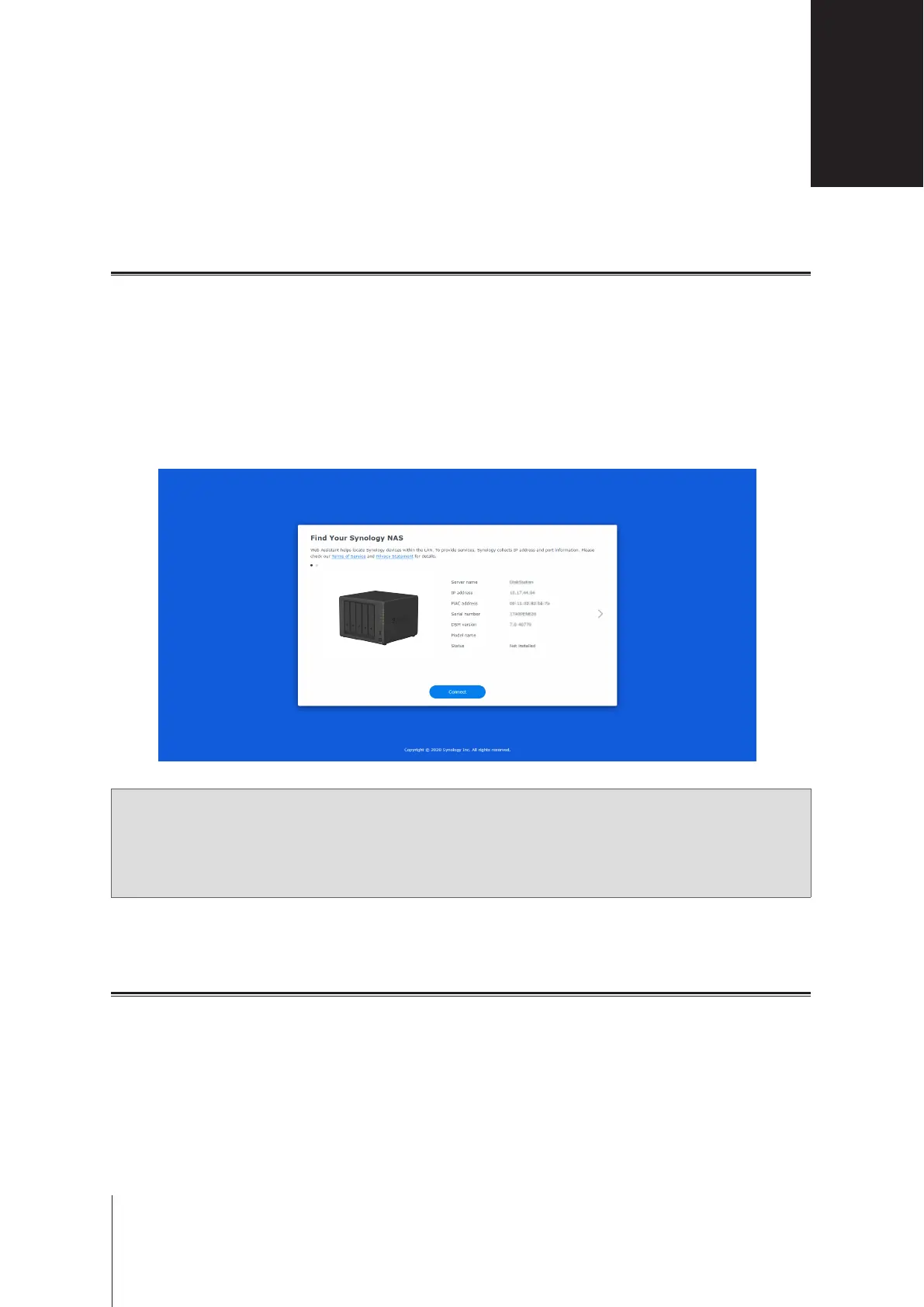
Web Assistant will be launched in your web browser. It will search for and nd the Synology NAS within the
local network. The status of your DS1522+ should be
Not Installed
.
RS2821RP+DS2422+DS1522+
5
Click
Connect
to start the setup process and follow the onscreen instructions.
Note:
• The Synology NAS must be connected to the Internet to install DSM with Web Assistant.
• Recommended browsers: Chrome, Firefox.
• Both the Synology NAS and the computer must be in the same local network.
6
If you accidentally leave the installation process before it is nished, sign in to DSM as
admin
(default
administrative account name) with the password left blank.
Learn More
Your DS1522+ is now ready for action. For more information or online resources about your DS1522+, please
visit
Synology's ocial website
, which contains
step-by-step tutorials and frequently asked questions
.
Install DSM on Synology NAS



 To Next Page