7
Chapter 1: Before You Start
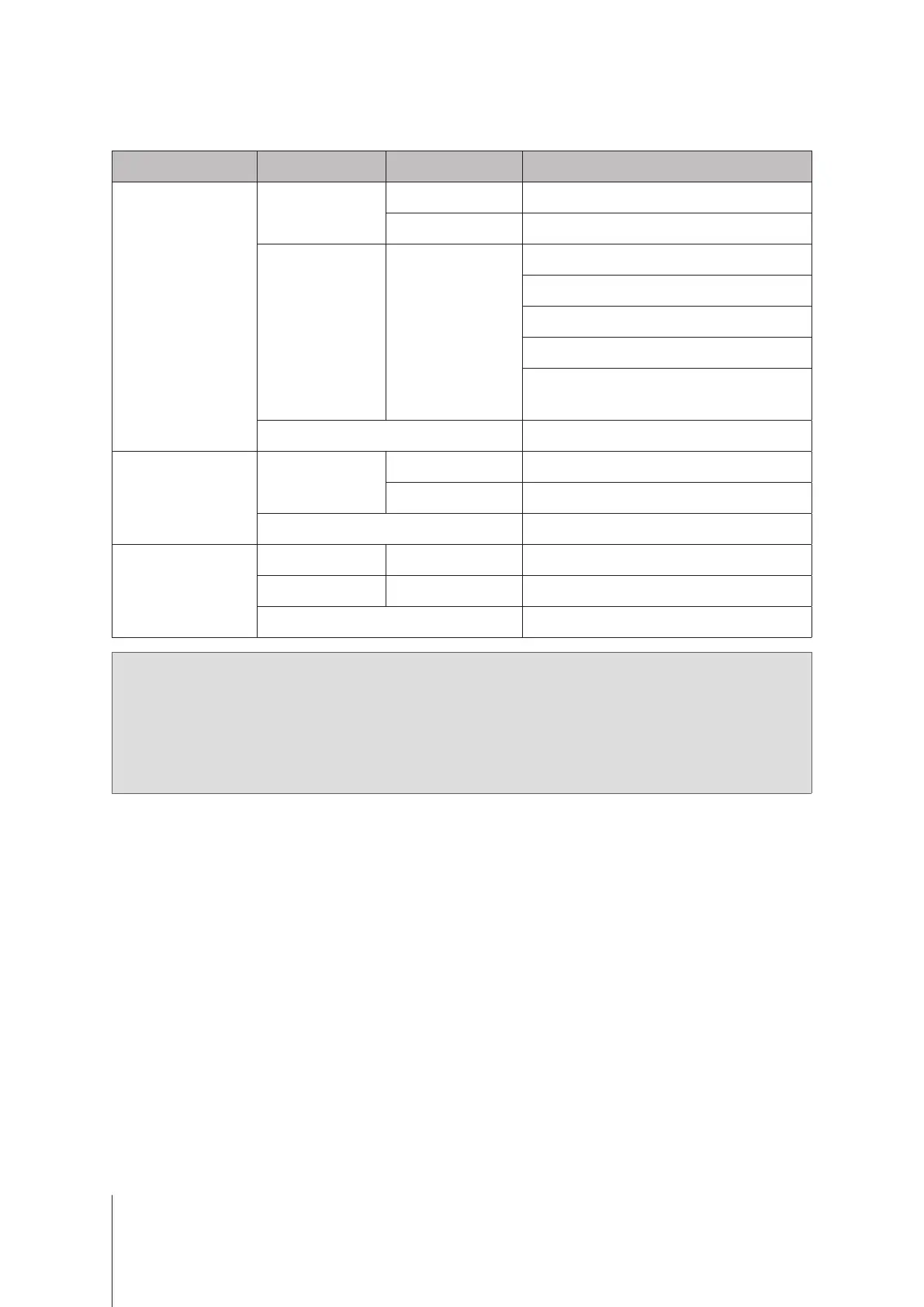
Other LED Indicators
LED Indicator Color Status Description
DRIVE status
Green
Static Drive ready and idle
Blinking Accessing drive
Orange Static
Locating drive
Drive deactivated by user
Port disabled
1
Drive health status is Critical or Failing
Removing this drive will cause system
damage; this is the only drive with DSM
installed.
O No internal drive
Rear LAN
(on left side of jack)
Green
Static Network connected
Blinking Network active
O No network
Rear LAN
(on right side of jack)
Green Static 1 Gbps connection
Orange Static 100 Mbps connection
O 10 Mbps connection/No network
Note:
1
When the drive LED indicator is red/orange, we recommend you sign in to DSM and go to
Storage Manager
>
HDD/SSD
for more information.
2
Please try to restart your Synology NAS or re-insert the drives, then run the HDD/SSD manufacturer's
diagnostic tool to check the health status of the drives. If you can sign in to DSM, please run the built-in
S.M.A.R.T. test to scan the drives. If the problem remains unresolved, please contact Synology Technical
Support for help.



 To Next Page