page
11
January 2020 - Rev. 1.2
Order Cod. 1902503003
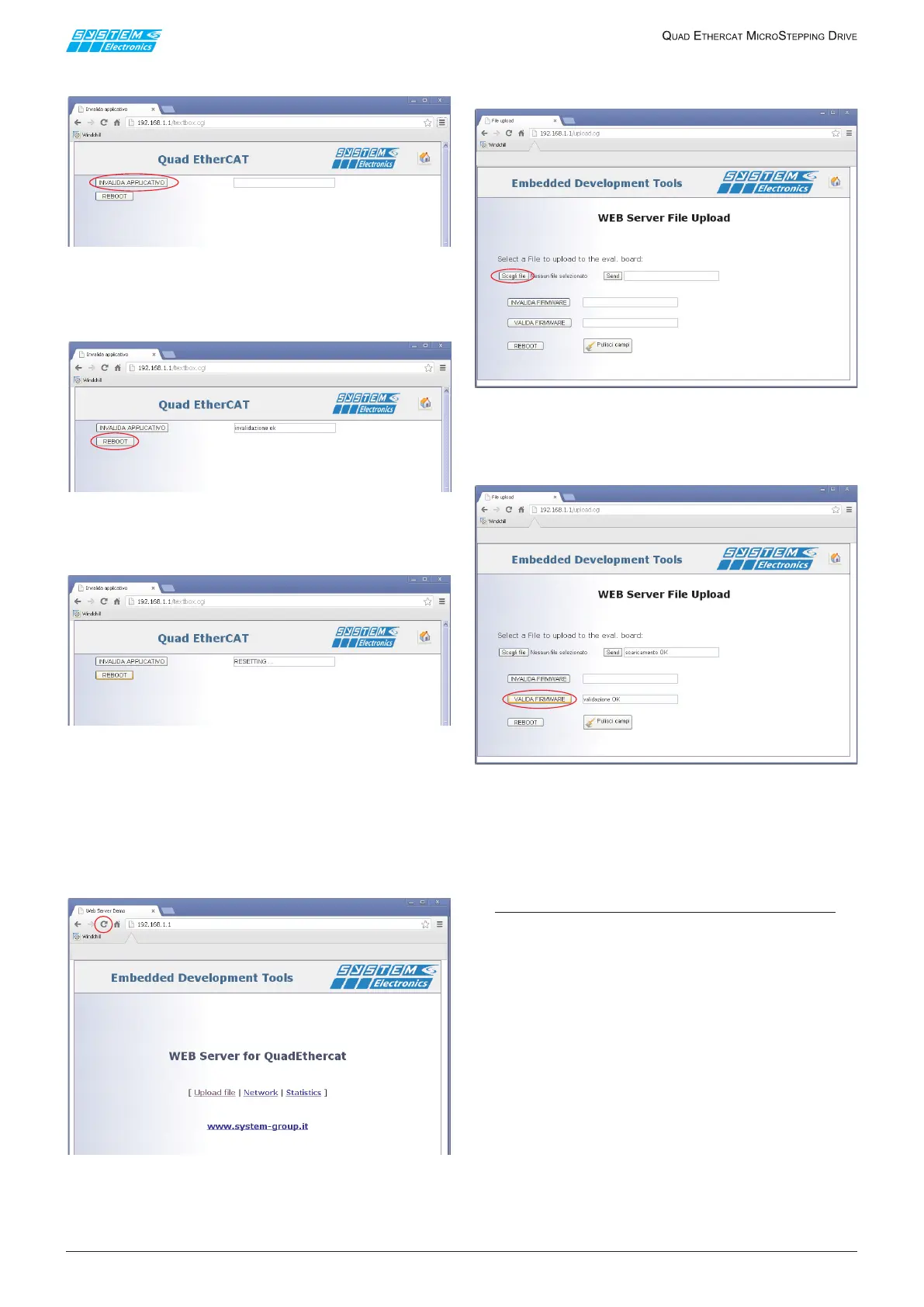
2 - Pressthe"InvalidateApplication"button.
Figure 4.2.2
3 - Waitforthe"invalidationok"messagetoappear
andpresstheREBOOTbutton.
Figure 4.2.3
4 - "RESETTING ..." appears.
Figure 4.2.4
5 - EntertheaddressagainintheQuadEtherCATIP
addressbarandpressthebrowserRefreshbutton
toreloadthepageproperly.
Clickonthe"UploadFile"Link
Figure 4.2.5
6 - Selecttheletobeloadedbypressing"Select
le"andthen"Send".
Figure 4.2.6
7 - Waitforthe"downloadOK"messagetoappearand
pressthe"VALIDATEFIRMWARE"button.
Figure 4.2.7
At the end, wait for the "validation OK" message to
appearandpresstheREBOOTbuttonorswitchtheQuad
onandoagaintoloadtheupdatedrmware.
NOTE
Make sure you have a power supply with the
correct voltage during the update procedure and
do not disconnect from the power supply while
downloading.
4.3 Update via Ethernet/TFTP
Onecandownloadthenewaxesmanagementrmware
byconnectingtotheEthernetportofthedriveandusing
a TFTP Client.
Validation of the new rmware is automatic and is
performedattheendofasuccessfuldownload.
Driveresetrequiresswitchingoandonagain.



 To Next Page