EasyManua.ls Logo

Tandy TRS-80 - Agarbled up Disk

Tandy TRS-80
104 pages
Print Icon
To Next Page IconTo Next Page
To Previous Page IconTo Previous Page
Loading...
A GARBLED UP DISK
If
You have
Problems During
Backup
If
you get an error message while
you're backing
up a disk, it's probably
because you've
inserted the
disk incorrectly or there
is
something wrong with
the disk. At the end
of this
chapter, we discuss
error
messages to help
you
determine the
prob-
lem. If
you
have
a bad disk,
you
will
need
to try
BACKUP with
another disk.
After determining
the problem,
press the
RESET
button
to get out of BACKUP. Then
start the
BACKUP
procedure
all over again.
I
Note:
The
RESET button is ore the right-hand
rear
of
your
Computer (when
you're
facing
it).
"WRITE" PROTECT IT
"Write-protecting"
is one
more way
to protect your
disk files.
Let's
assume you have a
disk which
con-
tains
some valuable
information
—
such as a good
program
—
which
you don't plan to change.
You
plan
to "read"
its contents daily,
by loading the
program into
memory,
yet you never
plan to
"write"
(store information)
on it.
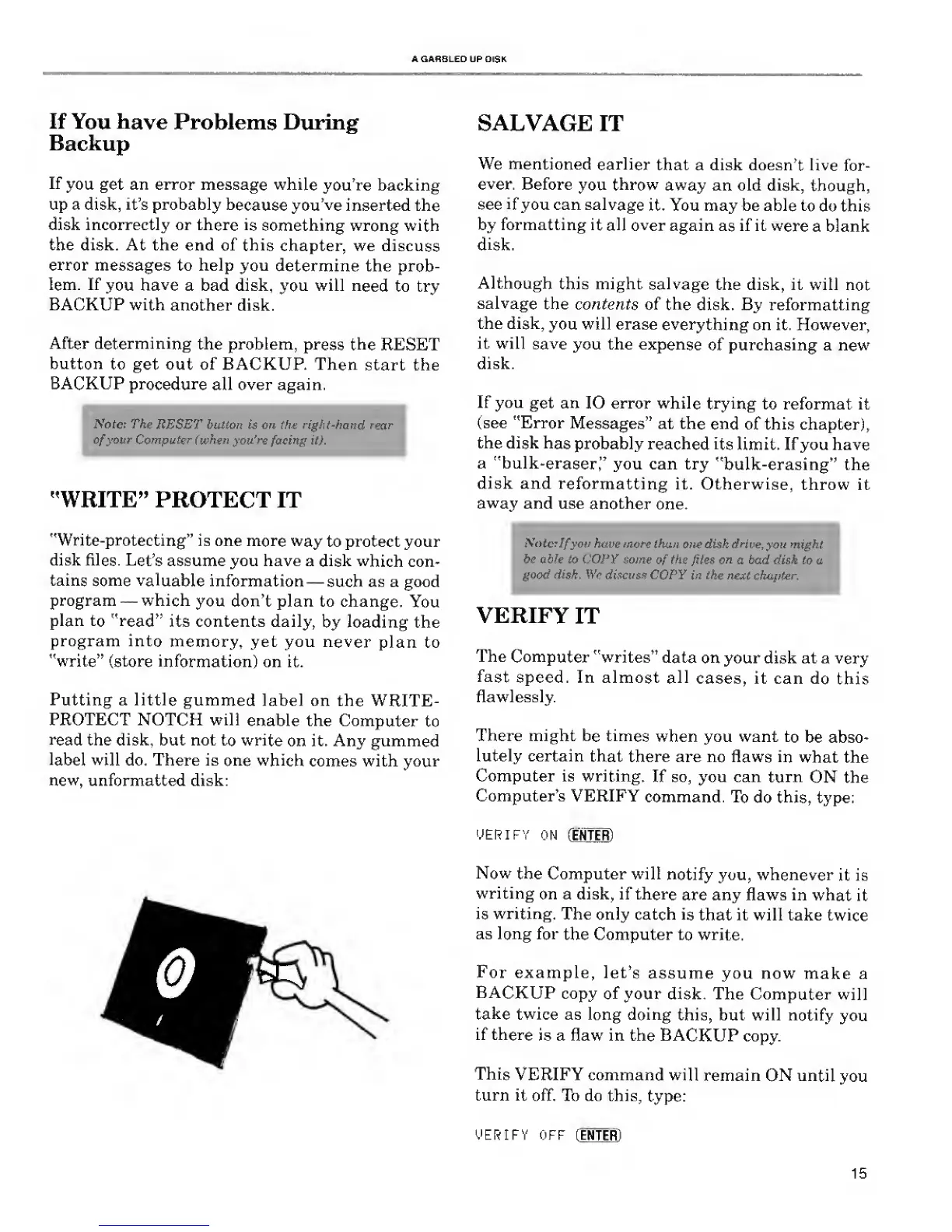
Putting a little
gummed
label on the
WRITE-
PROTECT NOTCH will
enable the Computer
to
read
the disk, but not
to write
on it. Any gummed
label will
do. There is
one
which
comes with your
new,
unformatted disk:
SALVAGE
IT
We mentioned
earlier
that a disk doesn't live
for-
ever.
Before
you
throw
away an old disk,
though,
see
if
you can salvage
it. You may be able
to
do this
by formatting
it all over
again as if it
were
a blank
disk.
Although
this might
salvage
the disk, it will
not
salvage
the contents
of the
disk. By reformatting
the disk,
you will erase
everything
on it. However,
it will
save
you the
expense
of purchasing a new
disk.
If you
get an 10 error while
trying
to reformat it
(see "Error
Messages" at the
end
of this chapter),
the disk
has
probably
reached its
limit. If you have
a
"bulk-eraser,"
you can try
"bulk-erasing" the
disk and
reformatting
it. Otherwise,
throw it
away
and use
another
one.
I
Note:Ifyou have
more
than one disk drive,
you might
be able to COPY some
of
the
files
on a bad disk
to
a
good disk. We discuss COPY
in the
next chapter.
VERIFY
IT
The
Computer
"writes"
data
on your disk at a very
fast
speed. In almost all
cases, it can
do
this
flawlessly.
There might
be
times
when you want
to
be abso-
lutely certain
that
there are
no
flaws
in
what the
Computer is writing.
If so, you can
turn
ON the
Computer's VERIFY
command.
To
do
this,
type:
VERIFY
ON
(ENTER)
Now
the Computer will
notify you, whenever
it is
writing
on a disk, if there
are any flaws in
what
it
is
writing.
The only catch
is
that it will take twice
as long for
the Computer
to write.
For
example,
let's
assume you now
make
a
BACKUP
copy of
your
disk. The Computer
will
take
twice as long doing
this, but will notify
you
if there
is a flaw in the
BACKUP
copy.
This
VERIFY command
will
remain
ON
until
you
turn
it off.
To do this,
type:
VERIFY OFF
(ENTER)
15

Related product manuals