17
4:3 PS
4:3 LB
16:9 Wide
Press SETUP to exit Current selection
Press SETUP to exit
English
German
Spanish
French
Danish
v
Current selection
v
Italian
General Setup
Menu Language
Screen Saver
Factory Defaults
4:3 PS
4:3 LB
16:9 Wide
Press SETUP to exit Current selection
Press SETUP to exit
ON
v
Current selection
v
OFF
General Setup
Menu Language
Screen Saver
Factory Defaults
4:3 PS
4:3 LB
16:9 Wide
Press SETUP to exit Current selection
Press SETUP to exit
v
Current selection
v
Defaults
General Setup
Menu Language
Screen Saver
Factory Defaults
4:3 PS
4:3 LB
16:9 Wide
Press SETUP to exit Current selection
Press SETUP to exit
TV Display
Video Output
TV Type
Rear AV IN
Front AV IN
Video Setup
Normal/PS
Normal/LB
Wide TV
Current selection
v
v
General
This is on-screen language setting. In this instruction manual, the
language in on-screen display is English.
If you change the language, please follow the selected language in
on-screen display.
(General —> Menu Language , Screen Saver , Factory
Defaults)
1. Press SETUP in no disc mode or full stop mode, “Menu” screen
appears on the TV screen.
2. Using
to select “Setup Menu ”, then press ENTER or
,“Recording Setup” is highlighted.
3. Press
to select “General ”, then press ENTER or , “General
Setup ”screen appears.
4. Press
/ repeatedly to select the item.
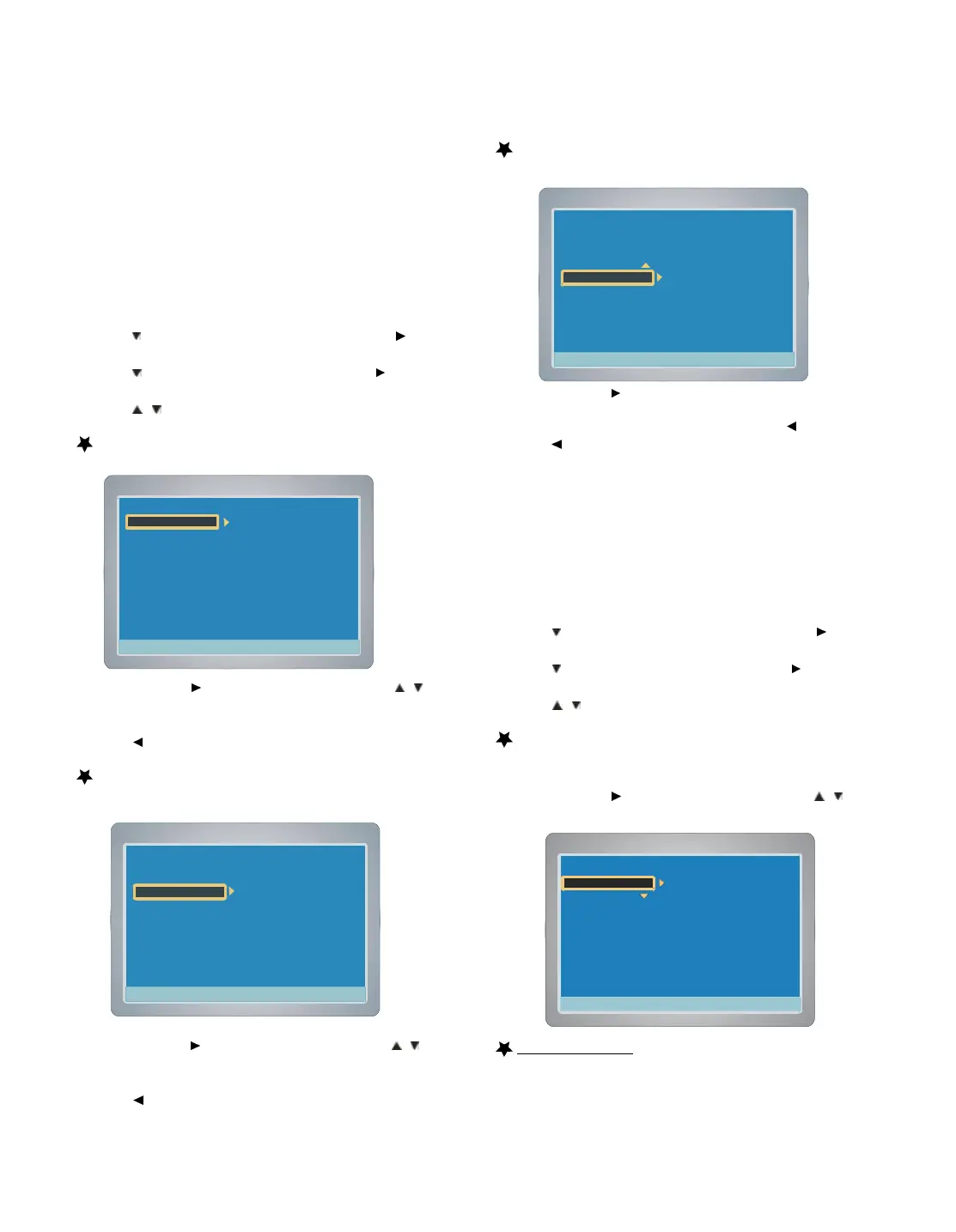
Setting Menu Language
1. Select “Menu Language ”.
2. Press ENTER or
to select the sub menu, then press / to
select the desired language.
3. Press ENTER, "V" appears, the menu language is set.
4. Press
to return to “Menu Language ”.
Setting Screen Saver
1. Select “Screen Saver ”.
2. Press ENTER or
to select the sub menu, then press / to
select “ON ”or “OFF ”.
3. Press ENTER,"V" appears.
4. Press
to return to “Screen Saver ”.
Setting Factory Defaults
1. Select “Factory Defaults ”.
2. Press ENTER or
to enter “Defaults ”.
Note : If you want to select factory defaults ,press ENTER, If
you want to keep current setting, press
to return.
3. Press
to return to “Factory Defaults ”.
Video
(Video —> TV Display , TV Type, Video Output, Rear AV IN,
Front AV IN)
1. Press SETUP in no disc mode or full stop mode, “Menu ”screen
appears on the TV screen.
2. Press
to select “Setup Menu ”, then press ENTER or
,“Recording Setup” is highlighted.
3. Press
to select “Video ”, then press ENTER or , “Video
Setup ”screen appears.
4. Press
/ repeatedly to select the item.
Setting TV Display
1. Select “TV Display ”
2. Press ENTER or
to select the sub menu, then press / to
select the appropriate setting for your TV screen size.
Normal/PS (Panscan)
Select when a conventional TV set is connected.
When the wide screen disc is played back, it displays pictures
cropped to fill to your TV screen. The left and right edges are cut
off.



 To Next Page