Targetmax® V.2.0 Attendance System Hardware Suite Guide
31
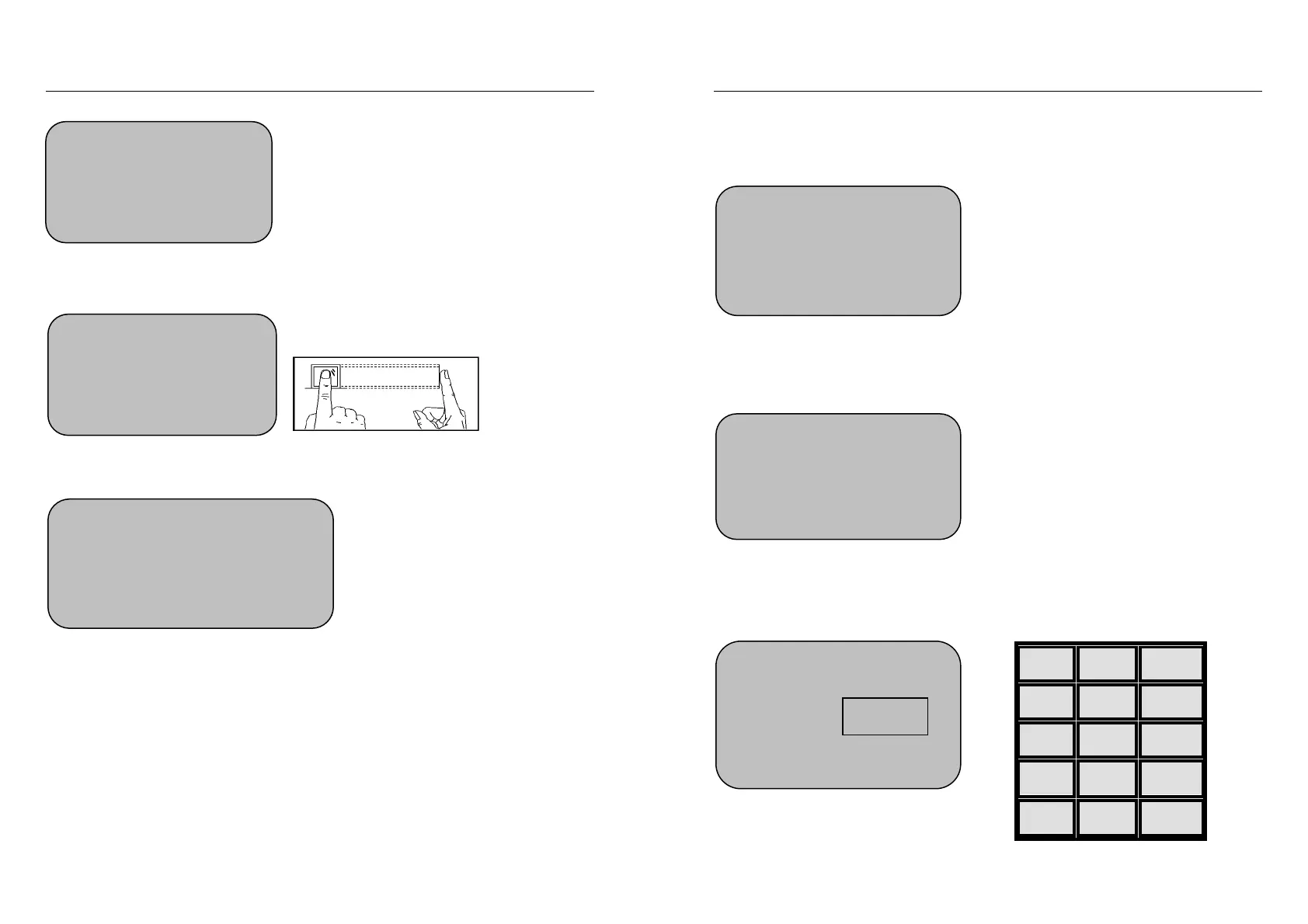
Press OK to confirm ID number and start register fingerprint.
New user is requested to press his finger on the reader correctly.
New user is requested to register his/her same finger for 3 times repeatedly.
(2) Backup Registration
For Backup Register – User can register 2 more different fingerprints, 1 more
password or 1 more ID card under the same ID no. for backup usage.
Register method is same as new registration.
Press OK if continue fingerprint
registration is required.
or press ESC to exit
Please Press Your Finger
1st Time
Please Remove Finger!
Fingerprint Registration
Continue Fingerprint Registration?
Exit - ESC Yes - OK
Targetmax® V.2.0 Attendance System Hardware Suite Guide
32
3.2.1 (B) Password Registration
It is suitable to those users who cannot be easy registered by fingerprints.
Under Registration Mode:
Select “Password Registration” and press OK to enter the new password
registration menu.
New User Registration
Using number key, input own ID number, e.g. 12346 as below:
1 2 3
4 5 6
7 8 9
0 ▲ ESC
OK ▼ MENU
Registration Mode
1. Fingerprint Registration
2. Password Registration
3. ID Card Registration
Password Registration
Registration No : 00001
Exit - ESC Yes - OK
Password Registration
Registration No:00001
-
-
12346


 To Next Page