Targetmax® V.2.0 Attendance System Hardware Suite Guide
33
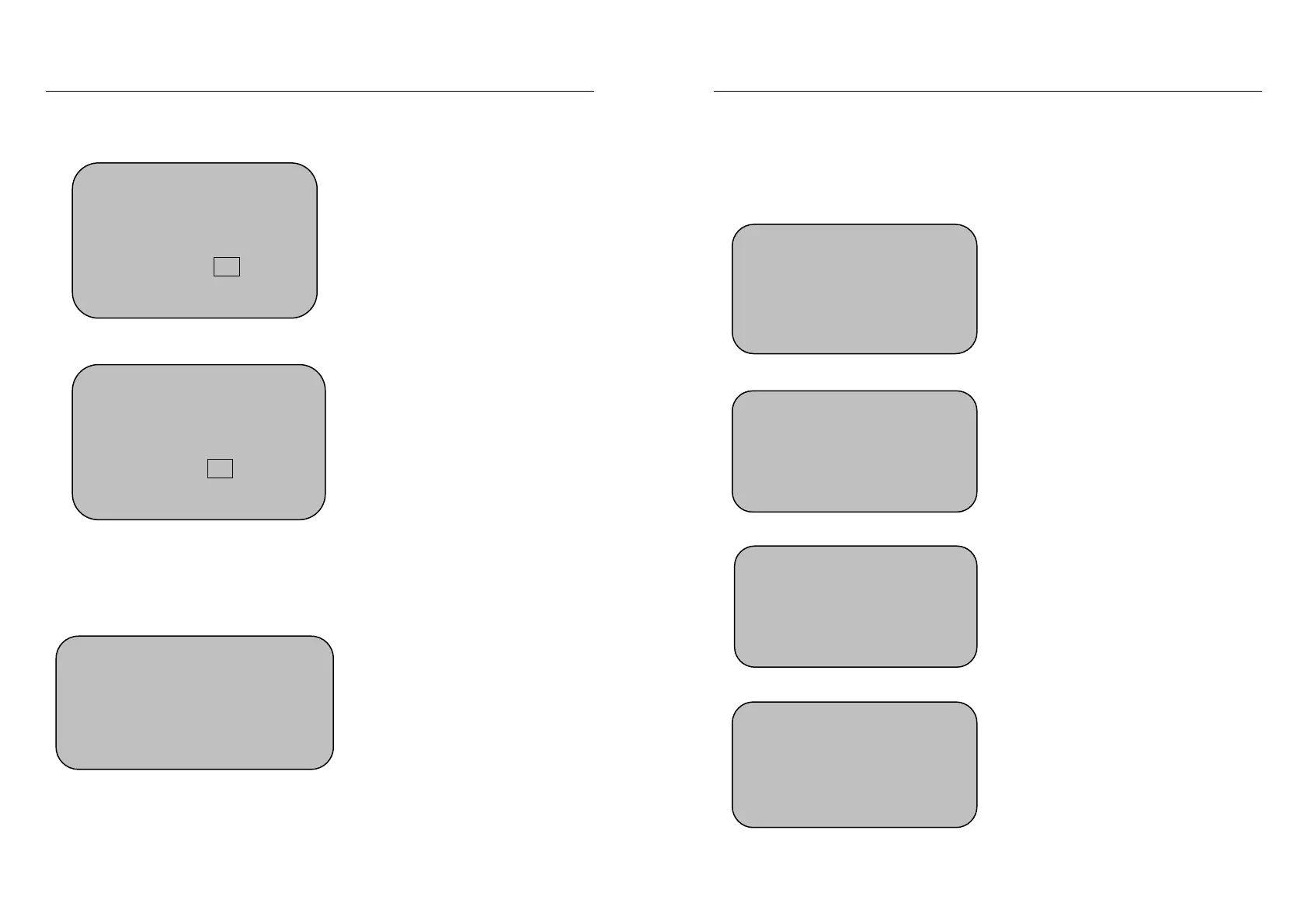
Press OK to confirm and show new registration – using the number key to input
own password (4 digits) as below, e.g. password 1234
Press OK to confirm and screen will show:
Press selected password 1234 again and press OK to save the password, then
screen will show:
Press OK if continue password registration is required or press ESC to exit
* Each user can only register 1 password.
New Password Registration
Registration No:12346
Input Password ****
Exit - ESC Yes - OK
Password Confirming
Please Enter Password Again
Enter password: ****
Exit - ESC Yes - OK
Password Registration
Continue Password Registration?
Exit - ESC Yes - OK
Targetmax® V.2.0 Attendance System Hardware Suite Guide
34
3.2.1 (C) ID Card Registration
It is suitable to those users who cannot be easy registered by fingerprints.
Under Registration Mode:
Select “ID Card Registration” and press OK to enter the new ID card registration
menu.
New User Registration
Using number key, input own ID number, e.g. 12347 as below:
Press OK to confirm and screen will show:
Registration Mode
1. Fingerprint Registration
2. Password Registration
3. ID Card Registration
ID Card Registration
Registration No.: 00001
Exit - ESC Yes - OK
ID Card Registration
Registration No.: 12347
Exit - ESC Yes - OK
ID Card Registration
Please Present Your ID Card
Exit - ESC Yes - OK


 To Next Page