Targetmax® V.2.0 Attendance System Hardware Suite Guide
37
3.4 View Attendance Record
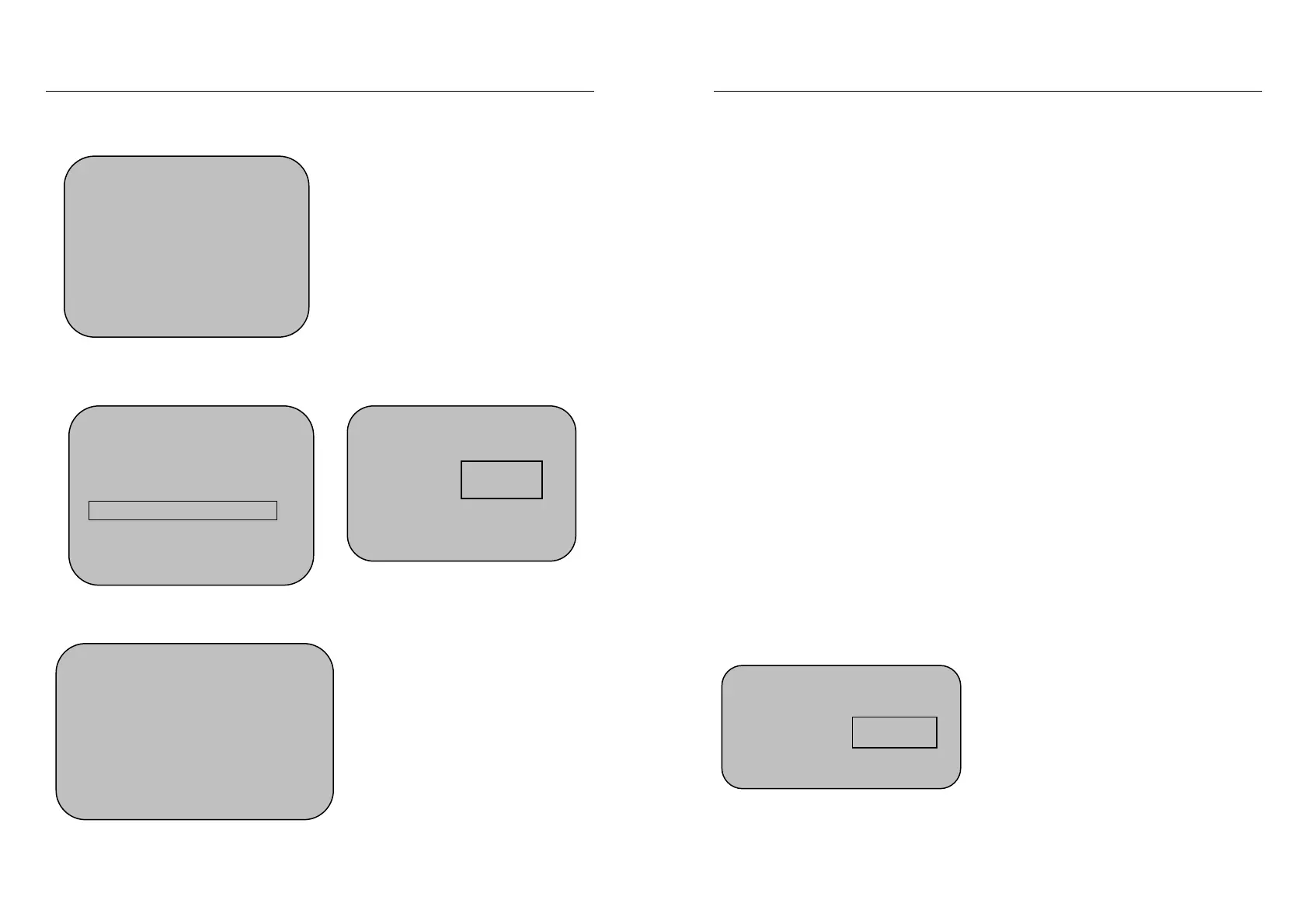
Press “Menu” “Information Query” “Log Info” and screen will show:
Select “View Attendance Record” and press OK enter the view attendance
record menu.
Press OK to view all the attendance Record.
Record Details
1. Attendance Record 0
2. Manager Record 0
3. View Attendance Record
4. View Management Record
5. Delete All Records
Record Details
1. Attendance Record 0
2. Manager Record 0
3. View Attendance Record
4. View Management Record
5. Delete
ll Records
View Attendance Record
Register No.
Exit - ESC Yes - OK
00000
View Attendance Record
C-05431
N-00001
01-11-30 17:30 V_F
12345
Exit - ESC Yes - OK
Targetmax® V.2.0 Attendance System Hardware Suite Guide
38
The above screen displayed character and significance of information as follow:
C: Total In/Out records’ quantity
(For example: C-05431 means 5431 records recorded)
N: Serial no. of In/Out records
(For example: N- 00001 means the first records)
V_F: means verified by fingerprint
(V_P: means verified by password)
(V_C: means verified by ID card)
12345: The Registered ID No. of the user
01-11-30 17:30 means the In/Out time
The above displayed record is the latest memory of in/out record.
Press “▼▲” to check the other in/out records one by one.
Press “ESC” to exit
View specified User’s in/out recorder -
Input the Register No. (User ID No.) which you want to check his/her
attendance record and press OK. For example: User ID 12345
Press OK and the latest in/out record of User ID12345 will displayed as below:
View Attendance Records
Register No.
Exit - ESC Yes - OK
12345


 To Next Page