50
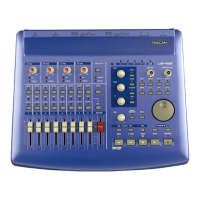
Bank Selection:
<<BANK Shift 8 tracks to the left
BANK>> Shift 8 tracks to the right
SET + <<BANK Shift 1 track to the left
SET + BANK>> Shift 1 track to the right
If less than 8 tracks remain to the left or
right, the bank buttons will shift as many
tracks as available. The <<BANK
LED is
lit if you can shift further left, and the
BANK>>
LED is lit if you can shift further
right. Performing any banking operation
will automatically bring the Mixing Board
window to the front.
Note that banking actions are disabled if
the R
EC button or any SELECT button is
being held down. This is to prevent
banking during a possible updating of
tracks' automation data.
Fader Nulling:
When changing banks, a physical fader
position might not match the
corresponding channel’s on-screen
fader’s position. Pressing the N
ULL
button places the US-428 into Null mode
and lights the N
ULL LED. In this mode,
the fader strips’ red R
EC and green SEL
LED’S display whether the fader is too
high (R
EC LED on) or too low (SEL LED
on). When both are lit, the physical
fader matches the on-screen fader’s
position. Press N
ULL again to return to
normal operational mode.
Window Navigation
F1 Toggle Mixer window to front/back
F2 Toggle Track Overview window to
front/back
F3 Cycle through the open windows
SET + F1 Enter Insert Parameter mode
SET + F2 Save open file
SET +F3 Close the front window
GAIN Scroll window right/left
FREQ Scroll window up/down
Q Zoom window horizontally
in/out
SET +Q Zoom window vertically in/out
EQ Controls
If you place a P
ARAEQ 4-BAND effect in
the topmost insert slot for an audio
track, the US-428 can directly control
that EQ. Pressing the L
O, LOMID, HIMID
or HI buttons will activate the EQ
controls for the first (leftmost) selected
track. When the EQ controls are active,
one of the L
O, LOMID, HIMID or HI LEDs
will be lit. Pressing the button below
that led will deactivate the EQ controls
(which is different from deactivating the
EQ inserted effect).
With the EQ controls active, the
following controllers are functional:
GAIN Change filter gain for selected EQ band
SET + GAIN Fine filter gain adjust
FREQ Change filter frequency for selected EQ
band
SET + FREQ Fine filter frequency adjust
Q Change filter bandwidth for selected EQ
SET + Q Fine filter bandwidth adjust
SET + Lo, LoMid, HiMid or Hi Cycles
through various filters (and bypass) for selected
EQ
S
ET + NULL Toggle EQ bypass switch
status
You can also use the PARAEQ 2-BAND
effect in the top insert position, in which
case only the LO and LOMID bands are
available.



 To Next Page