MFC Kit Instructions 6.0 Troubleshooting
54
Communication Problems
• J5 Communication Header
o With the power de-energized from the filter, check wiring leading to J5 header
▪ If the user is using a different RS485 converter than the example above, please
follow the datasheet for the A & B signals and ground for proper setup
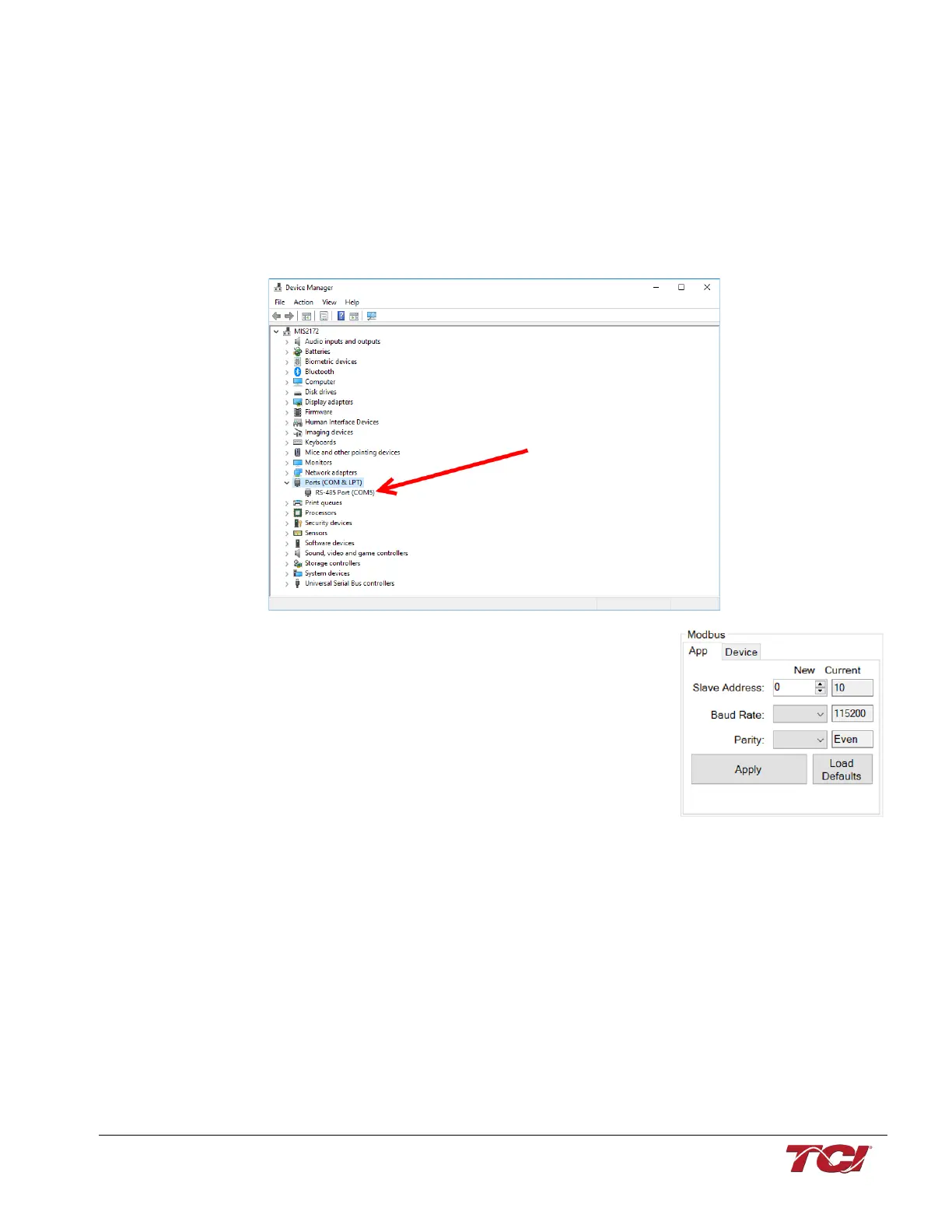
• Ensure the drivers of the RS485 to USB converter is installed to the computer. Simple way
of checking while the RS485 converter connected is to go to the device manager and scroll
down to ports. There will be a device connected to the ports. If your device is not listed, the
user will need to install the correct drivers of the RS485 converter.
• PQvision App Load Defaults
o With the RS485 Converter connected to the circuit
board
o Energize Filter
o Open PQvision desktop interface
o Go to Settings
o Select Load Defaults
o Select Apply
o Default Modbus settings should be applied. Try
connecting to the COM port
▪ If this doesn’t work de-energize power to the filter
and try flipping the A and B signal wires leading to the J5 header of the circuit board.
• Hard Reset Modbus settings (Worst Case)
o To perform a hard reset of Modbus settings the user will need to remove jumper J20 with
the power de-energized from the filter. Once the jumper is removed connect the RS485
converter to J5 header and energize filter.
o Open PQvision
o Confirm there is a COM port under Communication and try to connect
▪ Note if connecting to the COM port does not work, try flipping the A and B signal
wires leading to the J5 header of the circuit board
o Load defaults and apply
o Save settings and de-energize filter
o Connect jumper to J20
o Energize filter
o Try connecting to PCB
▪ All Modbus settings should be set to default settings at this point
▪ If the board doesn’t connect after trying hard reset contact TCI Tech-Support



 To Next Page