EasyManua.ls Logo

TCL MOVEAUDIO S180 - User Manual

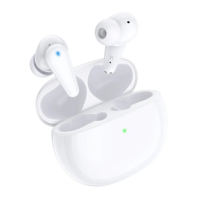
TCL MOVEAUDIO S180
20 pages
Print Icon
To Next Page IconTo Next Page
Loading...
MOVEAUDIO
S180
USER MANUAL
V1.0 |
TW18

Questions and Answers

  • V
    Valerie LeeAug 18, 2025
    What to do if I can't pair my TCL Headphone earbuds with my device?
    • K
      Karen WhiteAug 19, 2025
      If you're having trouble pairing your TCL Headphone earbuds, first turn off the Bluetooth function of all previously paired devices. Next, remove your earbuds from the pairing list on your device. Finally, follow the pairing steps in the user manual.
  • D
    Dustin JohnsonAug 21, 2025
    Why I can't hear audio from one of the TCL MOVEAUDIO S180 earbuds?
    • C
      Crystal NelsonAug 21, 2025
      If you can't hear audio from one of your TCL Headphone earbuds, place both earbuds in the charging case, ensuring that they are charging and that the charging case has been charged sufficiently. Then, take them out and try again. If the problem continues, reset the earbuds.
  • S
    Stephanie ShieldsAug 23, 2025
    What to do if I can't hear the voice of the caller during a call using TCL MOVEAUDIO S180 earbuds?
    • K
      Kendra CookAug 23, 2025
      If you can't hear the caller when using your TCL Headphone earbuds, it may be because some smartphones default to the phone for calls. You may need to manually switch the call to your earbuds on your smartphone. Also, try increasing the volume on your earbuds and adjusting the volume on your connected Bluetooth device.
  • C
    Crystal BrownAug 26, 2025
    What to do if during a call using TCL Headphone earbuds, others can't hear me speaking over a call?
    • J
      Jessica MaldonadoAug 26, 2025
      If others can't hear you when using your TCL Headphone earbuds for a call, check your smartphone to make sure the voice is going through the earbuds. Also, try speaking closer to the earbud.
  • R
    Ryan AguirreAug 27, 2025
    Why do my TCL MOVEAUDIO S180 earbuds keep disconnecting from my device?
    • C
      Carl BatesAug 28, 2025
      Your TCL Headphone earbuds may be disconnecting due to low battery. Also, make sure your earbuds and device are within connection range. If the issue continues, remove the earbuds from the pairing list and pair them again with your device.
  • R
    Rick GrayAug 30, 2025
    Why is the audio quality poor and crackling on my TCL Headphone earbuds?
    • S
      stephanielopezAug 30, 2025
      Poor audio quality and crackling on your TCL Headphone earbuds might be due to distance or interference. Ensure your connected device is nearby and there are no wireless interferences or obstructions. Reconnecting the earbuds may also resolve this issue.
  • O
    owenkyleSep 1, 2025
    What to do if music plays through the device speaker and not through my TCL Headphone earbuds?
    • S
      Sherry StevensSep 1, 2025
      If music is playing through your device's speaker instead of your TCL Headphone earbuds, first check whether your earbuds are connected to your device. Then, verify that you have selected the earbuds as the default playback device in your device's settings.
  • W
    Wendy TranSep 4, 2025
    What to do if the sound output on TCL MOVEAUDIO S180 Headphone earbuds doesn't match what’s happening on the connected device's screen?
    • R
      Rose MarshallSep 4, 2025
      If you experience sound lags on your TCL Headphone earbuds when playing videos or games, try moving the devices closer together to help improve the connection. Also, make sure there aren't any objects, metals, walls or people between the earbuds and other Bluetooth device.
  • A
    Amber JohnsonSep 6, 2025
    Why is the noise cancelling function not working well on my TCL MOVEAUDIO S180 earbuds?
    • L
      lmurphySep 6, 2025
      If the noise cancelling function isn't working well on your TCL Headphone earbuds, ensure the noise cancelling function is enabled by pressing and holding your left earbud for 3 seconds. Also, choose the most comfortable ear tips, ensuring a good seal with your ear canal. Clean your earbuds with a dry and soft cloth to ensure that the sound openings such as microphone and speaker openings are not blocked by debris.
  • E
    Eric WatkinsSep 8, 2025
    What to do if I can't turn on the TCL Headphone earbuds?
    • T
      Troy OwensSep 8, 2025
      If you can't turn on your TCL Headphone earbuds, it's likely because they don't have enough battery power. Charge your earbuds.

Summary

Get Started

Product Overview

Details the components and indicators of the earbuds and charging case.

Charging the Earbuds

Instructions on how to charge the earbuds using the charging case.

Charging the Case

How to charge the charging case using a USB Type-C cable.

Checking Battery Status

How to check the battery level for both earbuds and the charging case.

Replacing Ear Tips

Steps to remove and attach ear tips for a comfortable fit.

Making Connections

Bluetooth Pairing Guide

Guide to pair the earbuds with a Bluetooth device for the first time.

Disconnecting Earbuds

Methods to disconnect the earbuds from a paired Bluetooth device.

Automatic Reconnection

Information on how earbuds automatically reconnect to the last paired device.

Using Your Earbuds

Music Playback Controls

How to control music playback using tap gestures on the earbuds.

Call Management Features

How to manage phone calls, answer, end, or mute using tap gestures.

Noise Control Modes

Explains ANC, Transparency, and OFF modes for managing ambient noise.

Voice Assistant Activation

How to activate voice assistants like Bixby, Siri, or Google Assistant.

Restarting Earbuds

Steps to restart earbuds to resolve connection or pairing issues.

Resetting Earbuds

Procedure to reset earbuds to factory settings to fix persistent issues.

Important Safety Information

Handling and Care

Guidelines for handling the earbuds and case carefully to prevent damage.

Hearing Loss Warning

Warning about listening at high volumes and potential for hearing damage.

Medical Device Interference

Information on potential interference with medical devices due to magnets.

Choking Hazard & Charging Safety

Warnings about choking hazard and safe charging practices.

Battery and Temperature Guidelines

Information on battery handling, recycling, and operating temperature limits.

Regulatory Compliance

FCC and EMF Compliance

FCC compliance details for Class B digital devices and EMF exposure.

Canadian and EU Compliance

Compliance statements for Canada and the European Union.

Disposal and Recycling Information

Guidance on proper disposal and recycling of the product and its components.

Troubleshooting Guide

General Problems

Solutions for common issues like not turning on or losing an earbud.

Connection Problems

Troubleshooting steps for pairing, connection, and disconnection issues.

Audio Problems

Solutions for issues related to audio output, sound lag, and call audio.

Function Problems

Troubleshooting for noise cancellation and other feature-related issues.

Trademarks

TCL MOVEAUDIO S180 Specifications

General IconGeneral
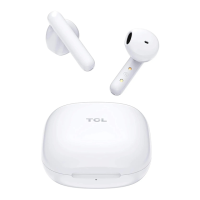
Color namePearl White
Control typeTouch
Headset typeBinaural
Product typeHeadset
Product colorWhite
Wearing styleIn-ear
LED indicatorsYes
Recommended usageCalls/Music
Protection featuresWaterproof
International Protection (IP) codeIPX4
USB connectorUSB Type-C
Bluetooth version5.0
Connectivity technologyWireless
Driver typeDynamic
Driver unit10 mm
Ear couplingIntraaural
Noise canceling typeActive
Microphone typeBuilt-in
Number of microphones2
Battery typeBuilt-in battery
Charging sourceUSB
Wireless chargingNo
Right earpiece battery capacity45 mAh
Battery capacity (charging case)750 mAh
Continuous audio playback time (with ANC)4.5 h
Continuous audio playback time (without ANC)6 h
Continuous audio playback time (with charging case/with ANC)26 h
Continuous audio playback time (with charging case/without ANC)30 h
MaterialPlastic
Weight and Dimensions IconWeight and Dimensions
Depth20.2 mm
Width29.3 mm
Height23.7 mm
Charging case weight36 g
Left earpiece weight4.2 g
Charging case dimensions (W x D x H)60.9 x 45.8 x 26 mm

Related product manuals