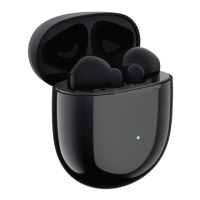
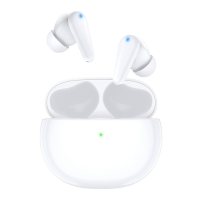
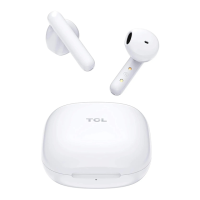
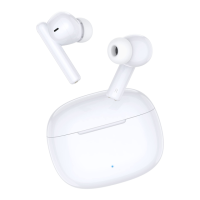
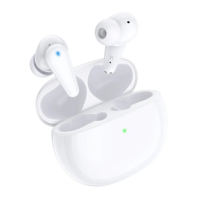
This document describes the TCL MOVEAUDIO S600 earbuds, providing comprehensive instructions for their use, maintenance, and troubleshooting. The earbuds are designed to offer a versatile audio experience, supporting music playback, call management, and voice assistant functions, all while providing noise control options.
Function Description
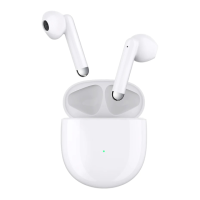
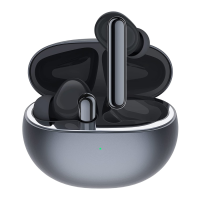
The TCL MOVEAUDIO S600 earbuds are a pair of wireless earbuds that connect to devices via Bluetooth. They come with a charging case that not only stores the earbuds but also charges them and itself. The earbuds feature touch control areas for various operations and an LED indicator for status updates. A function button on the charging case allows for checking charge status, resetting the earbuds, and initiating Bluetooth pairing. The charging case is equipped with a USB Type-C™ port for wired charging and also supports wireless charging.
The earbuds are designed to work with Android smartphones (Android 6.0 or later) and iOS devices (iOS 10.0 or later), offering seamless integration with the Google Fast Pair Service for Android users and Siri for iPhone users. The TCL Connect app enhances the user experience by providing additional controls and information.
Usage Features
Connectivity:
The earbuds can be paired with an Android smartphone using either manual pairing or Google Fast Pair Service. For manual pairing, users unlock their phone, turn on Bluetooth, open the charging case, and then press and hold the function button until the LED indicator flashes white. They then select "TCL MOVEAUDIO S600" from the available devices. For Android 6.0 or later, Google Fast Pair Service allows for automatic discovery and connection with a simple tap after unlocking the phone and enabling Bluetooth, Google Play services notifications, and Location. For other devices, the pairing process is similar to manual pairing. The earbuds can store up to 10 paired devices, with older information being overwritten if the maximum is exceeded. After successful pairing, the earbuds automatically connect to the last paired device if both are within range and turned on.
Music Playback:
Music playback is controlled via the touch control area on the earbuds. A single tap plays or pauses music, a double tap skips to the next song, and a triple tap goes to the previous song. These functions are assigned to the right earbud by default but can be customized using the TCL Connect app.
Volume Control:
Volume can be adjusted by tapping and holding the earbuds. This function can be assigned to either earbud through the TCL Connect app. A single tap can increase volume, while pressing and holding can decrease it.
Call Management:
The earbuds allow users to answer and control calls. A double tap answers or ends a call, while pressing and holding for 2 seconds rejects an incoming call. During call waiting, a double tap can answer an incoming call and place the current call on hold, or switch between calls. Pressing and holding for 2 seconds rejects an incoming call while staying on the current call. These call control functions are independent of other touch control settings and are assigned to the earbuds by default.
Noise Control:
The MOVEAUDIO S600 features noise control functions, including Noise Cancellation, Transparency mode, and OFF mode. By default, pressing and holding the right earbud for 3 seconds switches between Noise Cancellation and Transparency modes. Noise Cancellation reduces external sounds for an immersive experience, while Transparency mode allows external sounds to pass through, keeping the user aware of their surroundings. The TCL Connect app provides options to select and customize these modes for either earbud.
Voice Assistant:
The earbuds support voice assistant functions, integrating with Google Assistant for Android and Siri for iOS. For Android users, after connecting the earbuds and completing the Google Assistant setup, a single tap stops a conversation, a double tap reads notifications or confirms in a conversation, and pressing and holding activates Google Assistant for speaking. For iOS users, after connecting, installing the Google Assistant app, and enabling Bluetooth access, similar controls apply. The Google voice assistant function is assigned to the left earbud by default. Siri can be activated by pressing and holding the earbud, provided Google Assistant is deselected in the TCL Connect app.
Wearing Detection:
The earbuds include a wearing detection function, enabled by default. When an earbud is removed, audio pauses on both earbuds. Reinserting the earbud within 15 seconds resumes audio playback.
TCL Connect App:
The TCL Connect app (available on Google Play™ and App Store) serves as a central hub for managing the earbuds. It displays battery levels for both earbuds and the charging case, allows customization of touch functions (playback, volume, noise control, voice assistant), and provides access to additional features like firmware upgrades, device information (MAC address, model name), and FAQs. The app also allows users to unpair earbuds from their device.
Maintenance Features
Charging:
The earbuds are charged by placing them in the charging case and closing the lid. The charging case itself can be charged via the supplied USB Type-C cable connected to a computer or a compatible USB adaptor (rated 5V, at least 500mA), or by placing it with the LED indicator facing up on a compatible wireless charger. The LED indicator flashes solid amber during charging and solid green when charging is complete. A full charge for the case takes approximately 2 hours. The earbuds support a fast charge function, providing about 60 minutes of play time with a 10-minute charge in the case. Only the supplied USB charging cable should be used to prevent product damage.
Checking Charge Status:
The charge status of the charging case can be checked by pressing the function button or opening the case when no earbuds are inside. The LED indicator lights will show the battery level (solid green for above 50%, solid amber for below 50%). With earbuds in the case, the same actions will show the charge status of the earbuds. The TCL Connect app also provides a detailed battery level display for both the earbuds and the charging case. A low battery prompt tone is heard via the earbuds when their battery level drops below 10%.
Replacing Ear Tips:
To ensure comfort and optimal sound, users can replace the ear tips. To do so, firmly pull to remove the existing tip, choose a new one, align it with the earbud, and push until it clicks. Additional tip sizes are provided in the box.
Cleaning:
The device should be cleaned regularly with a dry and soft cloth. Liquids or cleaning products should not be used. Before cleaning, earbuds should be removed from the case, and the USB cable disconnected from both the case and the power adaptor.
Resetting Earbuds:
If connection or pairing issues arise, the earbuds can be reset. Place both earbuds in the charging case with the lid open, then press and hold the function button until the LED indicator flashes amber 3 times.


 To Next Page
 General
 Weight and Dimensions