4. TROUBLESHOOTING
ENGLISH VERSION
4- 2
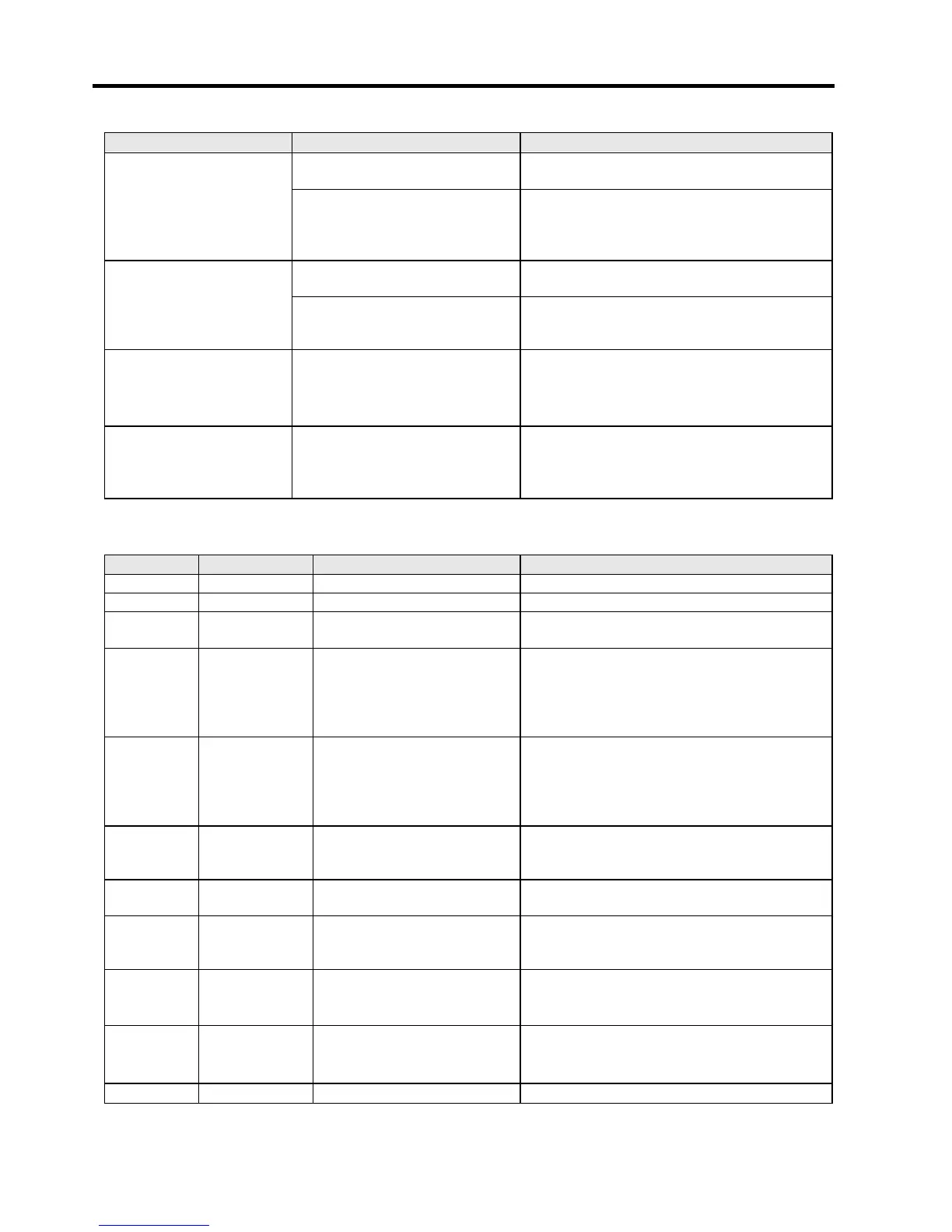
4.2 Status Lamp
Symptom Cause Solutions
The print head is dirty. Clean the print head.
(=
Section 3.1.1
)
Missing dots
When the missing dots affect printouts, turn
off the printer and contact the nearest
Tyco Electronics representative to ask for
re
rint head.
The
print head elements are
partly broken.
Tyco Electronics approved media
is not used.
Replace the media with Tyco Electronics
a
roved one.
Labels are not separated
from the backing paper
smoothly. (When the
optional strip unit is
fitted.)
Label loading method is
incorrect.
Load the label properly. (
=
Section 2.7)
Peel-off issue cannot be
performed. (When the
optional strip unit is
fitted.)
The strip sensor does not work
due to intense ambient light.
Fit the Shade Plate supplied with the strip
unit.
(=
Section 2.7
)
Media cannot be cut
cleanly. (When the
optional cutter unit is
fitted.)
The cuter blade has reached the
end of its useful life.
Turn off the printer and contact the nearest
Tyco Electronics representative to ask for
replacement of the cutter unit.
4.2 Status Lamp
Color Status Cause Solutions
Green Li
with a host Normal
Green Flashing
slowl
Printing is temporarily
sto
Press the [FEED] Button. Printing is
resumed.
Green/Red Flashing
slowly
The print head temperature
exceeded the upper limit.
Stop printing and allow the print head to cool
until the indicator lamp lights up in green. If
the indicator lamp does not light up in green
or this problem occurs frequently, contact the
nearest T
resentative.
Red Lights up A communication error
occurred. (Only when the
RS-232C is used.)
Turn off the power switch and back to on.
Or press the [FEED] Button. If this problem
frequently occurs, turn off the printer and
contact the nearest Tyco
Electronics re
resentative.
Red Flashing fast A paper jam occurred. Remove the jammed media, reload the
media, and press the [FEED] Button.
The media is ended.
Load a new media roll and press the [FEED]
Button.
Red Flashing
slowly
An issue or feed was
attempted with the top cover
o
ened.
Close the top cover completely, and press the
[FEED] button. Printing is resumed.
Orange Flashing fast A paper jam occurred din the
cutter unit. (Only when the
cutter unit is fitted.
Remove the jammed media, reload the
media, and press the [FEED] Button.
Orange Flashing at
medium speed
The ribbon is ended. Load a new ribbon and press the [FEED]
Button. (
=
Section 2.7
)
None Unlit The top cover is open. Close the top cover completely


 To Next Page