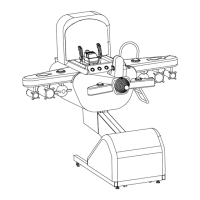
《
RAINBOW
》
Product Manual
V1.0
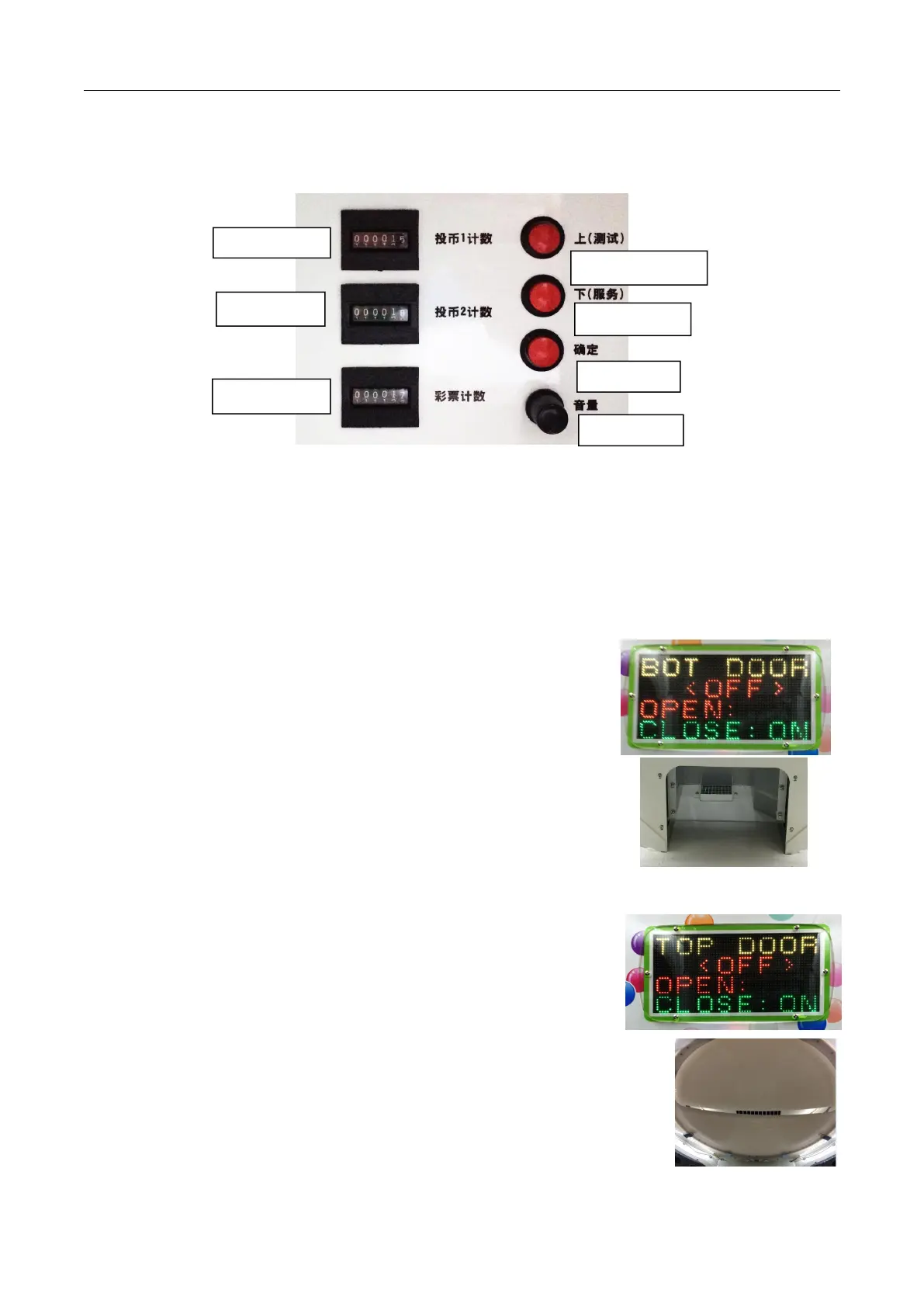
Setting Panel Description
up(test) :Click in the standby state to enter the test program; Press the flip page in the test
program
down(serve) :On standby, click the free game once; Click on the next page in the test
program
Enter :Tap in the test program to select or determine
2.2.1. Bottom Department Test
After entering the bottom department test, as shown in the right picture
1)Press "OK" key, the screen <OFF> becomes <ON>, the bottom department
starts continuously opens and closes; Press OK again, and the bottom department
2)In the process of opening and closing the bottom department:
When the bottom department is open, open (open) becomes on to indicate that
the "open check" micro switch is normal
3)When the bottom department is closed, close (off) turns on to indicate that
the "off check" micro switch is normal
2.2.2. Top Department Test
After you go to the top department test, as shown in the picture on the
1)Press "OK" key, the screen <OFF> becomes <ON>, the top department begins
to rotate clockwise, press "OK" again, top department stops; When testing again,
the top department rotates counterclockwise.
2)during the top department rotation (open and close):
3)When the top department is closed, close (off) becomes ON to indicate that the
"off check" sensor is normal.
4)When the When department is closed, close (off) becomes on to indicate that
the "off check" sensor is normal.


 To Next Page