《
RAINBOW
》
Product Manual
V1.0
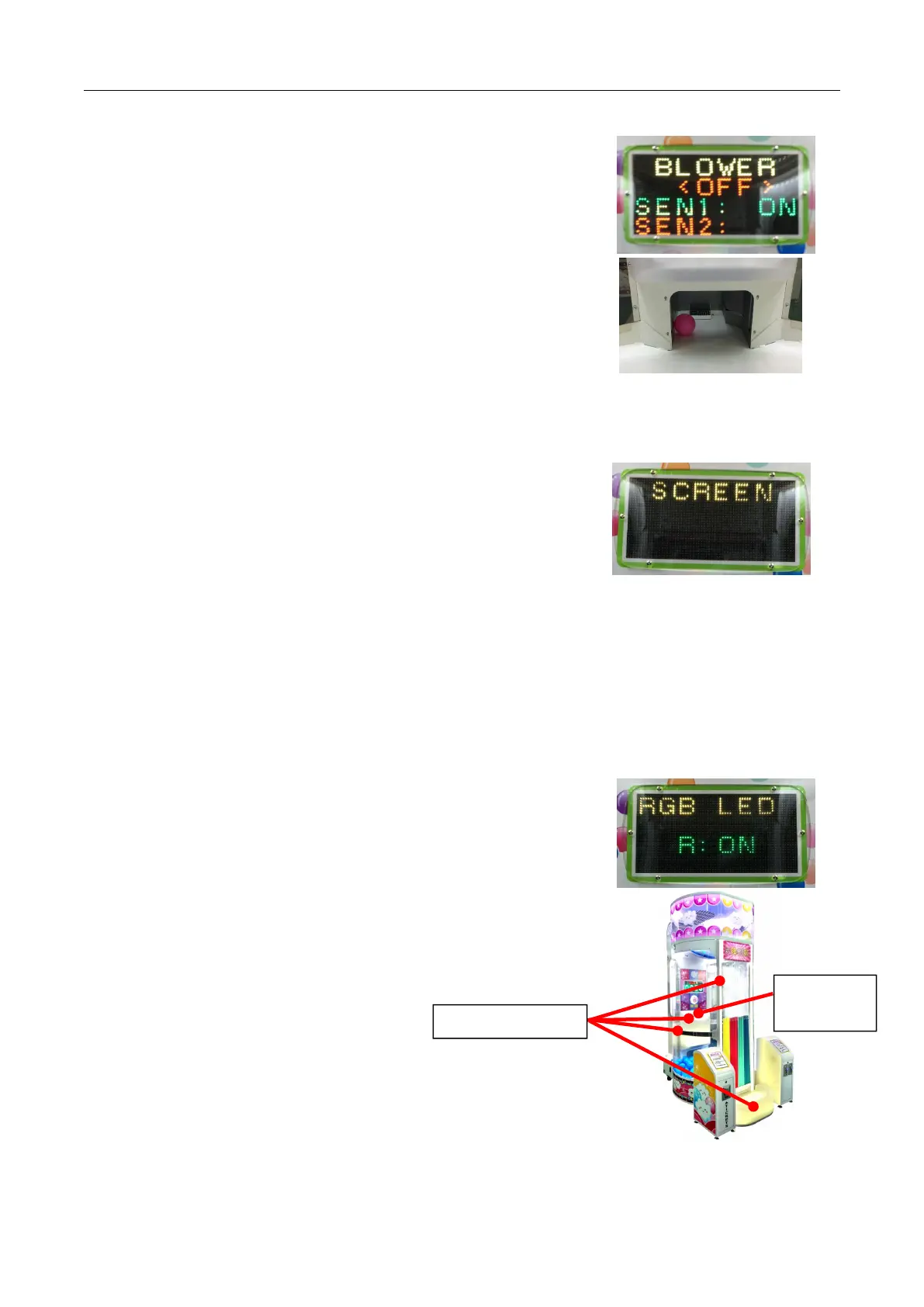
After entering the wind turbine test, as shown in the right picture.
1)Press "OK" key, the screen <OFF> becomes <ON>, the bottom Wind turbine
starts to work, presses "OK" again, the Wind turbine stops working。
2)when is no ball in the recovery ball, the "on" screen "SEN1" does not
show "on"; when the ball is in the recycling ball, as in the right, the "SEN1"
on the screen displays "on".
After enter the screen test, as shown in the image on the right.
Press the “OK”key,the screen will alternately display red and green
lines moving from top to bottom.
Observe whether the line is continuous, the color is normal, so as to
determine whether the lattice screen is normal
2.2.4. Three-color LED light test
After entering the three-color LED light test, as shown in the right
Press the “OK” button to display the screen alternately:


 To Next Page