Desktop Adjustment
Desktop Adjustment
The height and angle of the Desktop can be adjusted to
accommodate users of varying heights and desktop uses.
Increase Desktop Height
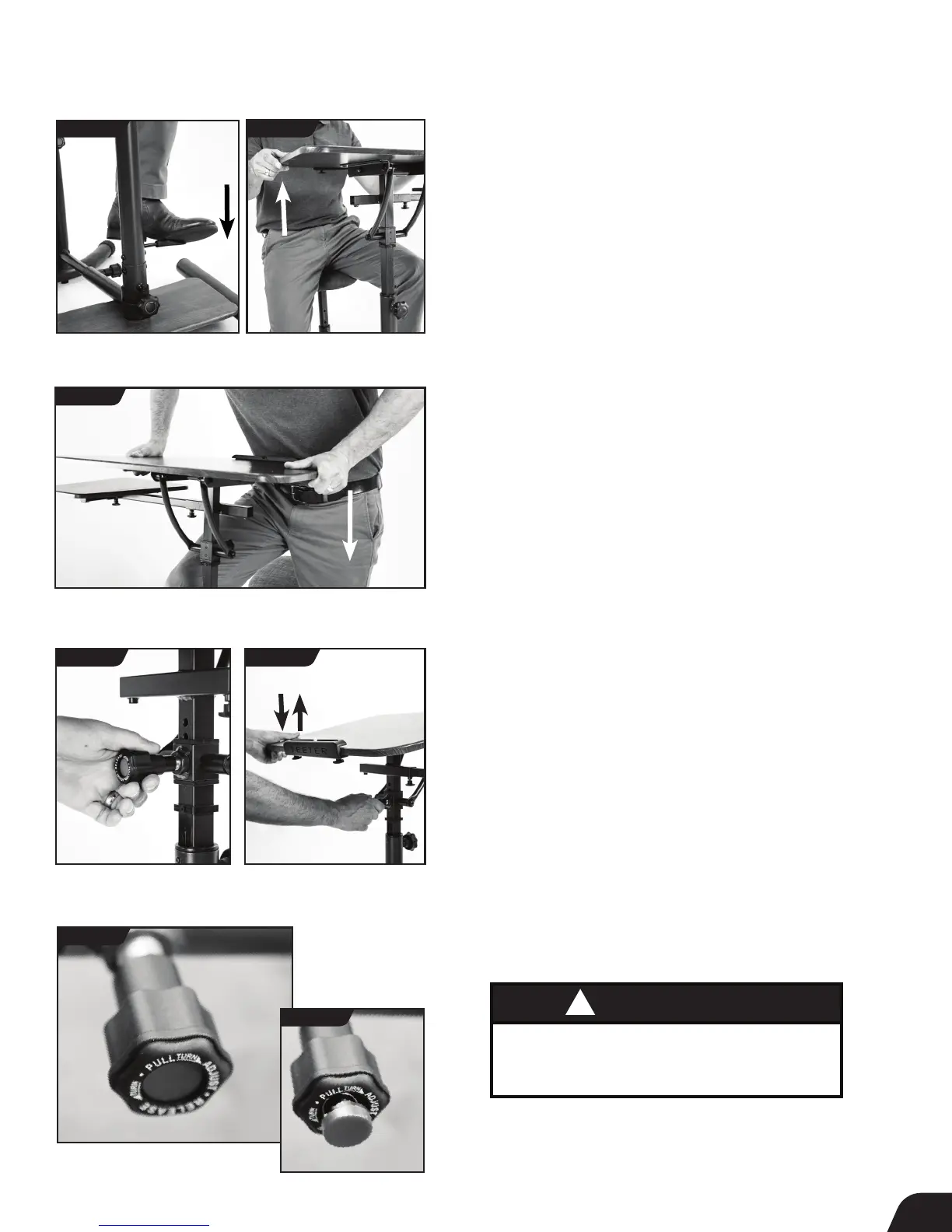
• Loosen the Desktop Stabilizer Knob.
• Press your foot down onto the Height Adjustment Lever and maintain
steady pressure until the desktop reaches your desired height level
(Figure 10a). To achieve maximum desktop height, you may need to
grasp each side of the Desktop and gently lift it (Figure 10b).
• Retighten the Desktop Stabilizer Knob.
Decrease Desktop Height
• Loosen the Desktop Stabilizer Knob.
• Press your foot down onto the Height Adjustment Lever while also
gripping each side of the Desktop and applying gentle downward
pressure until you reach your desired height level (Figure 11).
• Retighten the Desktop Stabilizer Knob.
Desktop Angle Adjustment
• Desktop angle settings include 0 (horizontal), 15, 30 and 45 to
accommodate various desktop uses.
• Pull out the Desktop Angle Auto-Locking knob toward you with one
hand while gripping the bottom of the desktop with the other hand.
Angle the Desktop up or down to achieve the desired angle
(Figures 12a & 12b).
• Release the Knob and gently move the Desktop up or down to
engage the Knob in a hole setting. Once in the desired hole setting,
the Auto-Locking Knob button automatically depresses or "locks"
once engaged (Figures 13a &13b).
• Retighten the Knob.
9
FIGURE 10a
FIGURE 10b
FIGURE 11
FIGURE 12a FIGURE 12b
FIGURE 13b
FIGURE 13a
UNLOCKED
LOCKED
WARNING
!
ALWAYS ensure that the Auto-Locking Knobs are
properly locked in a hole setting denoted by a
depressed red button in the center prior to use.



 To Next Page