28 JULY 2016 13
5. Using Pan and Zoom to
Navigate through Long
Records
Especially for acquisitions of 20M points, it is
important to be able to navigate through the record.
Pan and zoom enable this.
1. Press the Acquire button on the front panel.
Notice that the Multipurpose Knob LED is on,
which means it can be used to make a
selection.
2. Set Record Length to 20M by turning the
Multipurpose Knob (MPK) and press the
knob to make the selection.
3. Change the horizontal scale to 10ms/div with
the Horizontal Scale knob
4. Press the Zoom button. The button lights to
show that Zoom is active.
5. Turn the MPK to change the zoom scale
factor from 1X to 100000X. See the details
of the trigger edge (Figure 8).
6. Set the zoom factor back to 100X. Press the
Position bezel button. Turn the MPK to
position a falling edge in the center of the
zoom area.
7. Press the Scale bezel button, and use the
MPK to zoom in on the falling edge detail.
Adjust position if needed (Figure 9).
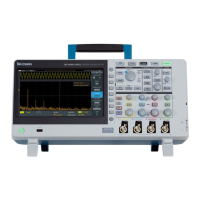
Figure 8. Zooming in on a rising edge
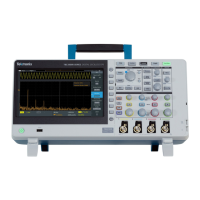
Figure 9. Zooming in on a falling edge




 To Next Page