Appendix A Technical information
A.1 Troubleshooting
The following table can help you solve problems when installing the router. If you cannot solve the problem, contact
your dealer for more information.
Symptom Solution
None of the LEDs light up on
the router.
Check the power supply to the router (power source, ON/OFF switch, mains sock-
et).
You have forgotten the router's
access password.
Ignore the configuration using the RST button (as explained in the relevant sec-
tion).
The LAN Switch LED never
turns green.
Check the Ethernet cable and the connection to the network.
Verify that you have the appropriate license.
The Eth WAN LED never turns
green.
Check the Ethernet cable and the connection to the network.
The Wi-Fi LED never turns
green.
Check your router's configuration and that of the remote station(s).
Verify that you have the appropriate license.
A.2 Updating the software
The Teldat Connect-104KF routers can be updated to newer versions. Please contact your dealer for further details
on new versions.
There are several ways to update a Teldat router: Please see manual “ Dm 748-I Software Updating ” for further in-
formation.
The software required to update Teldat routers is supplied in a format known as distribution. This consists of a
single file that contains all the files needed to update your device as well as detailed information on the content of the
files.
A.3 Connecting to the device
A.3.1 Connecting using the local console (Aux connector)
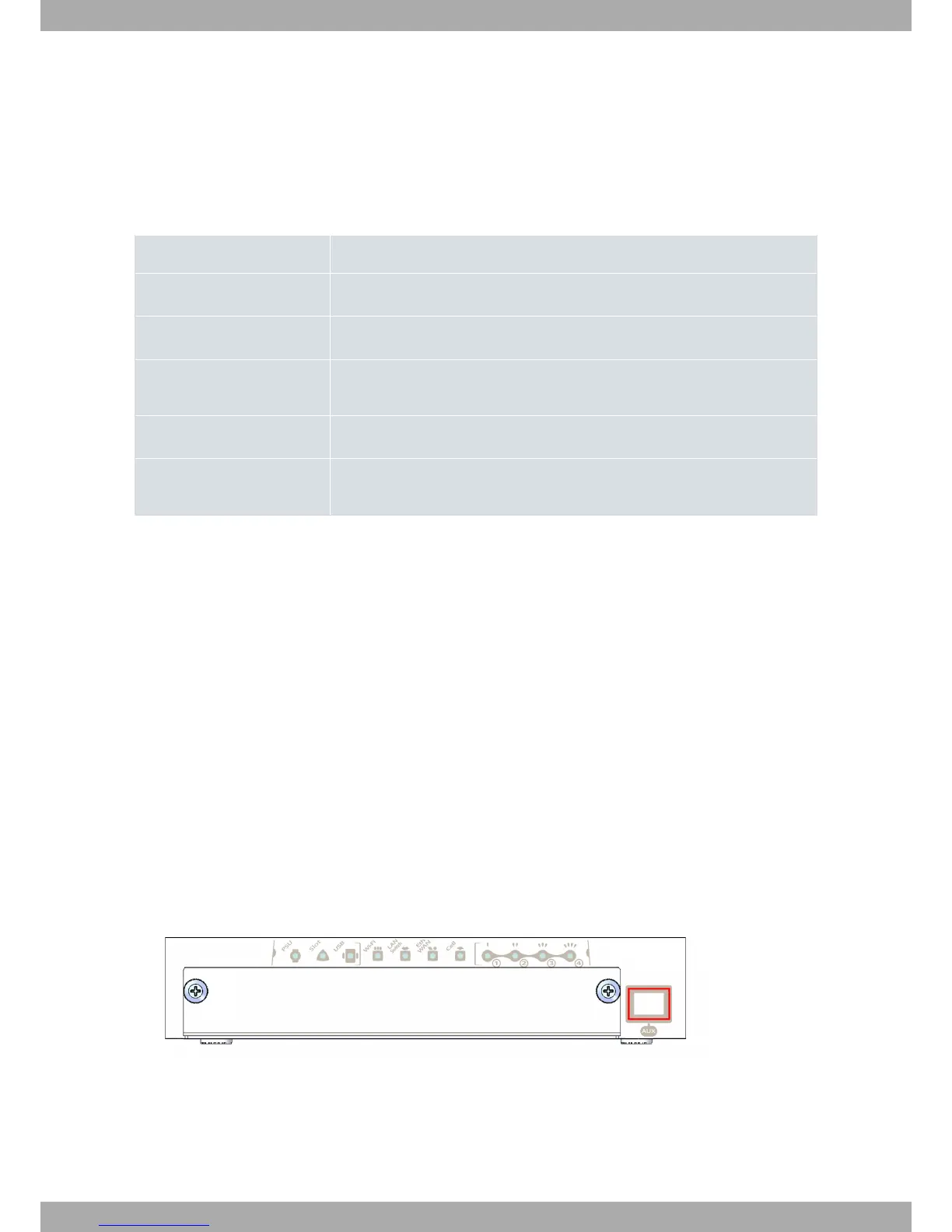
Teldat Connect-104KF routers have an RJ45 female connector on the front panel labeled "Aux.” that provides ac-
cess to the device's local console.
Fig. 13: Aux Connector
In order to configure the connector, you need to connect the “ Aux.” port to an asynchronous terminal (or to a PC
with terminal emulation).
The terminal configuration should be set to:
Technical information Teldat S.A.
12 Teldat Router Connect-104KF



 To Next Page