TELINDUS 1132/1133 Web Interface User’s Guide
Version 2.0 Page 18/57 December 2004
4.4.1.5 Static Connection Setup
Static is used whenever a known static IP is assigned. The accompanying information such as
the Subnet mask and the gateway should also be specified. Up to three Domain Name Server
(DNS) addresses can also be specified. These servers would enable you to have access to other
web servers. Valid IP addresses range is from 0.0.0.0 to 255.255.255.255.
To configure the ADSL Router for a Static connection, click on Setup and then click on New
Connection. The default Static connection setup is displayed. At the Type field select Static and
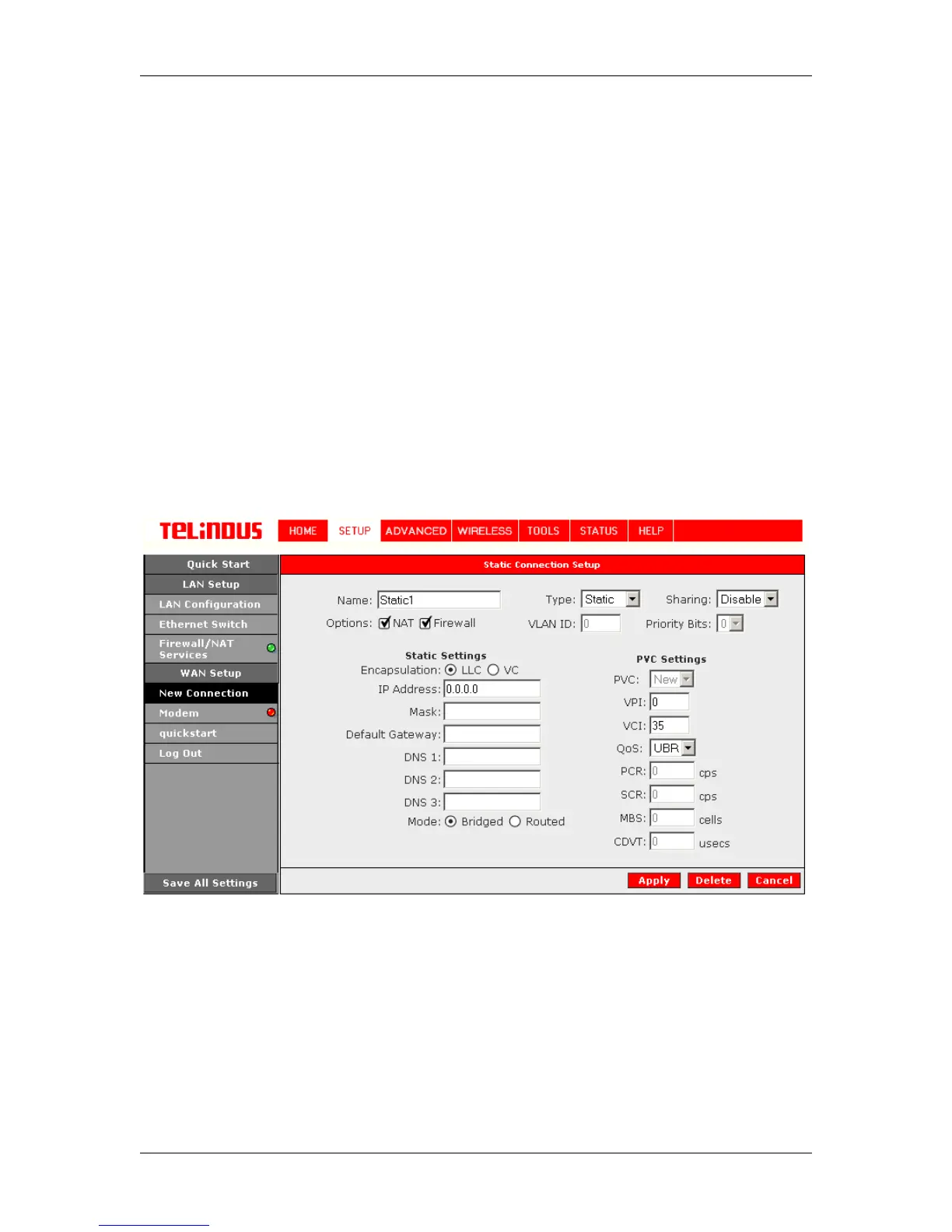
the Static connection setup page is displayed; Figure 9 illustrates a typical Static configuration.
Give your Static connection a unique name; the name must not have spaces and cannot begin
with numbers. In this case the unique name is called Static1. Select the encapsulation type (LLC
or VC); if you are not sure just use the default mode. Select the VPI and VCI settings; your DSL
service provider or your ISP will supply these; in this case the DSL service provider is using 0,35.
Also select the ATM Quality of Service (QoS); leave the default value if you are unsure or the ISP
did not provide this information. You can also enable Network Address Translation (NAT) and
the Firewall options. If you are unsure, leave these in the default mode.
Based upon the information your DSL/ISP provided, enter your assigned IP address, Subnet
Mask, Default Gateway (if provided), and Domain Name Services (DNS) values (if provided). For
the static configuration, you can also select a bridge connection or a routed connection. Since
static IP address is typically used to host WEB servers, you may want to use a bridge connection.
Figure 9 (Static Connection Setup)
To complete the connection you must now click the Apply button. The Apply button will
temporarily save this connection. To make the change permanent, you need to click on Save All
Settings. At the System Commands page under the TOOLS, click on Save All.
4.4.1.6 Classical IP over ATM (CLIP, defined in RFC1577) Connection Setup
The Classical IP over ATM (CLIP) support provides the ability to transmit IP packets over an ATM
network, CLIP support will encapsulate IP in an AAL5 Packet Data Unit (PDU) frame using



 To Next Page