This manual provides an easy guide for connecting your Telstra Business Service to the nbn™ network, suitable for Fibre to the Premises (FTTP), Hybrid Fibre Coaxial (HFC), and Fixed Wireless (FW) connection types. It walks you through the setup process, from identifying necessary components to connecting your devices via Wi-Fi, and offers troubleshooting tips and frequently asked questions.
Getting Started
Before you begin, it's crucial to identify if you have any safety-critical devices that rely on your existing phone line. These include monitored fire alarms, ATMs or EFTPOS machines, back-to-base security alarms, FAX or PBX systems, emergency lift phones, and medical alert services. If you have any of these, you must stop and contact your equipment provider(s) to ensure they will work on the nbn network. Additional information on this topic is provided in the FAQs.
The first step in setting up your nbn service is to unplug all devices from your phone sockets. This includes telephones, modems, ADSL filters, EFTPOS, and FAX machines. Once you switch to the nbn, these traditional telephone wall sockets will no longer function for these devices.
Parts You Need
To connect your Telstra Business Service, you will need the following parts, which should be included in your kit:
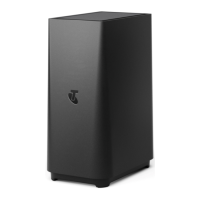
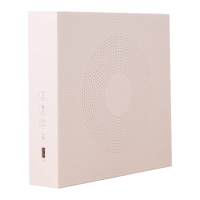
- Telstra Business Smart Modem™: This is the central device for your internet connection.
- Black power adaptor: To power your Smart Modem.
- Cable with yellow ends (LAN): Used for connecting devices to the modem via Ethernet.
- Cable with red and yellow ends (WAN): Used to connect the modem to the nbn Connection Box.
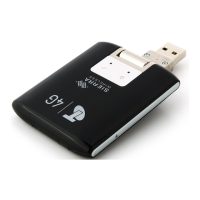
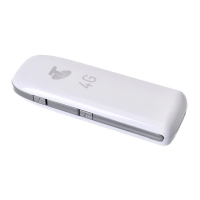
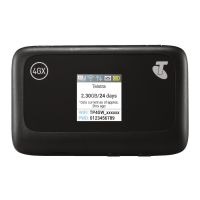
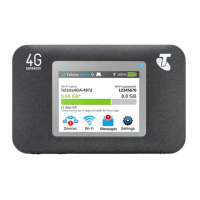
- Telstra 4GX USB Pro™: A USB device that provides mobile backup for your internet and phone services in case of an nbn connection fault.
- Wi-Fi card: Contains your network name (SSID) and security key (password) for Wi-Fi connection.
Identifying Your nbn Connection Box
Your nbn Connection Box is a crucial component that connects your premises to the nbn network. It can appear in one of three forms, depending on your connection type, and may be attached to a wall or be a standalone unit. It's important to locate this box and ensure its power is switched on before proceeding with the setup.
- Fibre to the Premises (FTTP): For FTTP connections, you'll need to remove the cover of the nbn Connection Box to locate the yellow UNI-D1 port on its underside. This is where you will connect your modem.
- Hybrid Fibre Coaxial (HFC): For HFC connections, locate the yellow port on the back of the nbn Connection Box.
- Fixed Wireless (FW): For FW connections, locate the UNI-D1 port on the underside of the nbn Connection Box.
Set Up Steps
Follow these five steps to get your Telstra Business Service connected:
- Connect the Telstra Business Smart Modem: Plug the red and yellow WAN cable into the corresponding port on the back of your Smart Modem and the other end into the yellow UNI-D1 port on your nbn Connection Box (or the appropriate port for your connection type).
- Power on the Smart Modem: Connect the black power adaptor to your Smart Modem and plug it into a power outlet. Press the power button on the back of the modem. On first use, it may take up to 15 minutes for the modem to connect. Once connected, the lights on the front of the modem will show a solid blue.
- Insert the Telstra 4GX USB Pro: Plug the Telstra 4GX USB Pro into the designated USB port on your Smart Modem. This device ensures your internet and phone services continue to work even if there's a fault with your nbn connection, providing a mobile backup.
- Connect your devices: Use the yellow-ended LAN cables to connect your devices (e.g., computers, printers) directly to the Ethernet ports on the back of your Smart Modem.
- Connect a phone (optional): If you have a traditional phone, use your existing phone cords to connect it to the phone ports on the back of your Smart Modem.
Connecting Your Devices via Wi-Fi
Once your Smart Modem is set up and connected, you can connect your devices wirelessly:
- Search for Wi-Fi network: On your device (e.g., laptop, smartphone), search for available Wi-Fi networks.
- Enter password: Locate the network name (SSID) and security key (password) on your Wi-Fi card. Select your Wi-Fi network from the list and enter the password when prompted.
- Repeat for other devices: Repeat these steps to connect all your other Wi-Fi enabled devices.
You have the option to change your Wi-Fi network name and password for enhanced security or personalization. Details on how to do this are provided in the FAQs.
Troubleshooting
If you encounter issues, here are some troubleshooting tips:
- Restart your modem: Switch your modem off and back on, then wait a few minutes. This often resolves minor connection glitches.
- Modem placement: Ensure your modem is elevated and not placed near objects that can interfere with Wi-Fi signals, such as refrigerators, thick walls, fish tanks, and microwaves. Optimal placement can significantly improve Wi-Fi performance.
- Check Telstra 4GX USB Pro: Make sure your Telstra 4GX USB Pro is securely plugged in. This is vital for maintaining internet and phone service during nbn outages.
- Online resources: For detailed information on internet speeds, visit telstra.com.au/small-business/internet/nbn/nbn-speeds-explained.
- Online troubleshooting tool: Use the online troubleshooting tool at fix.telstra.com for guided assistance.
- FAQs for Smart Modem: Refer to the Telstra Business Smart Modem FAQ at telstra.com.au/small-business/online-support/category/broadband/nbn/.
- Chat support: If you're still stuck, use the "Chat Now" option on the Telstra website.
- NBN troubleshooter: For further troubleshooting information, visit telstra.com.au/small-business/online-support/category/broadband/nbn/nbn-troubleshooter.
- Contact support: If you require more assistance, call 132 999 (English). For other languages, visit telstra.com.au/contact-us/multilingual-services.
- Recycling old modem: Information on recycling your old modem can be found at recyclingnearyou.com.au/ewastescheme.
Understanding Indicator Lights
The indicator lights on your Telstra Business Smart Modem, Telstra 4GX USB Pro, and nbn Connection Box provide important status information.
Telstra Business Smart Modem Front Light Indicators:
- Solid Blue: You're connected to the nbn network.
- Solid Orange: You're connected to your mobile backup connection (via the 4GX USB Pro).
- Solid Green: You're ready to make and receive calls on the nbn network.
Telstra 4GX USB Pro Lights:
- Solid Blue (3G network available): Connected to your backup pathway with 3G signal strength.
- Solid Cyan (4G network available): Connected to your backup pathway with 4G signal strength.
- Solid Red (No network available): No mobile network is available for backup.
- Note: In Mobile Backup mode, you may receive notifications via SMS or email.
nbn FTTP Connection Box Lights:
- Update (Red): Your nbn Connection Box has failed to download software.
- Alarm (Red): Your nbn Connection Box has a fault and is not working normally.
- Optical Indicator (Red): Your nbn Connection Box has lost connection with the fibre network.
- If any of these lights are red, try switching the power off, waiting a few seconds, and switching it back on. If the lights remain red, contact 132 999.
- Ensure your equipment is plugged into the correct UNI-D port. Most nbn services use UNI-D port 1, but if you're having issues, try UNI-D 2-4, allowing about 60 seconds for the new port to activate. If your nbn service still doesn't work, contact 132 999.
nbn HFC Connection Box Lights:
The nbn HFC Connection Box has four indicator lights on the front panel: Power, Downstream, Upstream, and Online. During startup, these lights will flash. Once they become solid green, the service is ready.
- Power (Green): Power is available to the box.
- Downstream (Green): The connection is ready to download data.
- Upstream (Green): The connection is ready to upload data.
- Online (Green): Indicates nbn network connecting.
- If any lights are flashing and not solid, check all cables are securely connected. If they are, power cycle the nbn Connection Box. If lights continue to flash after 10 minutes, contact 132 999.
nbn Fixed Wireless Connection Box Lights:
- Power Indicator:
- Green: Power on.
- No Power: Check if the nbn Connection Box is plugged in and switched on.
- Status Indicator:
- Green (Normal operation): Device is in normal operation.
- Green flashing (Test mode): Device is in test mode.
- Amber flashing (Device is starting up): Device is starting up.
- Solid Red (System fault): There is a system fault.
- Outdoor Unit Indicator:
- Green (Online): Online.
- Green flashing (Activity): Flashing activity.
- Red (Offline): Offline.
- Red flashing (Error): There is an error.
- Signal Indicator:
- Red: Low signal strength.
- Amber: Medium signal strength.
- Green: High signal strength.
- If the Status Indicator or Outdoor Unit Indicator light is red, contact 132 999.
Frequently Asked Questions (FAQs)
- Device usage during setup: During the nbn connection setup, you will temporarily lose access to existing services like internet, telephone, medical, fire, and security alarms, and EFTPOS machines. It's important to have a charged mobile phone or another alternative communication method handy during this period.
- Moving premises: All nbn-supplied equipment is the property of nbn and must not be removed from your premises if you move.
- Safety-critical devices: If you rely on a medical alarm, fire alarm, or lift emergency phone, contact your device provider to confirm compatibility with your new nbn service or to find an alternative solution (e.g., wireless/mobile alarm). Register these devices with nbn by calling 1800 227 300 or visiting nbn.com.au/compatibility.
- Monitored security alarms: Your monitored security alarm might work with nbn, but you should check with your alarm provider before switching and test it on the day your new plan is activated. For more information, visit nbn.com.au/alarms.
- Power blackouts: Devices connected to your nbn service will not work during a power blackout. Always have an alternative communication method, such as a charged mobile phone. For safety-critical devices, discuss alternative solutions with your device provider to maintain service during a power blackout.
- Changing Wi-Fi network and password: The factory-set Wi-Fi details are unique and secure, but you can change them. If you previously had an internet service with Telstra or another provider, you can reuse your old Wi-Fi network details (name and password) on your new modem, allowing devices to automatically connect. To change your Wi-Fi details, connect to your network, open a browser, and type http://mymodem or http://192.168.15.1. The username is
admin and the password is telstra (these can also be changed). Once logged in, click on the 'Wi-Fi' tab and remember to click 'Save' after making changes.

 Need help?
 General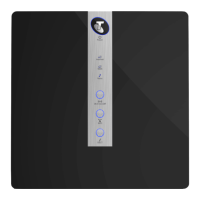


 To Next Page