EasyManua.ls Logo

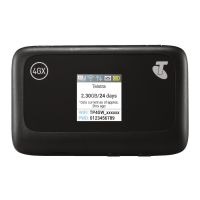
Telstra MF910V - User Manual

Telstra MF910V
31 pages
Print Icon
To Next Page IconTo Next Page
Loading...
Page 1 of 31
TELSTRA 4GX WI-FI (MF910V)
USER MANUAL
Copyright © 2016. All rights reserved.
No part of this publication may be excerpted, reproduced, translated or utilized in any form or by
any means, electronic or mechanical, including photocopying and microfilm, without the prior
written permission of ZTE Corporation.
The manual is published by ZTE Corporation. We reserve the right to make modifications on errors or
update specifications without prior notice.
The worst case simultaneous Wi-Fi and RF SAR result for this device is 1.918W/Kg
in the Body Position with 10mm separation.
Search ‘ZTE Australia’ on Facebook , Google+ and Twitter to keep in touch.
Version 1.0 Jan 2016
CHECK YOUR SYSTEM REQUIREMENTS
Your 4GX Wi-Fi will connect to any Wi-Fi enabled device that supports Wi-Fi
802.11 b/g/n
A web browser is required to log in to your Wi-Fi hotspot if you wish to make any
configuration changes.
USB driverless connection is also supported for Windows (not RT), and MAC
operating systems:
Windows 10, 8 (not including RT) / 7 / XP / Vista
MAC OS X 10.7 and above
Using the USB connection requires administrator rights to install and run the
software.
We suggest you switch off your anti-virus software before connecting the hotspot
- In some cases protection software can prevent automatic installation.
Question and Answer IconNeed help?

Do you have a question about the Telstra MF910V and is the answer not in the manual?

Summary

Check Your System Requirements

Get To Know Your Device

Insert Your Standard Sized SIM Card

Important SIM Card Notes

Important notes regarding SIM card compatibility and usage.

SIM Card Handling Tips

Tips for handling SIM card and security.

Charge Your Wi-Fi Hotspot

Power Up Your Wi-Fi Hotspot

LED Indicators Explained

Explains the meaning of different LED lights on the device.

Power Up Tips

Tips for battery life and LED behavior.

Connect Devices by Wi-Fi

Web Interface Overview

Status Icons in Web Interface

Explains the icons used in the web interface for status.

Network Access Issues

No Network Access Causes

Lists common reasons for no network access.

International Roaming

Information on using the device internationally and associated charges.

Network Locked Device Information

Explains that the device is locked to Telstra and how to unlock it.

Installation Notes

Web Interface Guide

Home Tab Functionality

Describes the Home tab of the web interface for connection status and data usage.

Quick Settings Wizard

WAN Connection Mode

Network Selection

APN Settings

Wi-Fi Basic Settings

Wi-Fi Advanced Settings

WPS Wi-Fi Connection

Account Management

USIM PIN Management

Device Reset and Restart

Reset Device to Factory Defaults

Resets the device to its original factory settings.

Restart Device

Restarts the Wi-Fi hotspot device.

Power Save Settings

Software Update

Port Filtering

Port Forwarding

UPnP Settings

DMZ Settings

System Security Settings

Router Settings

Internet Wi-Fi Connection

SMS Messaging

Phonebook Management

Device Information

External Antenna Ports

Details about the device's external antenna ports and their usage.

Getting Help and Support

Troubleshooting Guide

Precautions and Safety Information

RF Safety Information

Radio Frequency Energy

Declaration of Conformity - SAR

Technical Specifications

Telstra MF910V Specifications

Battery IconBattery
battery capacity2300 mAh
active battery life10 hours
standby time200 hours
Power IconPower
voltage5 V
resting current100 mA rms
maximum current500 mA rms
Operating Environment IconOperating Environment
minimum operating temperature-5 ºC
maximum operating temperature45 ºC
Weight and Dimensions IconWeight and Dimensions
dimensions104 x 65 x 14.6 mm
weight106 g

Related product manuals