Page 16 of 31
• WPS uses the push button on the front panel to connect seamlessly to
supported devices.
• Press WPS to enable, compatible devices can connect to your Wi-Fi network
without authorisation, or you can set a PIN if required.
• WPS is enabled for 2 minutes once pressed and the device LED’s will flash to
indicate WPS mode.
• If you have enabled PIN mode then you need to enter the same PIN on devices
you wish to connect.
• Press the Help icon to get in context tips
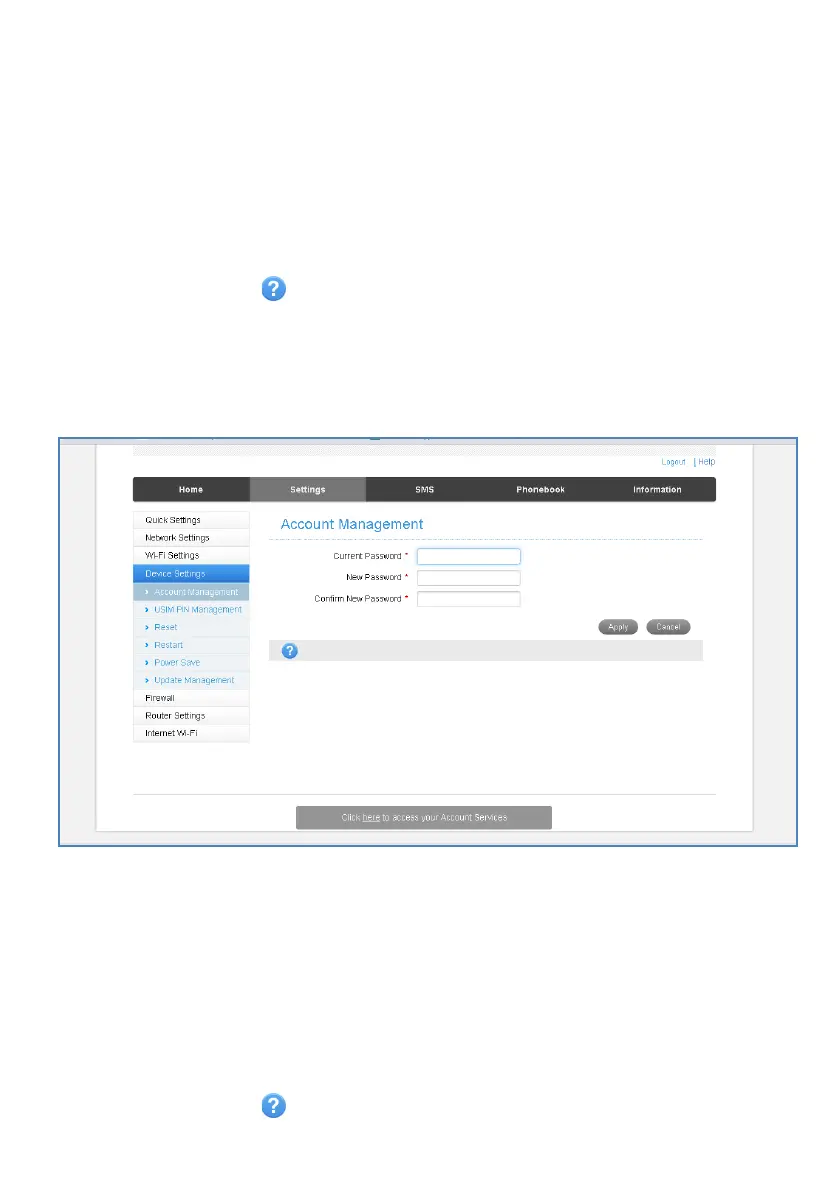
SETTINGS > DEVICE SETTINGS > ACCOUNT
MANAGEMENT
• Use the Account Management settings to change the administrator password if
required.
• The default password is password. If you have changed and forgotten the
password then you need to restore the device to factory defaults:
1. With the device switched on open the SIM slot cover and locate the reset
button next to the SIM slot.
2. Using an item such as a paperclip or pin press the “Reset” button briefly until
the LED’s go out.
3. The device will re-start with factory default settings.
• Press the Help icon to get in context tips



 To Next Page